Configuring Your Grip 500 Mouse
You can enable features and customize the configuration of you Grip 500 from the main
configuration window and the subsequent windows that open depending on what you are
adjusting.
Main Window
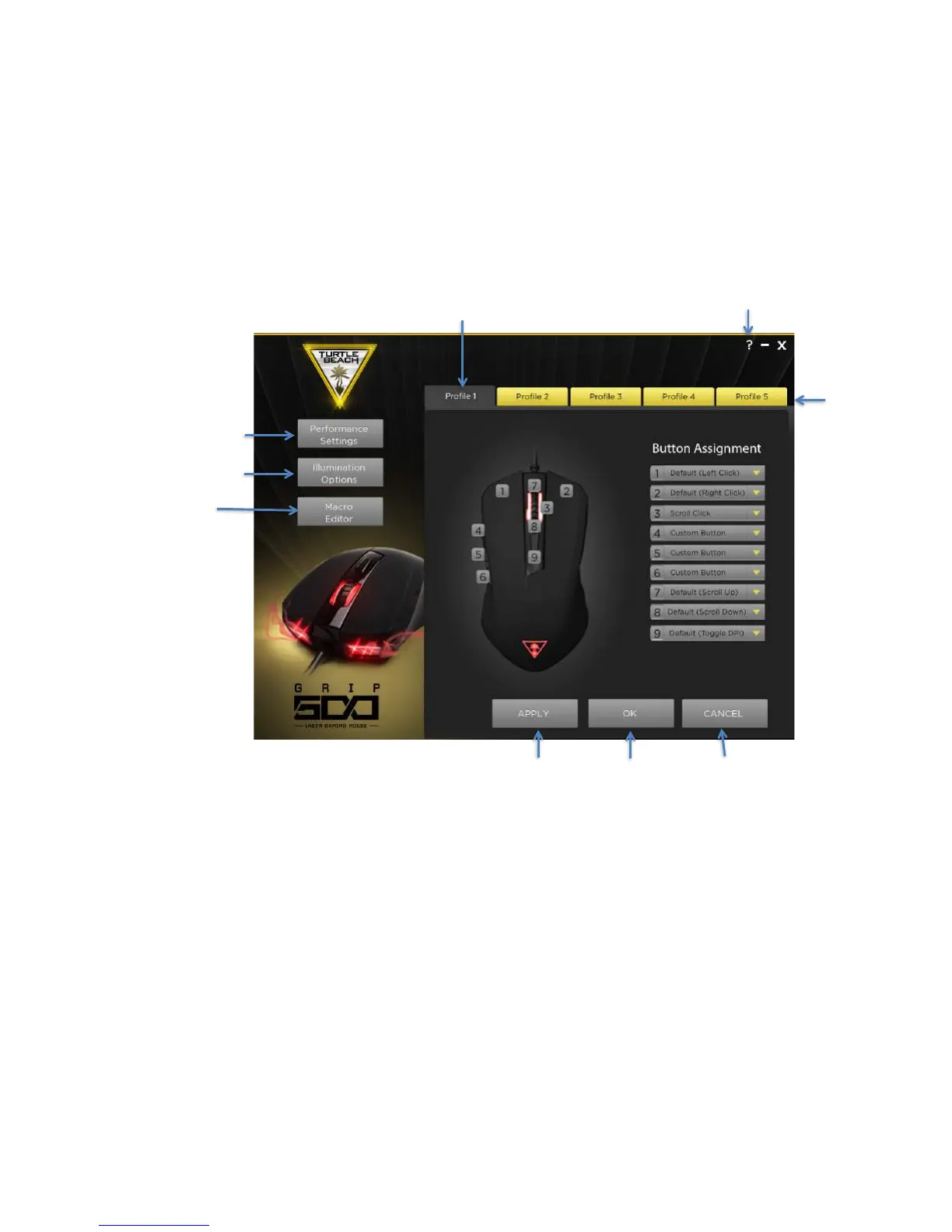
Basic operations such as assigning actions to buttons and managing Profiles are
accomplished from the main window.
Profiles
Grip 500 can be programmed with up to 5 Profile. A Profile holds all the configuration settings of you mouse
including button assignments, macro assignments, illumination settings, and performance settings. It may be
convenient to create a custom for your favorite games or applications. We also suggest that you select a
different scroll wheel illumination color for each profile so that you can quickly see which profile you have
selected.
The 5 profiles are stored in memory on the mouse so they will be present even if you plug your mouse into another
computer that does not have the software installed. The profile that is active on the mouse is selected either by
clicking on the Profile bar at the top of the window or by pressing the Profile button on the bottom of the mouse.
Pressing the Profile button will cycle through your 5 Profiles. The currently active Profile will be on the top
layer of the stack of Profiles and is Darkened while the other profiles are in the background and are gold colored.
To create a custom profile, select the settings and button assignments that you would like and then click on Apply.
Pressing the Apply Button loads the Profile to the mouse and leaves the Configuration Window open for more
operations. Pressing the OK button loads the Profile settings to the mouse and then closes the Window. Pressing
the Cancel Button cancels all changes.



 To Next Page