Performance Settings
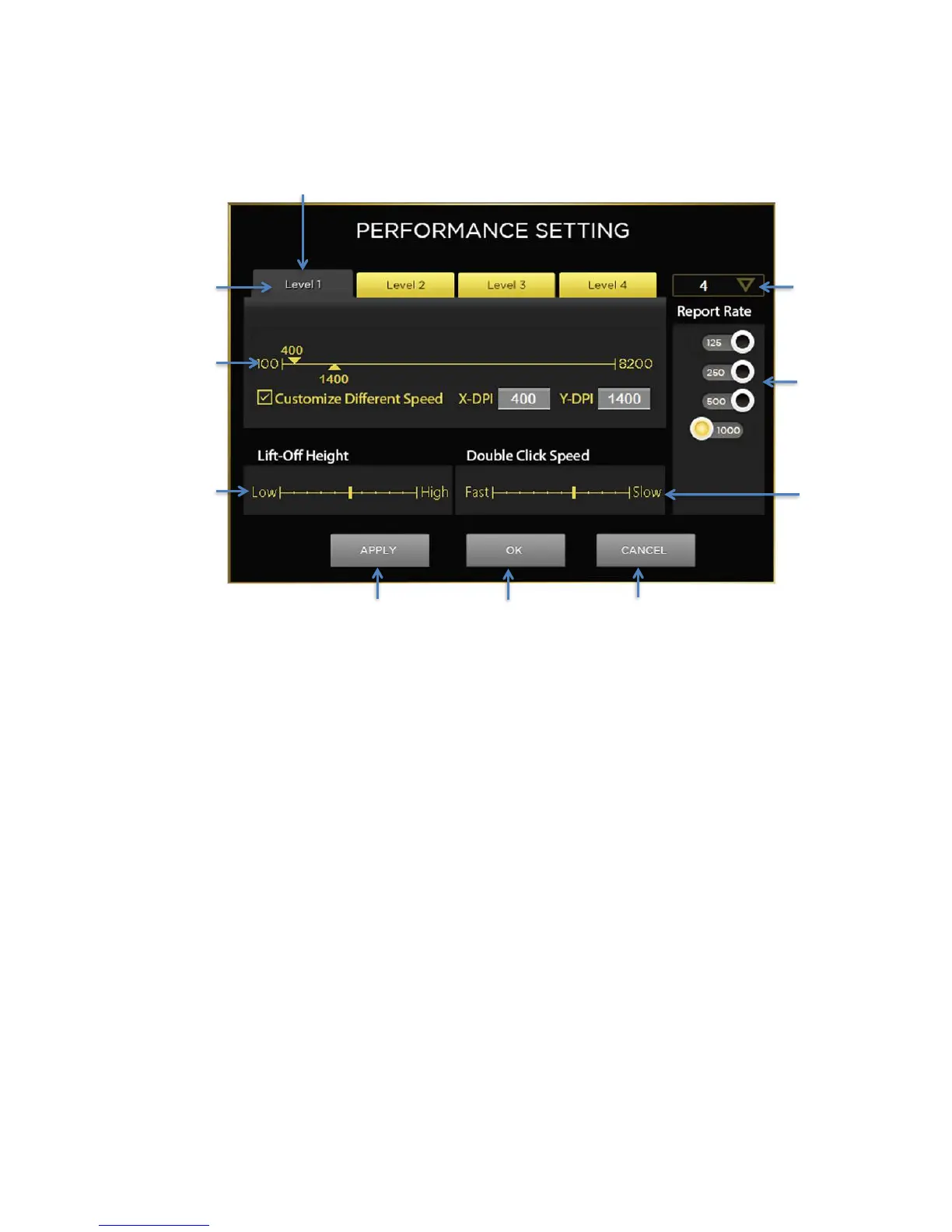
To customize the performance settings of your mouse, press the Performance Settings button. This will open the
Performance Settings Window.
This window allows you to customize the following for your mouse:
• Mouse movement speed (DPI) can be adjusted in up to 4 levels from DPI of 100 to 8200 in increments of 50 DPI.
• DPI for the X direction (horizontal) and Y direction (vertical) can be set differently if you’d like. This may useful
in games where you want to be able to move or aim faster left to right than up and down.
• Report (Polling) Rate can be set in the following levels – 125, 250, 500, or 1000 Hertz. Generally if you have a fast
computer, 1000 Hz is best. If you have a slower computer a lower setting may be better.
• Lift-Off Height. This adjustment allows you to tailor how high you have to life the mouse off the surface to get it
to stop tracking. This can be useful to get the best performance from you mousepad and your personal preference
for moving and picking up your mouse.
• Double click speed – Adjusts how fast you click the buttons to get Windows to register it as a double clike.
Setting DPI levels
On the upper right section of the window, select the number of DPI levels you would like in this profile (from 1 to
4). This will change the number of panels you will be visible. The currently active Level will be on the top layer
of the stack of Levels and is Darkened while the other Levels are in the background and are gold colored.
Setting DPI in each level
For each level that you created, set the DPI by sliding the DPI slider to the DPI you want. Or you can click in the
DPI box and type the exact DPI.
If you’d like to set the X and Y DPI’s differently, select the Customize Different Speed checkbox. This will then
separate the DPI slider into 2 different ones and you can then the X and Y DPI’s to different numbers.



 To Next Page