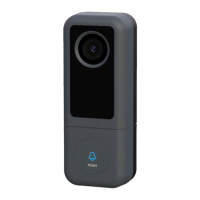
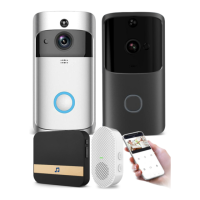
Need help?
Do you have a question about the TUYA 96236 and is the answer not in the manual?
Guides users to download the Tuya Smart and Smart Life mobile applications.
Detailed instructions for connecting the doorbell using a QR code scan.
Steps for establishing a connection using the Wi-Fi mode.
Basic steps for connecting the chime to the doorbell and phone.
How to cycle through and select different tunes for the chime.
Procedure to activate the chime's indicator light using the volume button.
Pressing the Call Button to activate the chime.
Pressing the Call Button again to hear the selected chime tune.
This document provides a quick user guide for a Smart Wireless Doorbell that supports Power over Ethernet (PoE) and unlock functionality. It covers setup, connection, operation, and technical specifications.
The Smart Wireless Doorbell is a security and video surveillance device designed for home use. It features a 1080P camera for video monitoring, a keypad for access control, and RFID card support for unlocking. The doorbell integrates with the Tuya Smart Home app (Tuya Smart or Smart Life) for remote management, including live view, playback, motion detection alerts, and device sharing. It can be connected via Wi-Fi or an Ethernet cable, and supports a wireless chime for audible alerts within the home. The device also offers cloud storage service for video recordings and is compatible with Amazon Alexa and Google Home for additional smart home integration.
Model: 96236 Camera Sensor: 1/2.9" CMOS GC2053 Video Resolution: PAL/NTSC: 1920*1080 DSP: MT816 Video Compression: H.264 Lens: 2.4mm, M12 lens Minimum Illumination:
Getting Started: The device indicates its status with an indicator light: flashing means it's waiting for pairing, and solid means Wi-Fi is connected. Users need to download either the Tuya Smart or Smart Life app to register an account and add the device.
App Download and Registration: Users can download the "Tuya Smart" or "Smart Life" app from their respective app stores. New users must register an account, while existing users can simply log in.
Adding the Device: Within the app, users select "Add Device" and choose "Security & Video Surveillance" -> "Smart Doorbell".
Connection Methods: The doorbell supports three connection methods:
Device Added Successfully: Once connected, the app displays the device's live view and various control options like playback, gallery, theme color, device volume, motion detection, lock, and edit settings.
Troubleshooting Connection Failure: If connection fails for a second user, a long press of the reset button for 1 minute is required, followed by waiting for the device to reboot. Simply quitting the app or power cycling the device will not resolve the issue.
Wiring Options: The manual illustrates three wiring options for connecting the doorbell with an electronic lock and power supply, including configurations with a Wi-Fi router and a PoE switch.
Unlocking the Door: From the app's live view, users can tap the "Lock" icon to unlock the door. A confirmation prompt appears before unlocking.
Device Sharing: The doorbell supports sharing with up to 10 mobile phones simultaneously. To share, the primary user creates a home in the app, adds members by entering their Tuya account, and then the invited members accept the invitation and add the device to their home.
Motion Detection: The doorbell supports PIR motion detection with an SD card. Users can enable motion detection alarms and adjust sensitivity levels within the app's settings. Notifications are pushed to the smartphone when motion is detected.
MicroSD Card Usage: The SD card slot is located at the bottom of the outdoor unit. It enables motion detection and video playback. The device supports up to 128GB high-quality SD cards. Before use, the SD card must be formatted via a computer or the app. For 8G/16G/32G cards, FAT32 format is required; for 64G/128G cards, EXFAT format is needed. The app also provides options to check SD card storage and format it.
Cloud Storage Service: An optional cloud storage service is available for recording videos, offering protection against data loss or theft.
Wireless Chime Setup: The doorbell can be connected to an optional wireless chime for audible alerts inside the home.
Power Supply: The IP doorbell supports various types of 12V 1A power adapters (EU, AU, UK, US types).
Memory Reset for Password and RFID Key: To reset, press the "SET" button for 3 seconds until a long beep is heard, then press it 3 more times quickly for three long beeps.
Master Password Setup:
Unlock Password Setting:
Unlock Password Deleting:
RFID Key Setting:
RFID Key Deleting:
Keyboard Backlight Setup:
Installation: The manual provides diagrams for surface mounting the doorbell, including recommended installation height (150-160cm) and viewing angle (90°). It also shows how to correctly position the doorbell to avoid obstructions.
 General
| Brand | TUYA |
|---|---|
| Model | 96236 |
| Category | Accessories |
| Language | English |

 To Next Page