- 6 -
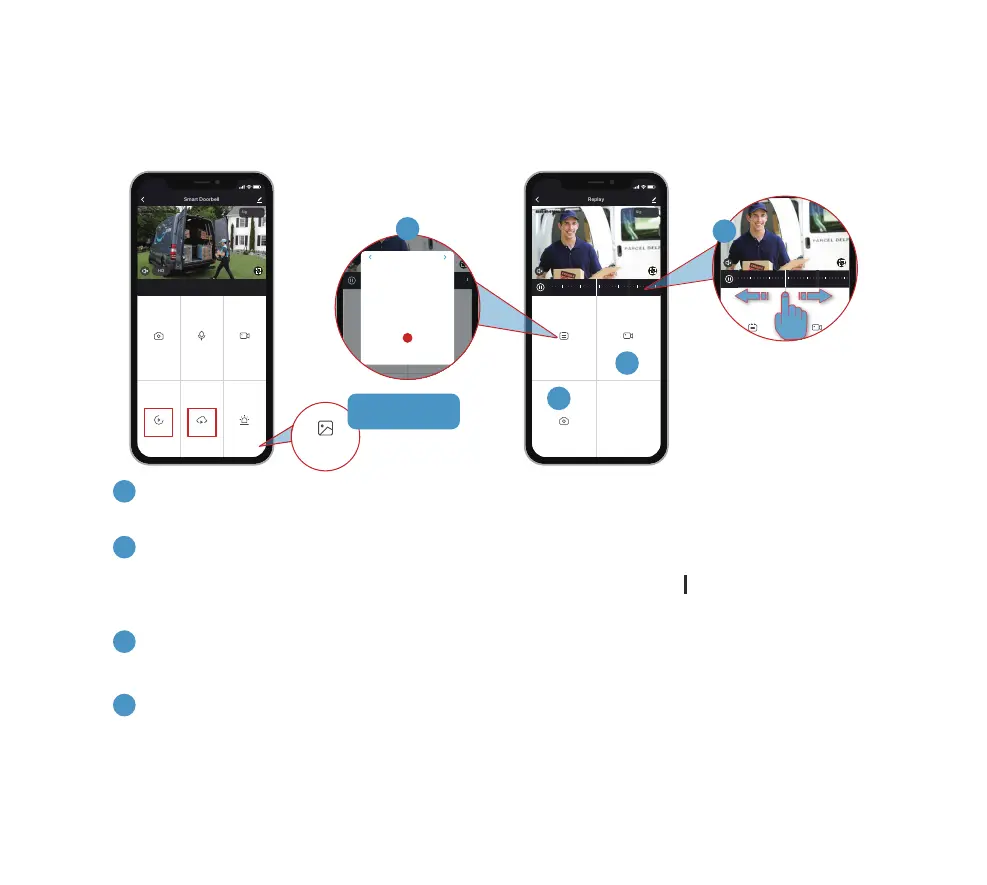
Tap Playback icon to play the videos recorded in the MicroSD card. If you have purchased cloud
storage service, tap on Cloud storage to playback the recorded historical events.
8. Video Playback
1
Time Line:
Slide the timeline to the left or right to locate video recordings according to time period.
Pinch with your finger and thumb to zoom in/out the timeline. The grey bar ‘ ’ stand for a video clip that
had been recorded.
Date:
Check video history by date. The numbers in dark grey stand for the dates that have video recordings.
2
Screenshot:
Tap to capture a photo and save to Photo alnum, Where you can share it to others.
3
Record:
Tap to start recording a video, tap again to end and save to Photo alnum, Where you share the video clips
to others.
4
Screenshot
Date Record
Replay
Signal: 86%
2020-07-17 09:55:37
2020-07-17 09:55:37
9:55
13:42 13:48 13:54 14:00 14:06 14:12
3
4
Screenshot
Date Record
Replay
Signal: 86%
2020-07-17 09:55:37
2020-07-17 09:55:37
9:55
13:42 13:48 13:54 14:00 14:06 14:12
Screenshot
Date Record
Replay
Signal: 86%
2020-07-17 09:55:37
2020-07-17 09:55:37
9:55
13:42 13:48 13:54 14:00 14:06 14:12
2020 - 07
Sun Mon Tue Wed Thu Fri Sat
1 2 3 4
8 9 10 115 6 7
15 16 17 1812 13 14
22 23 24 2519 20 21
29 30 3126 27 28
2
Screenshot
Speak Record
Playback
Cloud Storage Alarm
Smart Doorbell
Signal: 86%
HD
2020-07-17 09:55:37
2020-07-17 09:55:37
9:55
1
Photo album
Scroll down to
get Photo album


 To Next Page