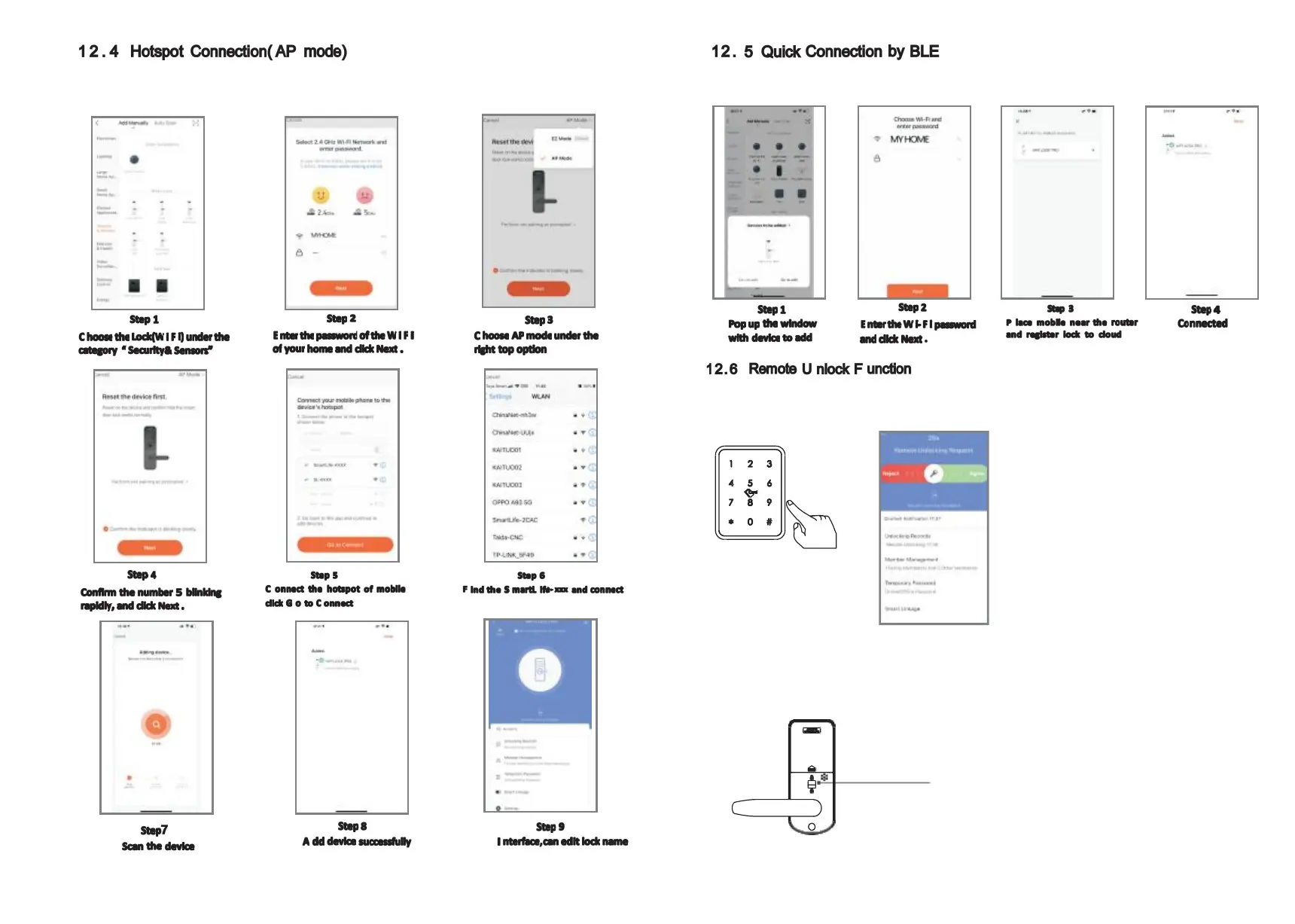
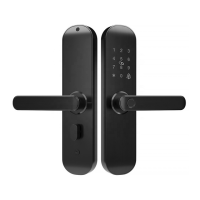
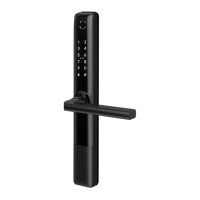
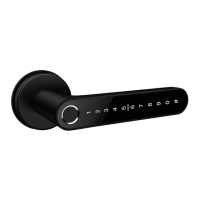
Please run the Tuya smart APP and choose the W i F i lock under the “Security&Sensors” .
please ensure the privacy button is under unlock state, if it is under lock state, you can not
configu re the W i - F i connection.
This is one extra way for connection by BLE. T his operation shall be done for the lock that
under AP or EZ mode state(N umber 5 flashing). there is one window pop up as below:
When the visitor press the number 9 and # by sequence, there is one remote unlock
request send to the administrator in the A pp as the photo, you can press the “ Agree”
to unlock the door or reject to cancel the operation.
Please notice: the remote unlock feature will not work when the lock is under
dead lock state, only the administrator
( fingerprint/ password or card user) can access during this state.
P rivacy B utton



 To Next Page