27
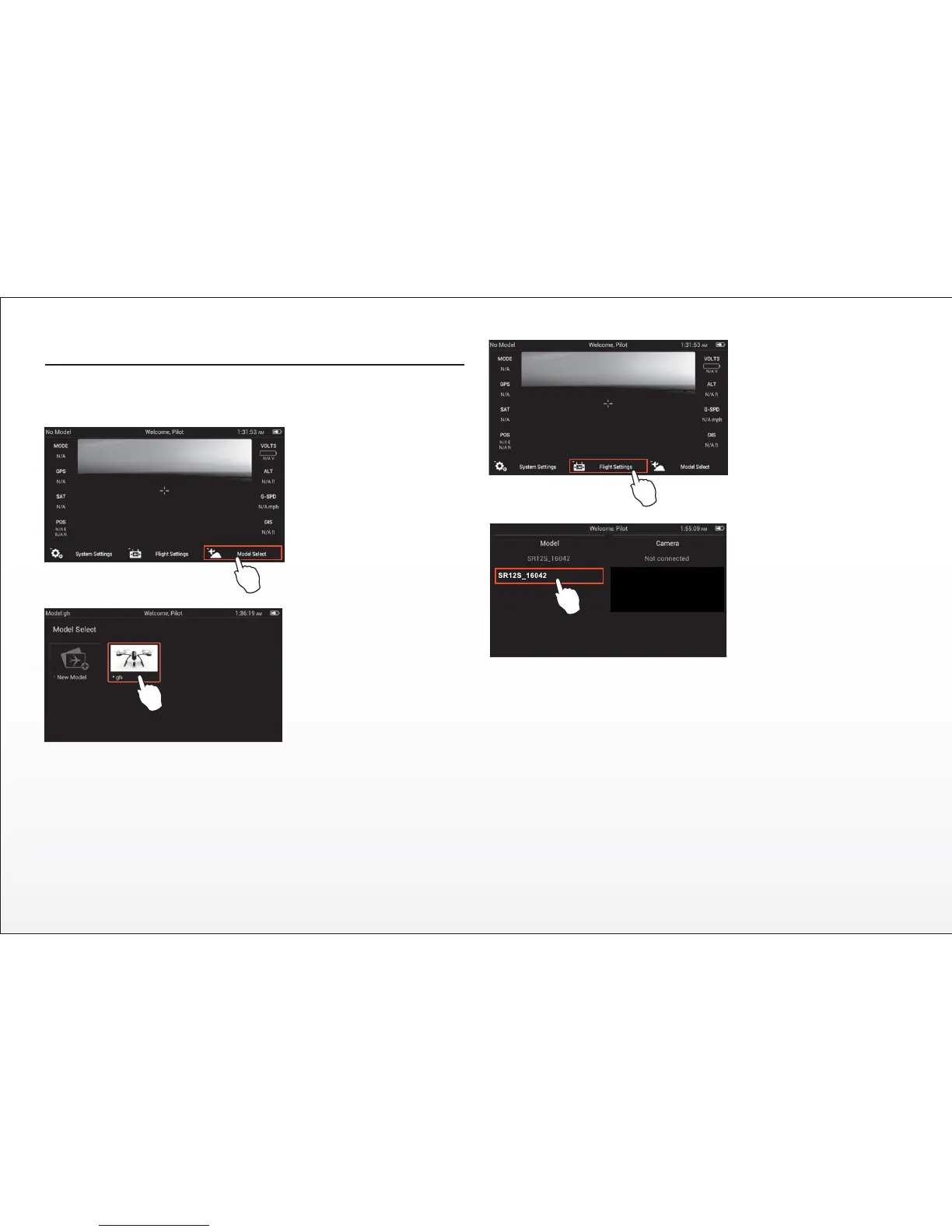
Step 5) Tap the ‘Flight
Sengs’ buon, and if
required press ‘OK’ to
bypass any pop up
warnings/alerts.
Step 6) Tap the ‘Bind’
buon and select the
‘SR12S_XXXXX’ receiver
listed in the column under
‘Model’, then tap ‘OK’ aer
the connecon has been
established.
Step 7) Tap the ‘Back’
buon two (2) mes to
return to the main screen
and the model/receiver
should automacally
connect to the ST10.
ST10 AND CGO2-GB BINDING
Step 1) Turn on the ST10, and if required tap the screen (outside of the pop
up status window) to bypass the RC and WiFi connecon process.
Step 5) if required tap the
screen (outside of the pop
up status window) to
bypass the RC and WiFi
connecon process, then
tap the ‘Flight Sengs’
buon and press ‘OK’ to
bypass any pop up
warnings/alerts.
Step 6) Tap the ‘Bind’
buon and select the
‘CGO2_XXXXXX’ camera
listed in the column under
‘Camera’, then enter the
password ‘1234567890’
when prompted and tap
‘OK’ aer the connecon
has been established.
Step 7) Tap the ‘Back’ buon two (2) mes to return to the main screen and
the camera should automacally connect to the ST10.
IMPORTANT NOTE: Streaming video from the CGO2-GB to the ST10 and
to a separate phone/tablet (or another Yuneec transmier/personal
ground staon) at the same me is NOT recommended as it will result in a
very significant lag in the video downlink.
Step 2) Tap the ‘Model
Select’ buon, and if
required press ‘OK’ to
bypass any pop up
warnings/alerts.
Step 3) Select the exisng
model (for example: ‘Q500’)
you would like to bind to (or
create a ‘New Model’), and if
required press ‘OK’ to
bypass any pop up
warnings/alerts.
Step 4) Turn on the Q500
and ensure that the
CGO2-GB is powered on.


 To Next Page