MEDIA MODE 25
Android Auto™ And Apple CarPlay® Tips
And Tricks
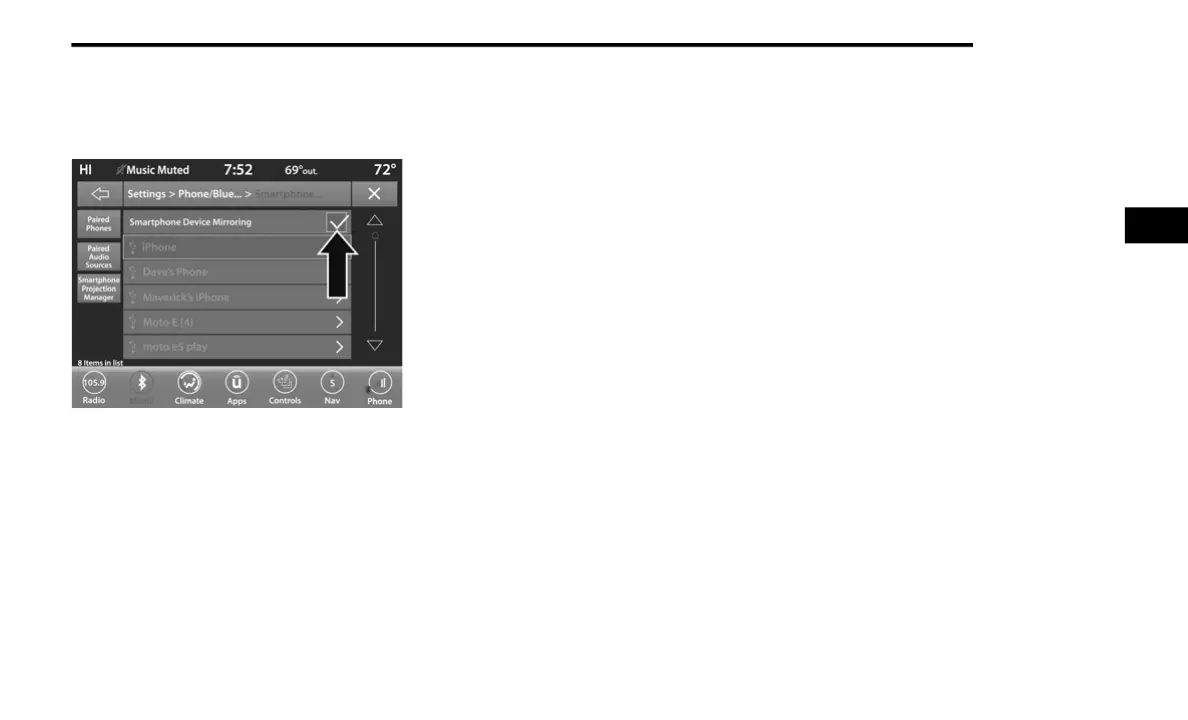
Smartphone Device Mirroring
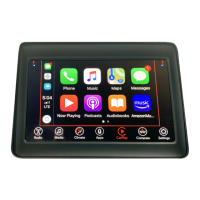
Once downloaded or activated, Android Auto™
and Apple CarPlay® will automatically start
when your smartphone is plugged into a USB
port. This function can be activated/
deactivated through the Smartphone Projection
Manager.
To activate/deactivate this feature, connect
your smartphone with the manufactures USB
cable to the vehicle’s USB ports.
1. Press the Phone/Bluetooth® button in the
Settings menu, or press the Apps button.
2. Press “Smartphone Projection Manager”.
3. The setting, Smartphone Device Mirroring,
will display with a check mark. To deactivate
Android Auto™ and Apple CarPlay® for all
devices, press the check box. To reactivate
Android Auto™ and Apple CarPlay® for all
devices, press the check box again until a
check mark appears.
Android Auto™ and Apple CarPlay® can also be
activated/deactivated on specific devices.
1. In Smartphone Projection Manager, select
the name of the device you would like to
activate/deactivate Android Auto™ and
Apple CarPlay®.
2. The setting, “Enable Android Auto™” or
“Enable Apple CarPlay®”, will display
depending on your smartphone. Press the
check box to deactivate these features. To
reactivate Android Auto™ and Apple
CarPlay®, press the check box until a check
mark appears.
3
20_00_U4C8_EN_USC_t.book Page 25



 To Next Page