62 NAVIGATION MODE — IF EQUIPPED (4C NAV ONLY)
6. Press the Route To button on the
touchscreen to confirm your route, and then
press “GO!” to confirm your destination and
begin your route.
If you are currently on a route guidance and you
select a Geo-Coordinate, the system will ask you
to choose one of the following:
Cancel previous route
Add to Current Route
Within “Add to Current Route”, you can add
the destination to your current route, or set it
as your final destination.
NOTE:
You can press the Back Arrow button on the
touchscreen to return to the previous screen or
the X button on the touchscreen to exit.
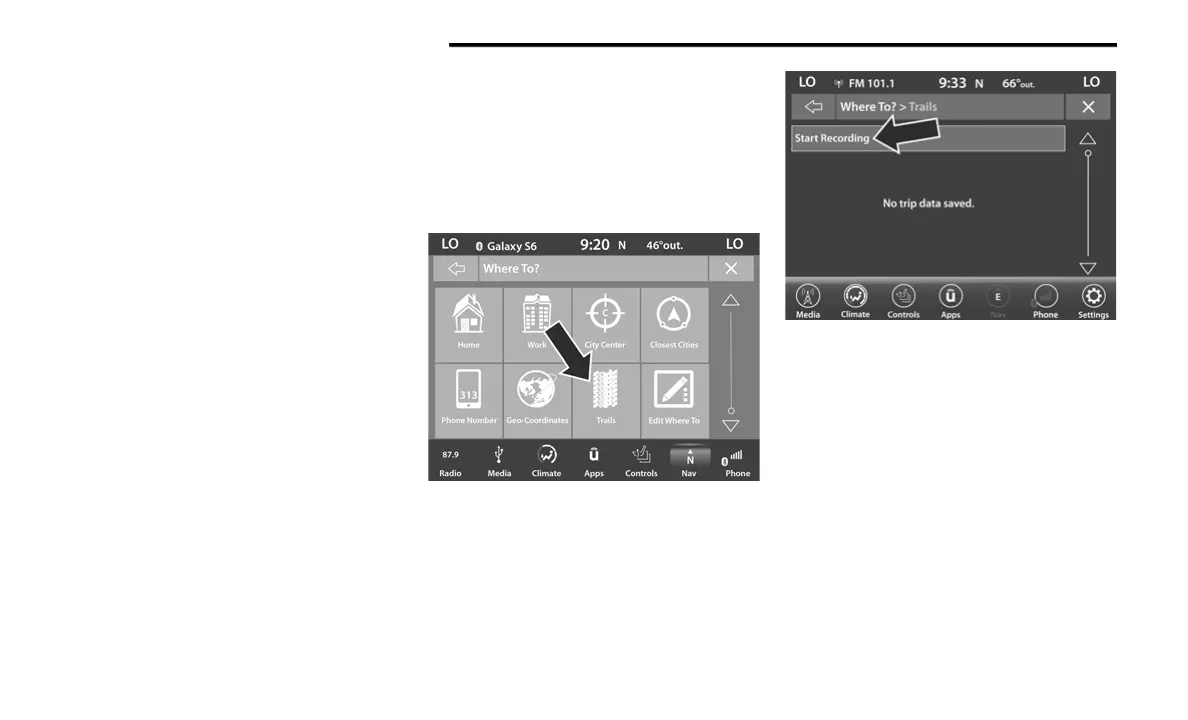
Where To? — Trails
When starting to drive a trail you want to record,
follow these steps:
1. While in the Nav Main Menu, press the
Where To? button on the touchscreen then
press the Trails button on the touchscreen.
2. Press Start Recording.
3. When you want to end the recording of a
route, press the Record button, and press
Yes to confirm.
The trip you recorded will be added to the
Recent Trails list.
20_00_U4C8_EN_USC_t.book Page 62



 To Next Page