www. udggear.com
CAUTION: NEVER attempt to adjust any component position without first unlocking the Lever Clamp.
CAUTION: NEVER unlock the Lever Clamp or attempt to adjust position while your gear is on the stand.
NOTE: Ignoring either of these cautions will void the warranty and could result in damage to UDG
Laptop/Controller Stand or gear.
2.1.4 Features
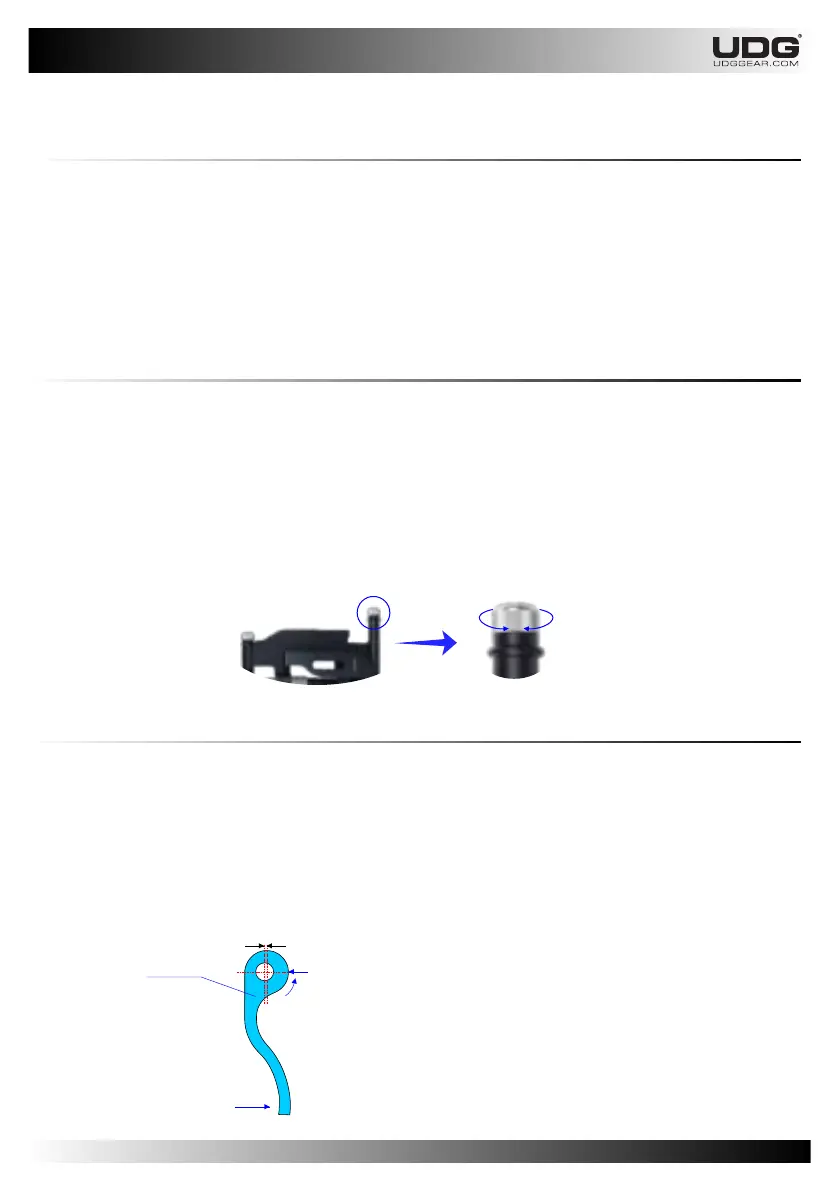
The aluminium knurled Knob is useful to adjusting Lever clamping pressure for your UDG
Laptop/Controller Stand. To have the best clamping pressure you have to adjust the knob by :
a) Rotate clockwise to increase Lever clamping pressure.
b) Rotate counter clockwise to decrease Lever clamping pressure.
CAUTION: DO NOT OVER TIGHTEN the Knob when setting your UDG Laptop/Controller Stand.
NOTE: Ignoring this caution will accelerate to wear the Lever Clamp.
2.1.4.1 Knob
The UDG Laptop/Controller Stand is using the aluminium Lever Clamp. It is comfortable for you
to clamp the setting position of the leg and tray of the UDG Laptop/Controller Stand.
The Lever Clamp was adapted the ex-center method.
The picture below will explain you which part of Lever Clamp will give you the best point of
clamping.
2.1.4.2 Lever Clamp
9
x
ex-centre distance
Maximum clamping point
Lever Clamp
Direction of tightening
Direction of tightening
CAUTION: DO NOT attempt to rotate the
Clamp Lever exceed from the maximum
clamping point. It will loosen the clamping
pressure.
NOTE: Ignoring this caution can cause
instability of the UDG Laptop/Controller
Stand and could result falling object or gear.
a)b)


 To Next Page