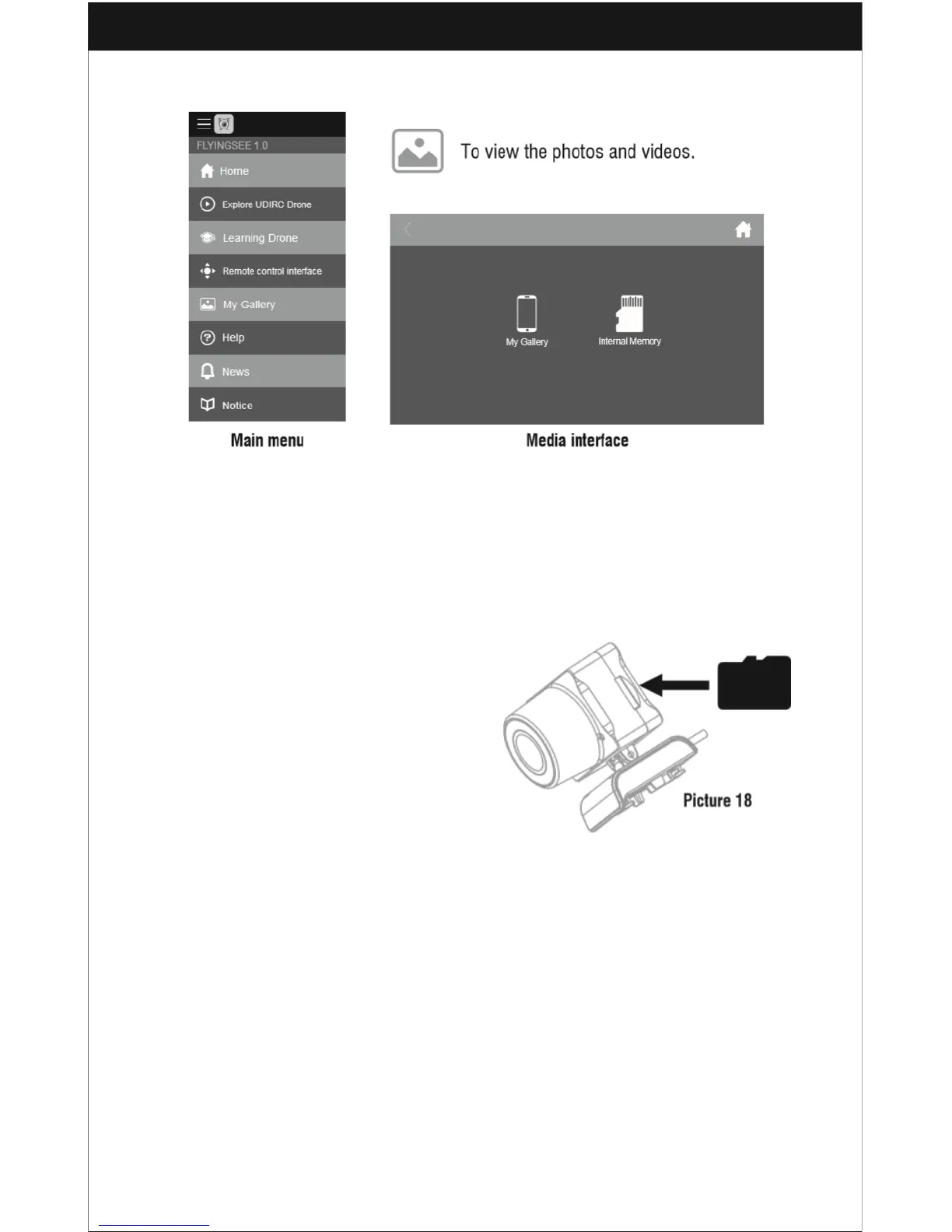
Display the photos and videos
Notice: The Flyingsee app must be authorized to access the phone gallery. If it’s not
authorized to do so, you will not be able to display the videos and photos.
The photos are stored in the local phone gallery and TF card, while the videos are only
stored in the TF card. You will need to download the videos to the phone’s gallery and
display them there.
Taking a Photo and Recording a Video
1. Insert the TF card to the slot as shown
in Picture 18. Make sure the metal side
of the card faces up as shown.
2. Aerial photos will be saved in your
mobile phone and on the TF card, while
videos can only be saved in the TF card.
You can download the video onto your
mobile phone while connecting the drone
WiFi and the TF card.
Tip: Click on the video icon to save a video when ending the recording.
3. Power off the drone when you are finished with aerial photography.
4. Take out the TF card and insert it into a card reader.
5. Connect the card reader with a computer USB port. After a moment, you will be
able to view the aerial photography data from My Computer -> Mobile Disk.
Tip: Play the video or photo after coping all aerial photography data to the
computer and make sure your playback software can support the .AVI format.


 To Next Page