Using the Application
Downloading and Installing Flyingsee
Flyingsee is an application for mobile phones with iOS and Android systems:
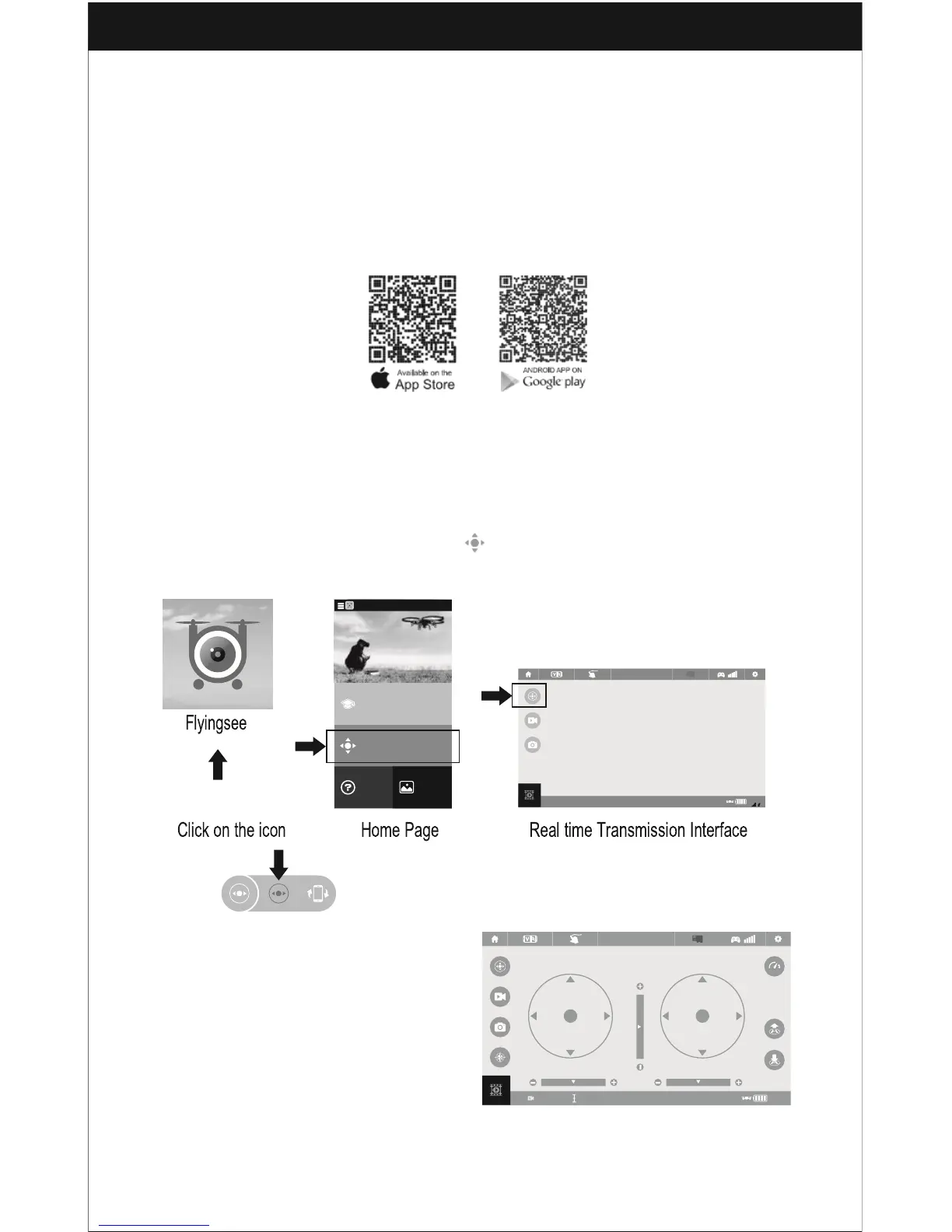
-Search “Flyingsee” in the App Store to download the app onto iOS devices.
-Search “Flyingsee” in the Google Play store to download the app onto Android
devices.
-Scan the appropriate QR code below to download the app directly.
Frequency Pairing between Mobile Phone and Drone WiFi:
1. Install the LiPo battery into the drone and power it on. Put the drone on a flat
surface in a horizontal position.
2. Enter “Set Up” on the mobile phone, turn on WiFi(WLAN) and choose udirc-****.
Then return to your desktop or homescreen.
3. Click on the Flyingsee icon and select to enter the remote control interface and
experience real time transmission.
4. Click to enter the Virtual Control Interface. When the drone’s LED
lights change from flashing to a solid
color, the drone is ready to be
controlled with the app.
Important Tip:
Ensure the drone is placed on a flat
surface in a horizontal position so
that it will function properly and
maintain control.


 To Next Page