VLS Service Manual - REV2015.04
Table of Contents
Adjustments and Settings
Page | 9
Computer Power Management Configuration
Power management is an option on computers and monitors to reduce engergy comsuption when not in active
use. However, the computer is a critical component in the operation of the VLS. Active Power Management
can cause interruption of communication between the PC and the VLS, resulting in failure of operation; so it is
recommended nthat this feature be disabled.
Windows XP and Windows Vista:
From the Windows XP home screen, right-clight on the desktop. Be sure you do not click on any icons as that
will open a different program.
1. From the list of options, select Properties. The Display Properties box will open.
2. In Display Properties, select the Screen Saver tab. Set the Screen saver to (None).
3. In the Monitor Power field, select Power…
4. Select the tab Power Schemes.
5. From the Power Schemes tab, in the Settings for Home/Office Desk Power Scheme, select Never
for all the setting options (Turn OFF monitor, Turn OFF hard disks, System standby, and System
hibernates).
6. Click Apply, then click OK on both open windows.
7. The configuration is complete.
Windows 7 and Windows 8:
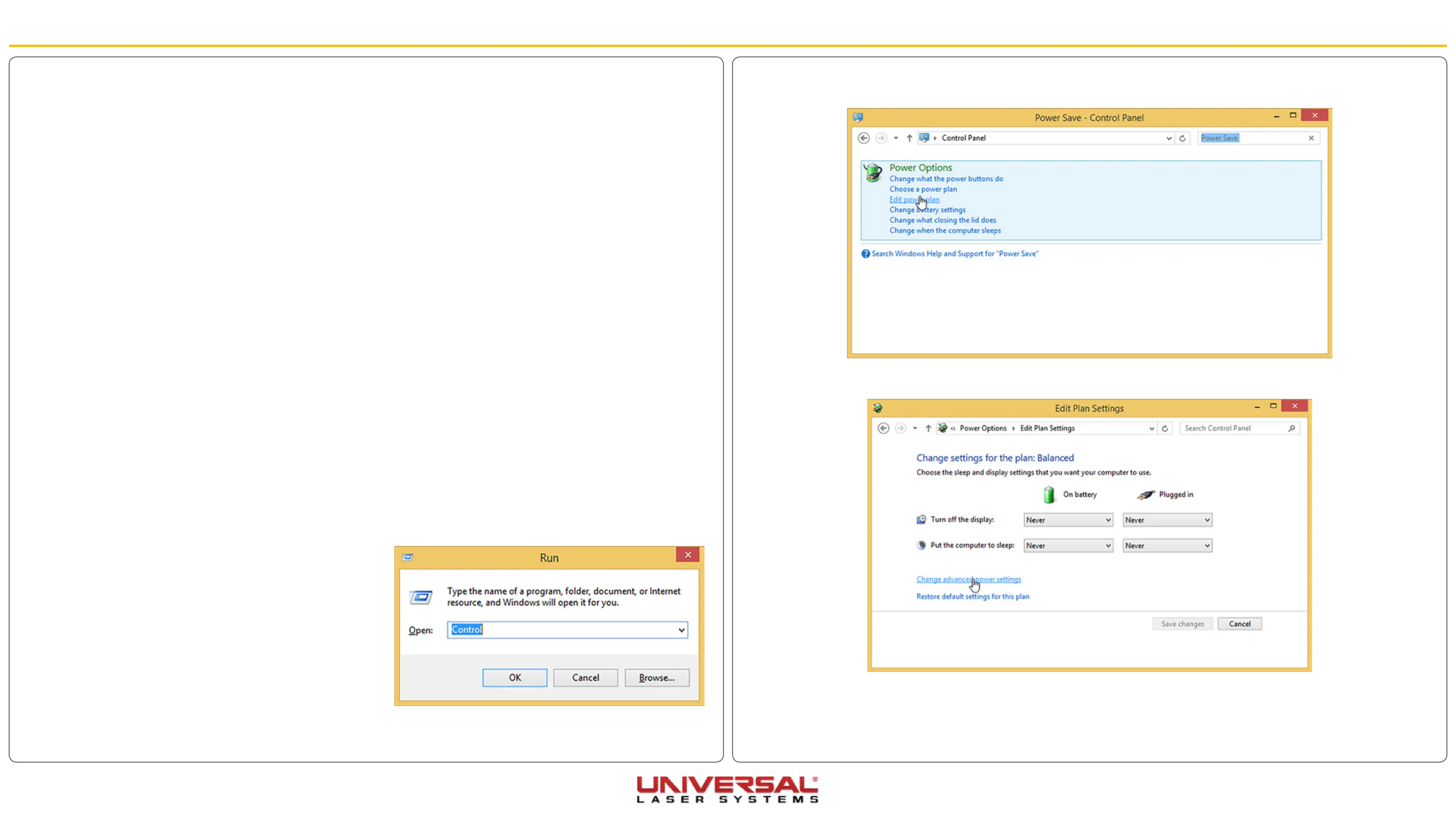
1. Open the Control Panel by pressing the Windows
Key + R. The Run box will open. Type Control and
click OK.
2. In the Search Control Panel box, located in the
upper right-hand corner of the windows, type
Power Save. The Power Options are displayed.
3. Click the Edit power plan link.
4. Set every option to Never.
5. Click Change advanced power settings.
6. On the Power Options dialog box, click the Hard disk + symbol and the Turn off hard disk after +
symbol to expand the folder.
Adjustments and Settings


 To Next Page