EN
To restore the default settings, press the button
to go to projection settings. Select [Settings]->
[Projection Settings]
->[Keystone Correction Reset]
and press OK.
Zoom In / Out
Press the button to go to projection settings.
Select [Settings]
-> [Projection Settings] -> [Zoom In/Out].
Use the remote control to resize the picture size.
Screen Intelligent Obstacle Avoidance
Press the projection shortcut button to enter the
homepage of the projector, go to [Settings]->[Projection
Settings]->[Keystone Settings]->[Intelligent Obstacle
Avoidance], select the function on/off.
Screen Auto Alignment
Press the projection shortcut button to enter the
homepage of the projector, go to [Settings]->[Projection
Settings]->[Keystone Settings]->[Intelligent Screen
Alignment], select the function on/off.
Keystone Correction Reset
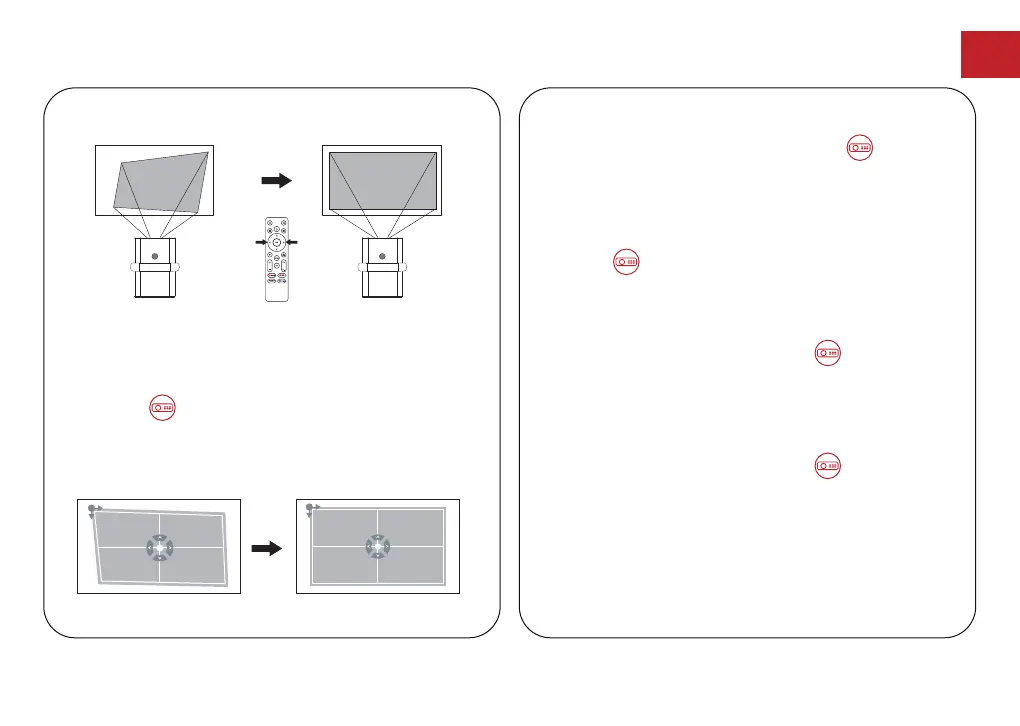
Horizontal Correction
Corner Correction
If the projected image is stretched or distorted along
both axes due to the angle of the projection, press
the button to go to projector home menu, and
select [Settings]
->[Projection Settings]->[Corner
Correction], choose the corner you want and press left
or right button on the remote control to adjust.
10


 To Next Page