① Make sure your device and the Android TV are
connected to the same Wi-Fi network, and that you
are running the latest version of the Chromecast-
enabled app.
② Launch the Chromecast-enabled site/app.
③ Tap the cast button and choose the "D1221".
9 Wireless Connection
Play Through External Sound
Devices via Bluetooth
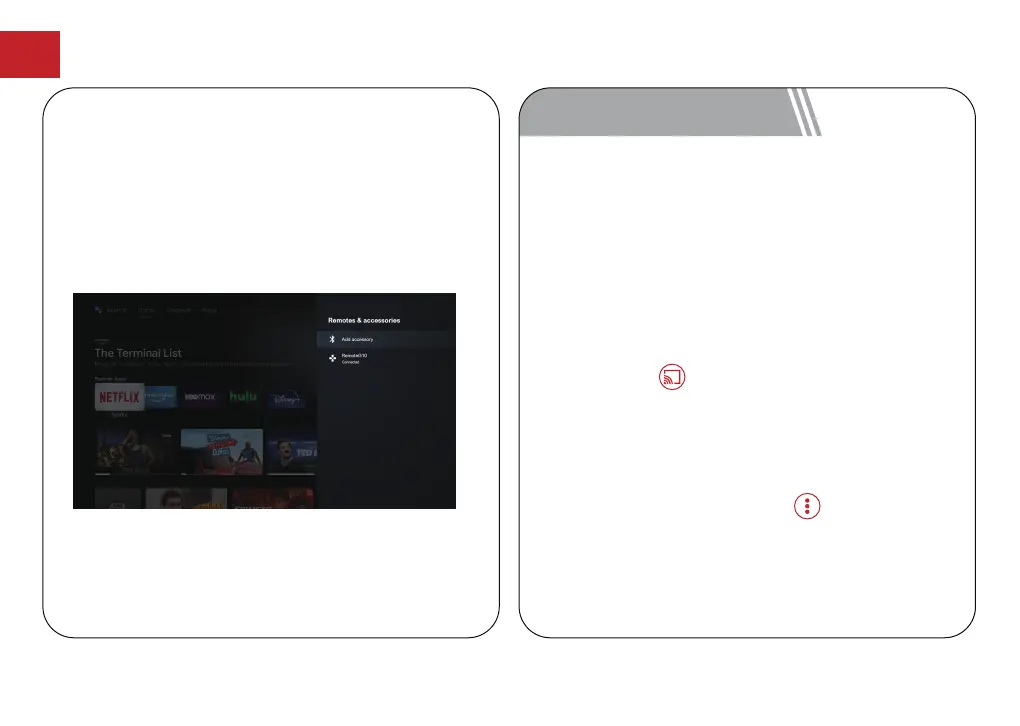
If you want to connect to Bluetooth speakers/
headphones on the Android TV interface, select
[Settings]
->[Remotes & Accessories]->[Add
accessory], search for Bluetooth device and click pair.
Note: The Bluetooth connection must be established
inside Android TV.
Add New Google Account User
Register a new Google account using Android TV
for easier login and payment security. [Settings]
->
[Accounts & sign-in], add an account or switch
accounts.
Notice: The Chromecast feature only works while you
are in the Android TV system.
Cast from Chrome
Browser tab (for Computers)
① Make sure your computer and projector are
connected to the same Wi-Fi network
② Click "Cast" at the upper right of the Chrome
browser tab, and then choose from the sources
whether you want to cast the tab or the screen.
③ Choose "D1221-XXX" to cast.
Cast from Chromecast-enabled
Sites/Apps (for Android/iOS devices)
EN
13


 To Next Page