Link to Table of Contents
User Guide
64
User Manual
Part 3: Editing the Swatch Palette
Open your Swatch Palette as follows:1.
Main Menu •
Window Swatches Left Click “OK”
Delete all swatches that are not basic RGB or gray scale by left clicking to select them and then clicking •
the “Delete Swatch” garbage can icon is the lower right-hand corner of the swatch box. Keep RGB
BLACK, RED, GREEN, BLUE, YELLOW, MAGENTA, CYAN.
If you wish to use the color ORANGE for full palette cutting and engraving operations, you can create a •
swatch for it using the following settings:
Part 4: Saving the Template
Illustrator CS3 is now correctly congured to work with your Universal Laser System. Be sure to save the 1.
document as a template for future documents as follows:
FILE •
SAVE AS TEMPLATE (ENTER FILE NAME) CLICK “OK”
Part 5: Some notes about printing
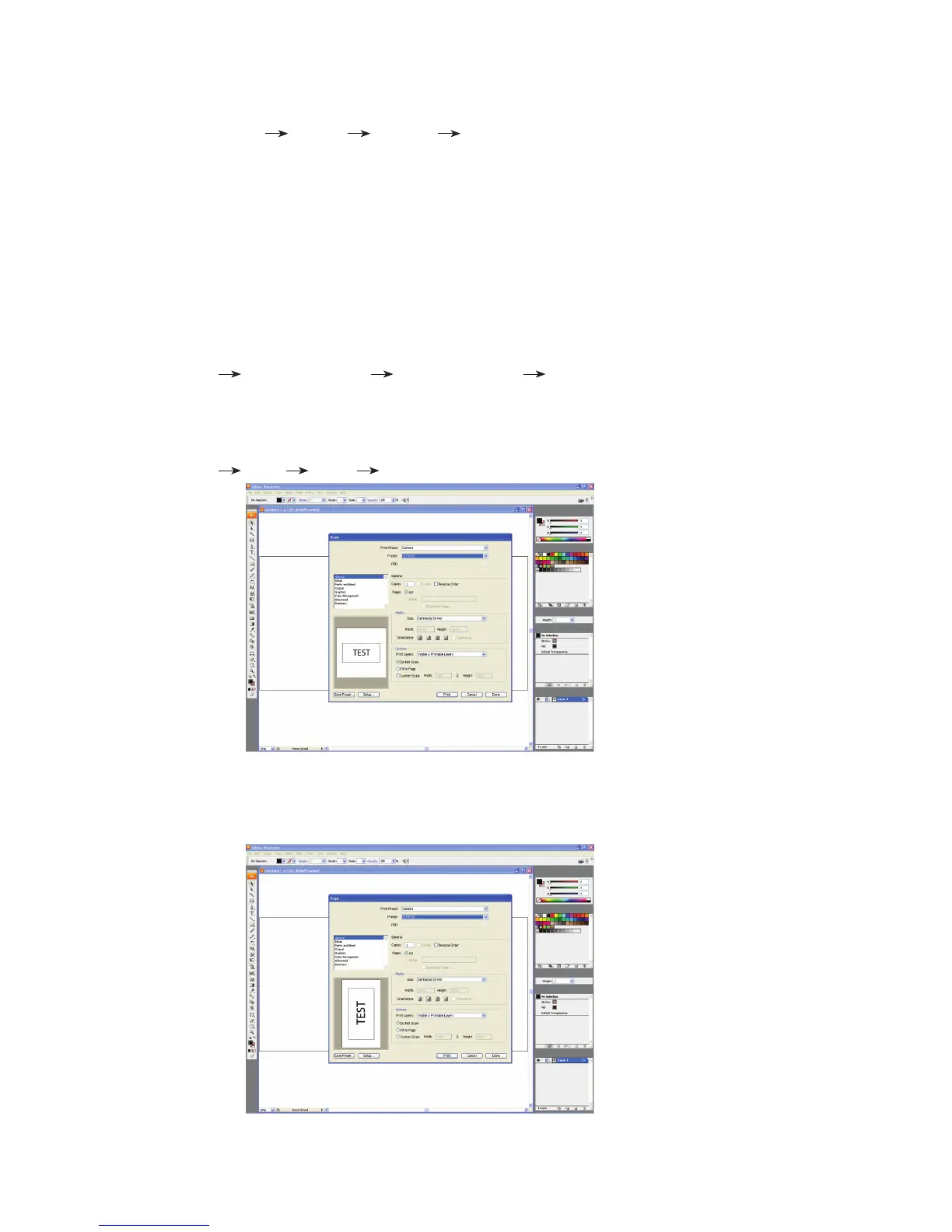
When you are ready to print to your laser system, disregard the print preview dialog box and select the 1.
following from the Main Menu:
FILE •
PRINT SETUP PREFERENCES
Prepare the le for printing using the Universal Laser System print driver.2.
When your settings are complete, choose print. The image in the print preview box will appear sideways, 3.
but the placement of your images will be correct.
Print as usual from the Universal Laser System Universal Control Panel.4.
R = 255
G = 102
B = 0



 To Next Page