EasyManua.ls Logo

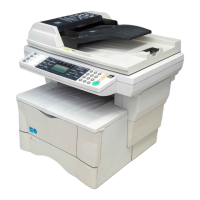
Utax CD 1030 - User Manual

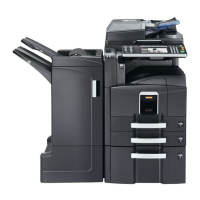
Utax CD 1030
288 pages
Print Icon
To Next Page IconTo Next Page
Loading...
INSTRUCTION HANDBOOK
DIGITAL MULTIFUNCTIONAL SYSTEM
CD 1030 | 1040 | 1050

Table of Contents

Questions and Answers

  • S
    shericobbAug 19, 2025
    What to do if my Utax CD 1030 All in One Printer says 'Add toner to resume copying'?
    • T
      Tyler BryantAug 19, 2025
      If your Utax All in One Printer displays the message 'Add toner to resume copying', it means there is not enough toner to make copies. Replace the toner container immediately.
  • S
    Susan HayesAug 21, 2025
    What to do if my Utax All in One Printer says 'Ready to copy. Add toner.'?
    • V
      Vanessa McdanielAug 21, 2025
      If your Utax All in One Printer displays the message 'Ready to copy. Add toner', it means there is not enough toner in the copier. Replace the toner container immediately, as only one copy can be made at a time.
  • T
    Tiffany GonzalezAug 23, 2025
    What to do if my Utax All in One Printer shows a system error and says 'Main switch off/on'?
    • R
      Robert JonesAug 25, 2025
      If your Utax All in One Printer displays a system error and prompts 'Main switch off/on', turn the power switch OFF and then ON.
  • K
    Karen RobinsonAug 26, 2025
    What to do if my Utax All in One Printer shows a system error and says 'Disconnect power plug from the socket'?
    • D
      Daniel HooperAug 26, 2025
      If your Utax All in One Printer displays a system error and prompts 'Disconnect power plug from the socket', disconnect the power plug from the outlet and connect it again.
  • F
    Frank HendersonAug 27, 2025
    Why does my Utax CD 1030 say 'Reposition original'?
    • M
      Margaret BrownAug 28, 2025
      The 'Reposition original' message on your Utax All in One Printer indicates that the orientation of the original and the selected paper are different. Change the orientation of the original. If you press the [Start] key, same-size copying will be performed.
  • H
    huntalexanderAug 30, 2025
    What to do if my Utax All in One Printer says 'Paper drawer is out of order. Select another paper drawer.'?
    • K
      kelli74Aug 30, 2025
      The message 'Paper drawer is out of order' on your Utax All in One Printer means that the drawer currently in use is out of order and cannot be used. Contact your service representative immediately. Continue copying using another drawer.
  • B
    Barry MorrisSep 1, 2025
    What to do if my Utax CD 1030 All in One Printer says 'Paper cassette is out of order. Select other paper cassette.'?
    • H
      Heidi GrahamSep 1, 2025
      The message 'Paper cassette is out of order' on your Utax All in One Printer means that the cassette currently in use is out of order and cannot be used. Contact your service representative immediately. Continue copying using another cassette.
  • C
    Chad WilliamsSep 3, 2025
    Why does my Utax All in One Printer say 'Check paper size'?
    • S
      Sheila FranklinSep 3, 2025
      The 'Check paper size' message on your Utax All in One Printer indicates that no paper that can be used in the selected mode is loaded. Check the paper.
  • C
    Cindy CuevasSep 5, 2025
    Why does my Utax All in One Printer say 'Exceeds pre registered copying quantity'?
    • M
      Michelle AustinSep 5, 2025
      The message 'Exceeds pre registered copying quantity' on your Utax All in One Printer means that the number of copies reached the limit set in the copy management mode, and no more copies can be made. Clear the copy count from the management mode.
  • N
    Nathan BakerSep 7, 2025
    How to fix 'Set drawer' error on Utax CD 1030?
    • M
      Mr. Jerry WestSep 7, 2025
      If your Utax All in One Printer displays a 'Set drawer' error, one of the drawers is not closed properly. Pull it out and push it back in all the way.

Summary

Section 1 IMPORTANT! PLEASE READ FIRST.

CAUTION LABELS

Labels attached to the copier for safety purposes, indicating potential hazards.

INSTALLATION PRECAUTIONS

Guidelines for safely installing the copier in its environment.

PRECAUTIONS FOR USE

Essential safety measures and warnings for operating the copier.

Section 2 NAMES OF PARTS

Main Body Components

Identification and function of the primary parts of the copier.

Operation Panel Elements

Description of keys, indicators, and the touch panel on the operation panel.

Touch Panel Interface

Explanation of the touch panel layout and its interactive elements.

Section 3 PREPARATIONS

Loading Paper

Procedures for loading paper into the copier's drawers and bypass tray.

Section 4 BASIC OPERATION

Basic Copying Procedure

Step-by-step guide for performing a standard copy job.

Enlarging;Reducing Copy Image

How to adjust the magnification ratio for copies.

Energy-Saving Modes

How to activate and manage low power and sleep modes.

Section 5 OTHER CONVENIENT FUNCTIONS

2-Sided Copying and Page Separation

Copying onto both sides of paper and splitting pages.

Layout and Image Adjustment

Features for creating margins and centering copy images.

Booklet Creation and Special Features

Methods for making booklets and using special paper types.

Image Manipulation and Optimization

Inverting, mirroring images, and saving toner with Eco print mode.

Settings Management and Job Building

Memorizing settings, registration keys, and creating job sequences.

Section 6 DOCUMENT AND OUTPUT MANAGEMENT FUNCTIONS

Document Management Functions

Scanning, saving, and managing documents on the copier's hard disk.

Output Management Functions

Managing print jobs, status, and queue operations.

Section 7 COPIER MANAGEMENT FUNCTIONS

Departmental Copy Management

Registering departments, setting limits, and managing copy counts.

Default Settings Configuration

Customizing machine and copy default settings for user preference.

Paper and Toner Management

Settings for paper types, bypass settings, and toner replacement.

Maintenance and Troubleshooting Procedures

Procedures for drum refresh, counter checks, and error resolution.

System Settings and Input

Adjusting panel language and character input methods.

Section 8 OPTIONAL EQUIPMENT

Document Processor and Paper Feeders

Units for automatic original and paper feeding.

Finishing and Sorting Options

Document finishers, job separators for copy collation and binding.

Essential Components and Kits

Hard disk, key counter, printer, scanner, and fax kits.

Section 9 TROUBLESHOOTING

Error Messages and Indicators

Responses to displayed messages and indicator lights.

Paper Feed and Misfeed Resolution

Procedures for clearing paper jams in various locations.

General Troubleshooting Guide

Common issues and their corrective actions.

Section 10 MAINTENANCE AND OPERATION INFORMATION

Copier Cleaning Procedures

Instructions for cleaning the original cover, platen, and separator.

Toner and Waste Toner Replacement

Steps for replacing toner containers and waste toner boxes.

System Specifications

Technical details including power, dimensions, weight, and resolution.

Environmental Specifications and Paper Handling

Energy saving modes, duplex copying, and paper feed recommendations.

Optional Equipment Installation

Guidance on installing optional units like document processors and finishers.

Utax CD 1030 Specifications

General IconGeneral
Printing TechnologyLaser
Print Speed (Black)30 ppm
Print Resolution1200 x 1200 dpi
Duplex PrintingYes
Copy Speed (Black)30 cpm
Copy Resolution600 x 600 dpi
Scan TypeFlatbed, ADF
Standard Paper Capacity250 sheets
Maximum Paper SizeA4
FunctionsPrint, Copy, Scan
First Print Out Time B/W8.5 seconds
Zoom Range25% - 400%
Supported Paper SizesA4, A5, A6, B5, Legal, Letter
ConnectivityUSB, Ethernet
InterfaceUSB 2.0, Ethernet 10/100Base-TX
Operating System CompatibilityWindows, Mac, Linux

Related product manuals