4 Media Console Initial Setup
48
4Med ia C on sol e In iti al Set up
After the Media Console is properly connected, do the following initial setup:
1 Insert the AAA batteries into the remote control.
2 Connect the Media Console (See the “Hardware Installation” section).
3 Check that the power adapter connections are secure and correct.
4 Turn on the Media Console and TV set.
5 Set the TV to the proper A/V mode.
6 Enter Domain Name, User Name, and Password.
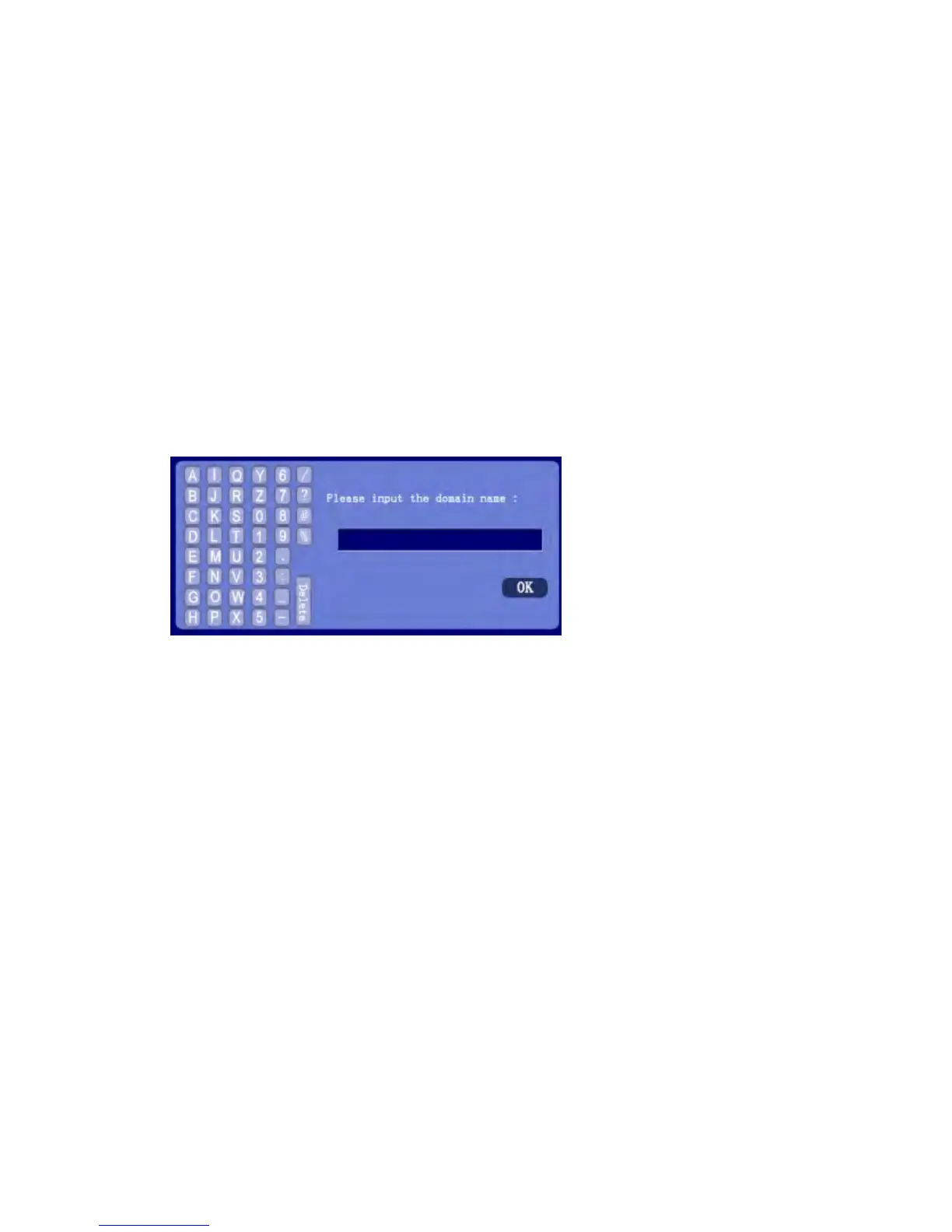
a After powering on the Media Console, the following screen will
display. Use the remote control to enter the domain name
supplied by your service provider.
To enter domain name:
- Use the navigation buttons to highlight a letter, number, or
symbol on the left of the screen. Press OK on the remote control
to accept the selection.
- To delete a previously entered character, navigate to the
<Delete> key on the keyboard using the remote control arrow
keys and press OK.
b After entering the domain name, navigate to <OK> on the screen
and then press OK on the remote control.
c The system will validate the domain name. If validation fails, you
will be asked to re-enter the domain name.


 To Next Page