10
1. The right side of LIVE view will show , left figure is presented as
forward facing lens, the other one is backward facing lens.
When the figure becomes , the backward facing lens is turned off and the
microphone recording is muted simultaneously.
2. Event Record: Appears in the top right side of LIVE screen, it means
that G-Sensor didn't receive abnormal signal. When you press the record
button from the remote control or click this icon at the right top to
force the machine to record manually.
When the icon appears at the top right that means G-Sensor detects
abnormal vibrations and start force recording.
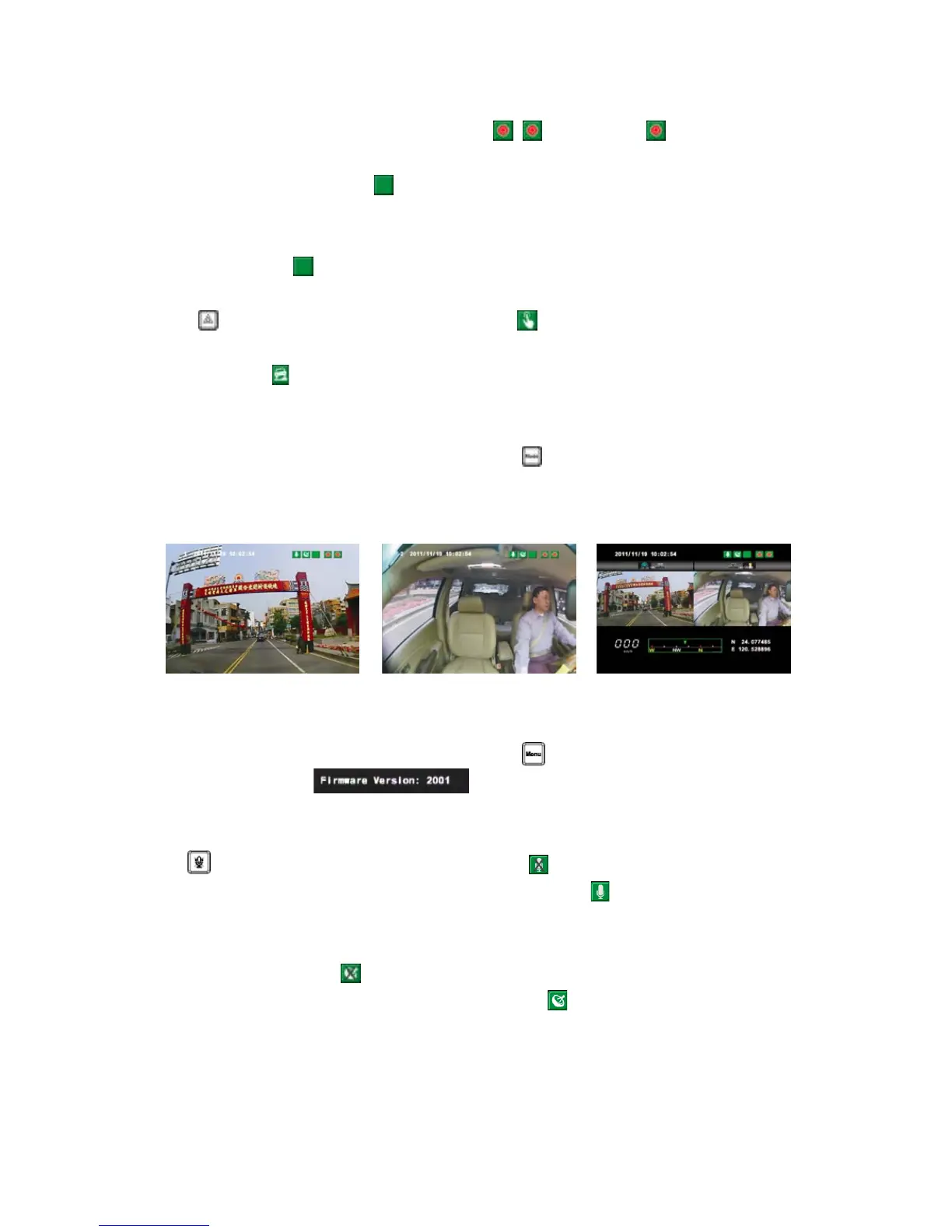
3. When turns to Live screen, it could click via remote control to switch
CH1(Front View) or CH2(Inner View), dual CH display with GPS information
as shown below:
4. When turns to Live screen, it could click via remote control to show
Firmware version.
5. In the LIVE screen you can choose whether open the recording, click the
mute button on the remote control icon will appear top right of the
screen, that means stop recording; When the icon appears in the top
right that says on the recording.
6. GPS display: When icon appears at the top right of the Live screen, it
means there is no GPS signal; when the icon appears in the top right of
the Live screen, it indicates that the GPS is working.


 To Next Page