3. Acquiring PANO Images
18 Green X (PHT-75CHS) User Manual
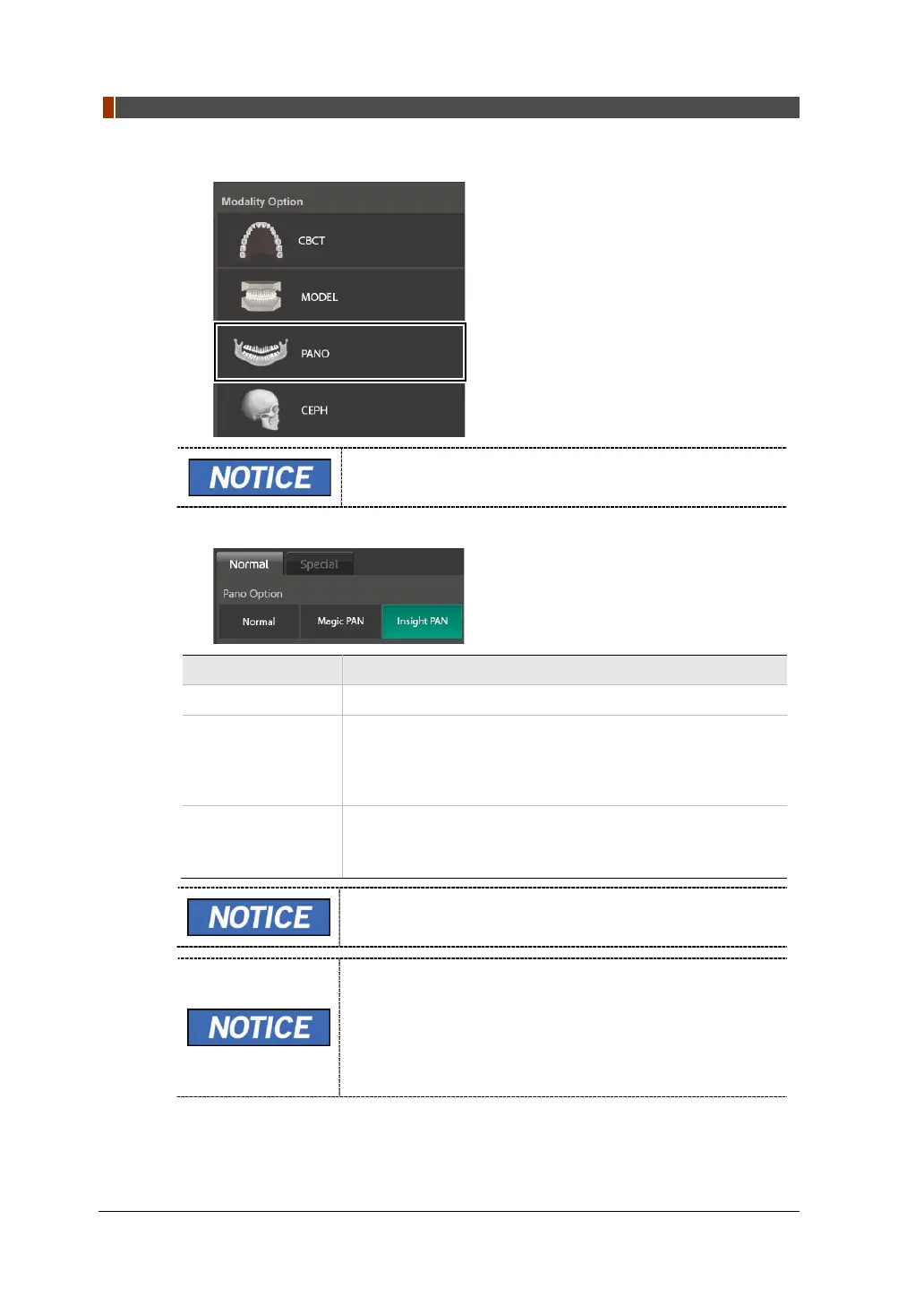
1. Click the PANO button on the Main Screen.
The CEPH button exists only when the CEPH imaging
program is included in the equipment.
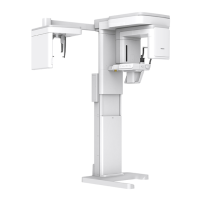
2. Select a Pano Option.
Mode Description
Normal Provides a normal panoramic image.
Magic PAN
(Optional)
Provides a single optimal panoramic image having multiple
focal images combined.
Minimizes the difference in the quality of images varied
according to the patient’s positioning and arch shape.
Insight PAN
(Optional)
Provides multiple panoramic images having different focal
planes along with a typical panoramic image together.
Enables detailed verification of images in-depth direction.
When “Insight PAN” is selected, Image Options are
disabled.
When Insight PAN is selected, the user can freely set the
exposure area (FOV) with mouse control and drag. (Multi
FOV available)
In terms of patient caring, it has the advantage of
minimizing the amount of radiation exposure to the patient
by adjusting the area of exposure.


 To Next Page