DVR4H4
V. 01 – 10/02/2014 16 ©Velleman nv
12.1 Prerequisite
Before setting up push video, make sure you have checked the following:
• You have an iPhone, iPad, or Android mobile device with EagleEyes installed. For more details, see
Downloading EagleEyes.
• A human detection camera is connected to CH1, or an external alarm device is connected to the push video
alarm-in terminal on the rear panel. To record alarm occurrences, make sure you also have a camera
connected. Refer to Push Video Configuration for details on video channels and alarm pins.
• The event record function of your DVR is enabled.
• The motion detection function of your DVR is enabled.
• Your DVR is connected to internet. For details, refer to
http://www.surveillance-download.com/user/CMS.pdf.
12.2 Enabling Push Video
From iPhone or iPad
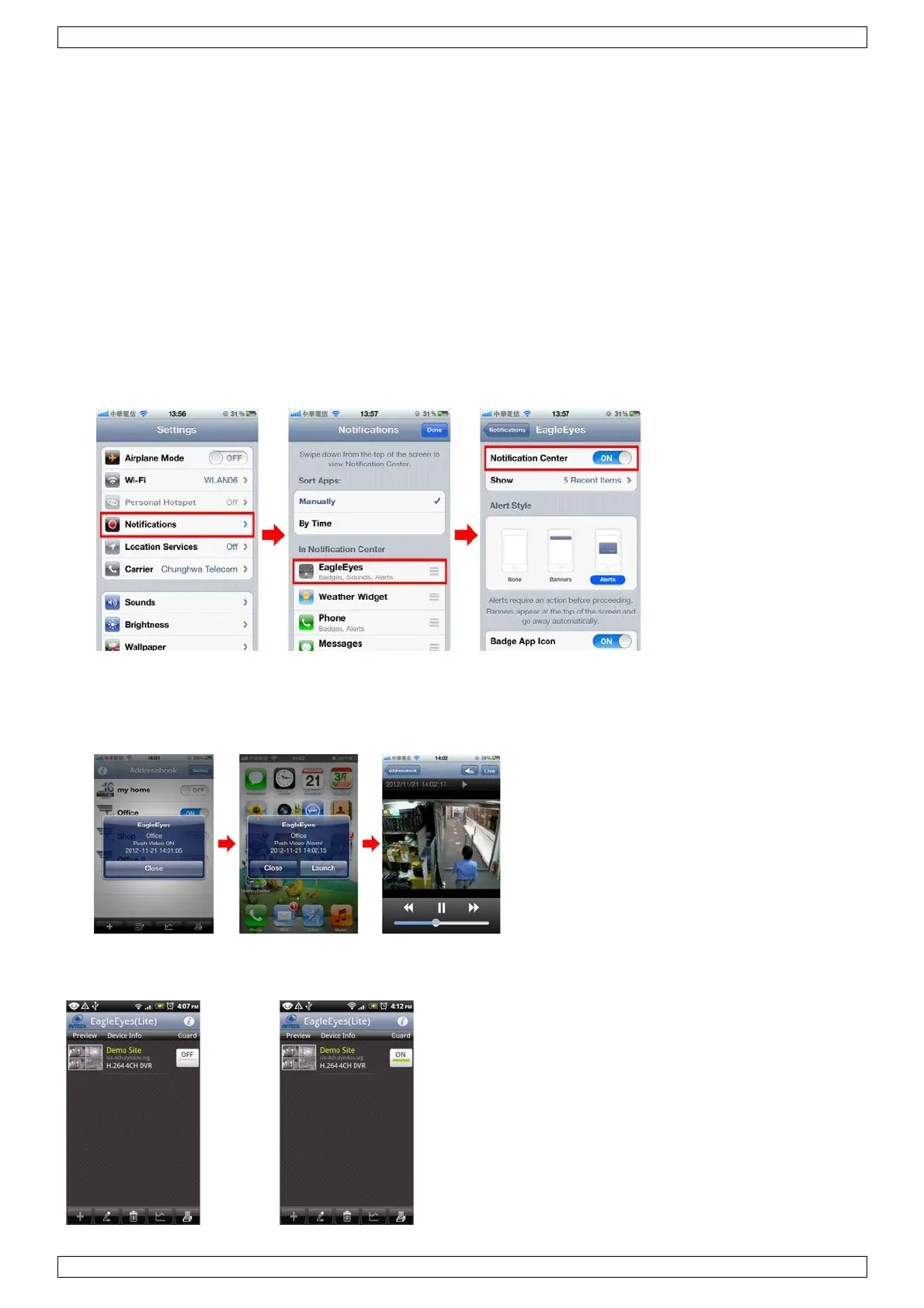
1. In the iPhone/iPad main menu, select Settings > Notifications.
2. Select EagleEyes and make sure Notification Center is set to ON.
3. Open EagleEyes and switch the Push Video button to ON. You will receive a message that push notification
(push video) is enabled.
4. Return to the main menu of your iPhone/iPad.
You will receive event notifications when there is a human detection or an alarm event. Select Launch to
play the recorded clip immediately.
From Android Mobile Device
In the address book, switch Guard from OFF to ON.


 To Next Page