4.10 FIRMWARE UPDATE
The console can be updated through your WI-FI network. If new rmware is available, a
notication or pop up message will be shown on your mobile when you open the APP. Follow the
instruction in the APP to do the update.
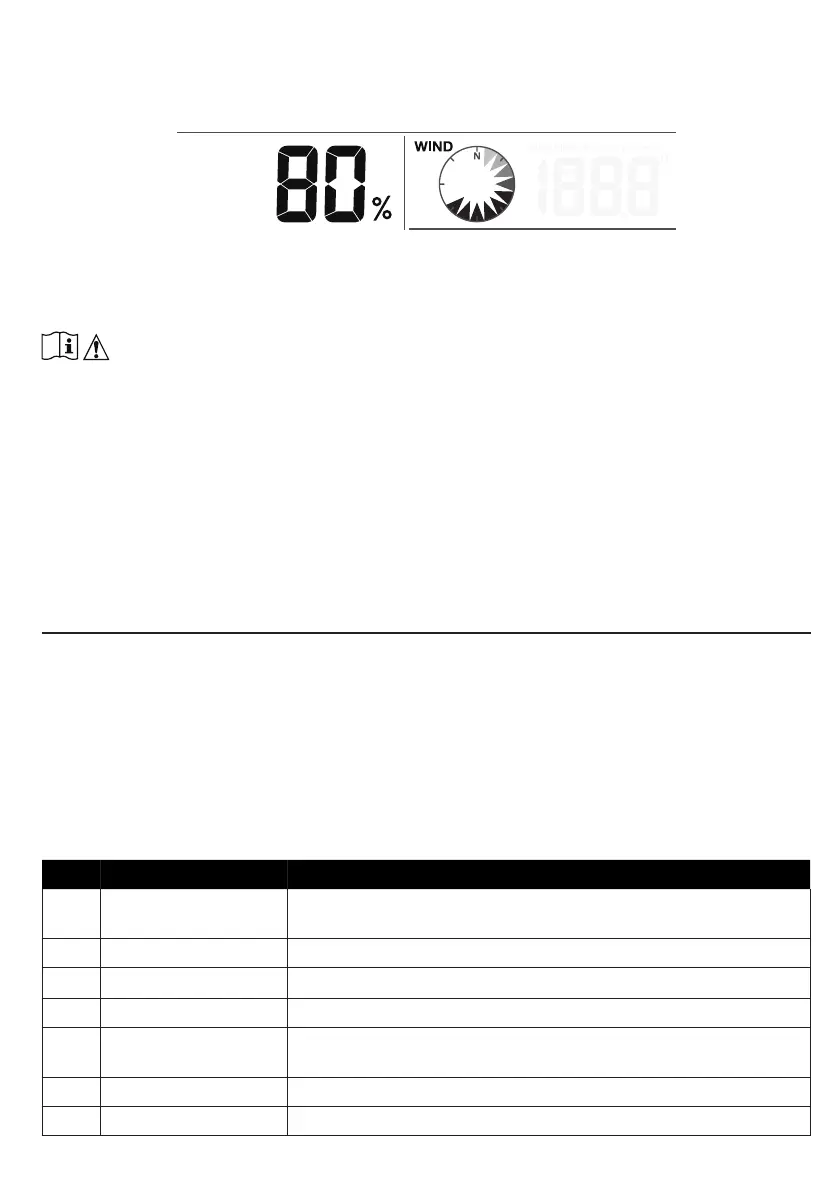
During the update process, the console will show the progress status percentage at the middle
of the screen. Once the update complete, the console screen will reset and back to normal
mode. Please ignore APP update fail message, if the console can restart and show the
normal screen after the update process completed.
IMPORTANT NOTE:
- Please keep connecting the power during the rmware update process.
- Please make sure your console WI-FI connection is stable.
- When the update process start, do not operate the console until the update is nished.
- Settings and data maybe lost during update.
- During rmware update the console will stop upload data to the cloud server. It will reconnect to your
WI-FI router and upload the data again once the rmware update succeed. If the console cannot
connect to your router, please enter the SETUP page to setup again.
- Firmware update process have potential risk, which cannot guarantee 100% success. If the update
fail, please redo the above step to update again.
- If rmware update fail, press and hold the [ ALARM ] and [ CAL ] key at the same time with 10
seconds to back to original version, then redo the update procedure again.
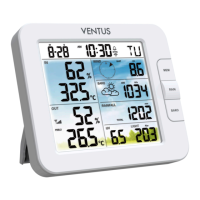
Display console function and operation
5. SETTING & FUNCTIONS OF THE CONSOLE
5.1 SETTING MODE
The setting mode can set the time, date, unit of measure and other functions.
Below is the operation step:
- Press and hold [ CH / SET ] key for 2 seconds to enter the setting Mode.
- Short press [ CH / SET ] key to proceed to the next setting step.
- Press [ WIND / + ] or [ NDX / - ] key to change the value. Press and hold the key for quick-
adjust.
- Press and hold [ CH / SET ] key for 2 seconds to exit the SET mode at any time.
Setting items table:
Step Mode Setting procedure
1 12/24 hour format Press [ WIND / + ] or [ NDX / - ] key to select 12 or 24 hour
format
2 Hour Press [ WIND / + ] or [ NDX / - ] key to adjust the hour
3 Minute Press [ WIND / + ] or [ NDX / - ] key to adjust the minute
4 Year Press [ WIND / + ] or [ NDX / - ] key to adjust the year
5 M-D/D-M format Press [ WIND / + ] or [ NDX / - ] key to select "Month / Day" or
"Day / Month" display format
6 Month Press [ WIND / + ] or [ NDX / - ] key to adjust the month
7 Day Press [ WIND / + ] or [ NDX / - ] key to adjust the day


 To Next Page