4 Select language and entry mode:Support IE,Firefox,Smartphone and SD card record.
Figure 2.5
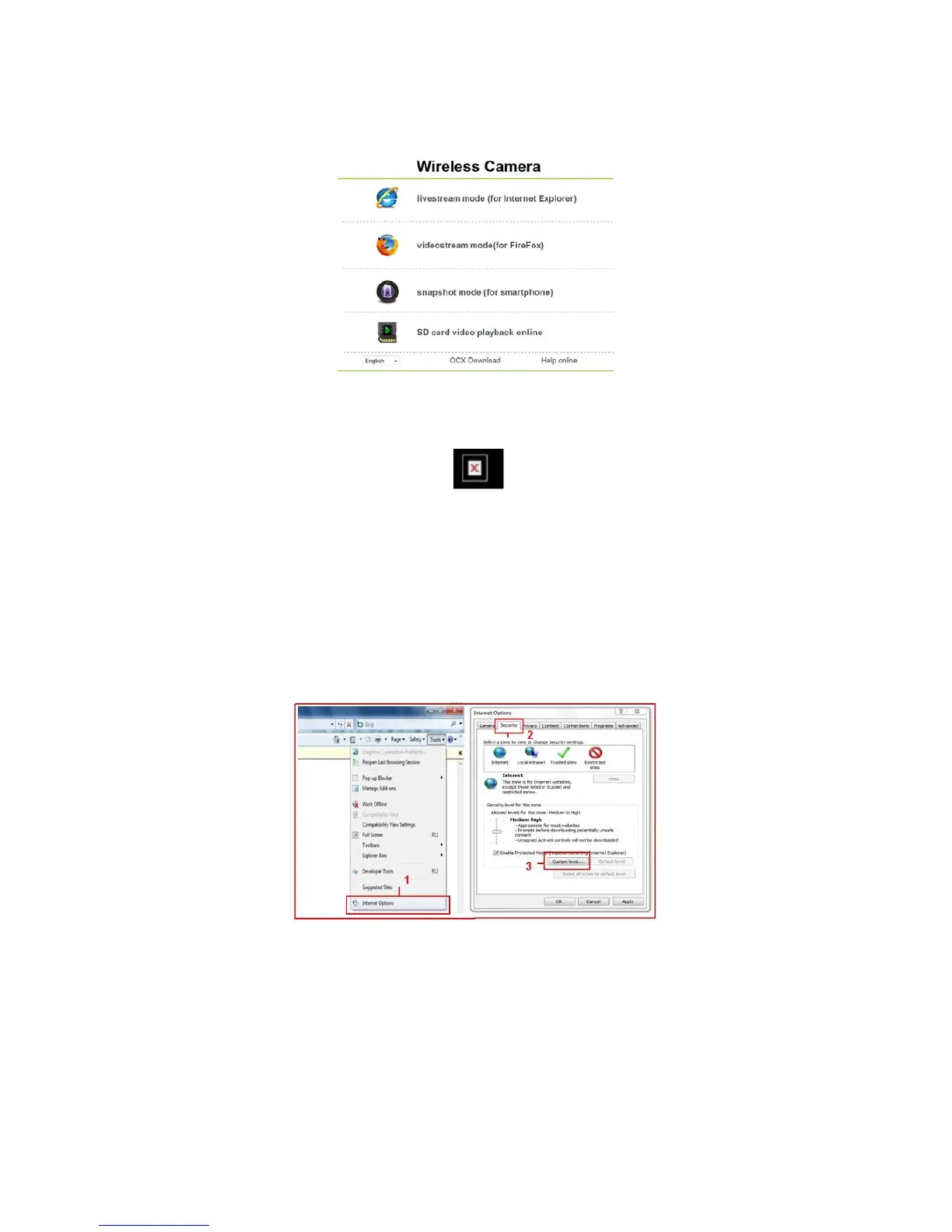
4.1 The first time login the camera,maybe get ActiveX prompt,please click the prompt and choose Run Add-on,refresh and login the camera
again,then will see live video.
Note: If there is still no live video after run ActiveX,and a red cross
,showed in the center of the screen,
or even just a black screen, please try to enable the ActiveX options of IE security settings.
Please do the follow steps:
1. Close the firewall of your computer.
2. Change the ActiveX settings, “IE” browser > “Tool” > “Internet Options” > “Security”> “Custom Level” >
“ActiveX control and Plug-ins”, all the ActiveX options set to be “Enable”:
Especially:
Enable:Download unsigned ActiveX controls
Enable:Initialize and script ActiveX controls not marked as safe
Enable:Run ActiveX controls and plug-ins
Figure 2.6



 To Next Page