PaymentCloud LLC. • 800-988-2215 • support@paymentcloudinc.com
5
V.032025
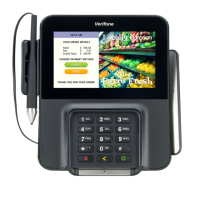
Verifone MX925
User Manual & Setup Guide
Spec Sheet
Shop Verifone MX925
Accept Payments Cont.
Debit Sale
TouchBistro Register Sale
TouchBistro Tableside Sale
1. Go to your point-of-sale/inventory management database and select
CREDIT.
2. An alert displaying the total amount for the sale will appear on your
screen.
3. When ready, select PAY.
4. You will see a display on your screen reading WAITING FOR PAYMENT.
Cardholders will then be prompted to swipe or insert their debit card to
proceed with the purchase.
5. Cardholders then swipe or insert their debit card before entering PIN
information on the Verifone Mx925’s keypad. Merchants should note
that debit settings must be congured appropriately before their
Mx925 device can process debit-based transactions.
6. Cardholders will then be prompted to sign for their purchase.
Note: For merchants using Touchbistro, you can accept credit cards in
one of two modes: REGISTER or TABLESIDE.
1.
Select CHECKOUT from the REGISTER menu.
2. Instead of selecting GIFT CARD or CREDIT CARD, select PAYMENT
TERMINAL.
3. Select PAY IN FULL.
4. Cardholders will tap, swipe, or insert their card to initiate payment.
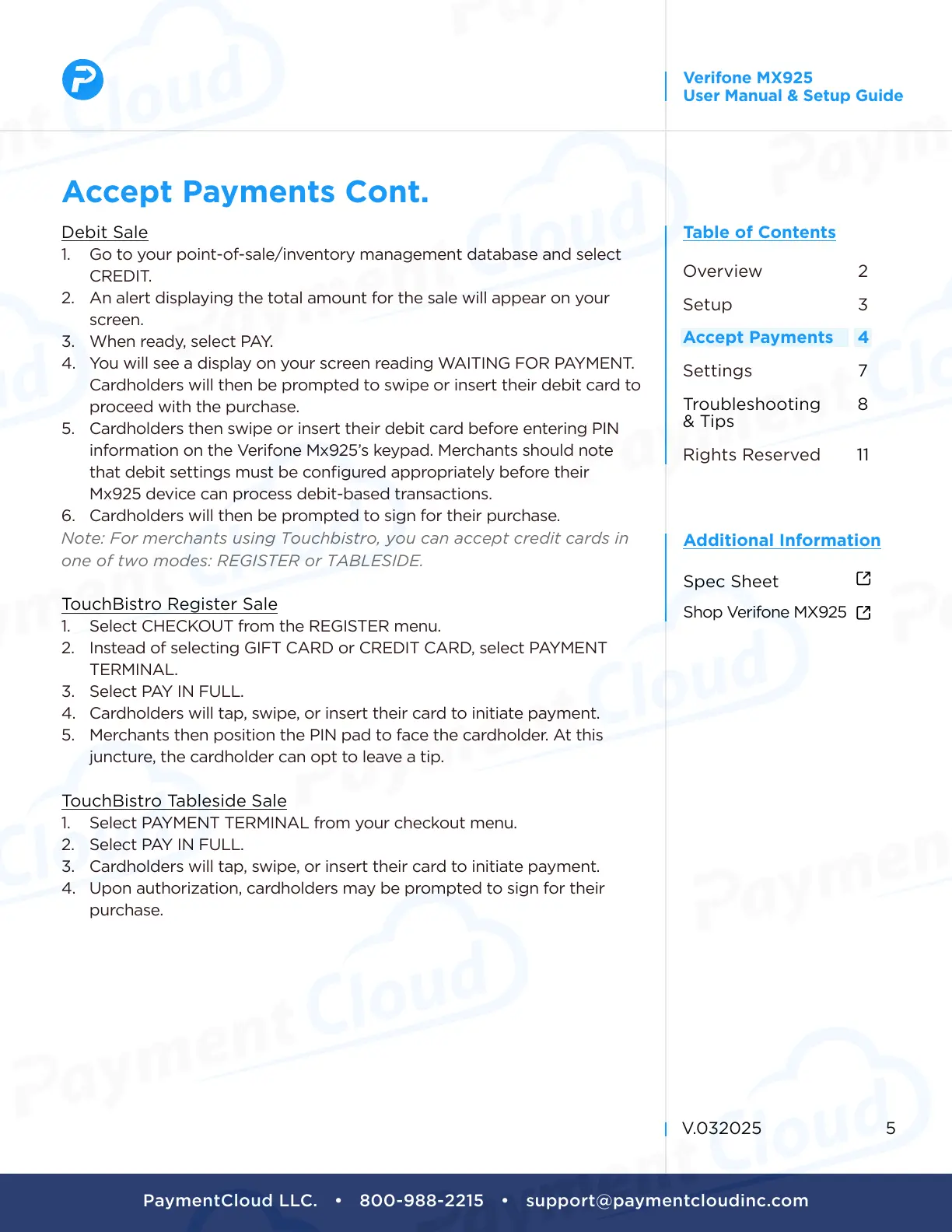
5. Merchants then position the PIN pad to face the cardholder. At this
juncture, the cardholder can opt to leave a tip.
1.
Select PAYMENT TERMINAL from your checkout menu.
2. Select PAY IN FULL.
3. Cardholders will tap, swipe, or insert their card to initiate payment.
4. Upon authorization, cardholders may be prompted to sign for their
purchase.
Setup
3
Rights Reserved
11
Settings
7
Troubleshooting
& Tips
8
Overview
2
Accept Payments
4



 To Next Page