Veriteq vLog 4.4 User’s Guide
29
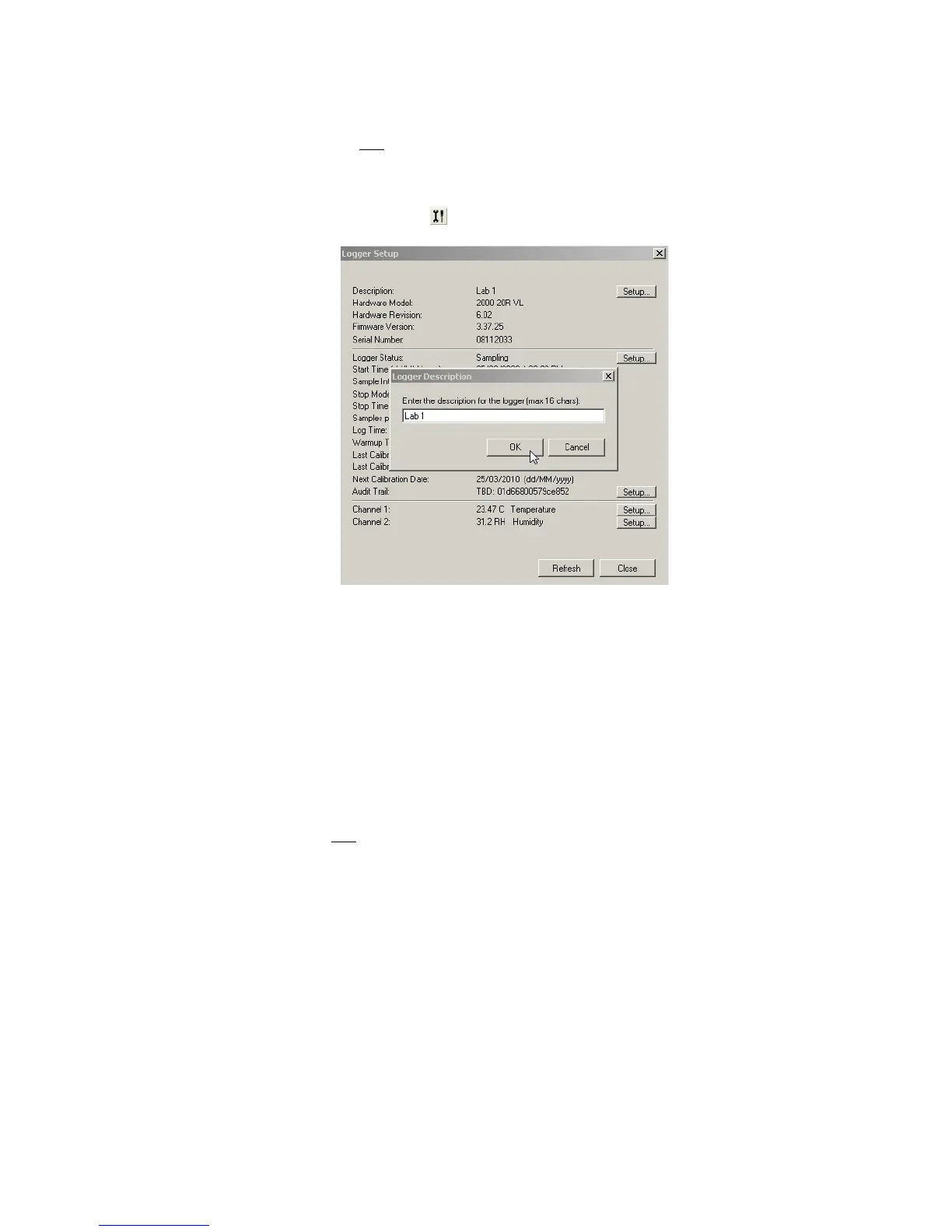
To configure the Description for the currently-connected logger:
1. Do one of the following:
• Select Logger>Description...
• Press F11 or Select Logger>Setup or click the Logger Setup icon on
the toolbar ( ). In the window that appears, click Setup in the row for
Description.
2. In the box provided, type a description of the data logger, using up to six-
teen alphanumeric characters.
3. Click OK to save or Cancel to close without saving.
The text from the Description field is displayed on all on-screen graphs, tabular
displays and printouts. The text can also be used in the creation of a default file
name when transferring logger data to a PC if you choose to include it.
Setting the Data Logger Sample Timing
To set the logger sample timing:
Do one of the following:
• Select Logger>Sample Timing...
• Select Logger>Setup, and click the Setup... button in the row for Log-
ger Status.
• Press F11 and click the Setup... button in the row for Logger Status.
The Logger Sample Timing window opens.



 To Next Page