Veriteq vLog 4.4 User’s Guide
65
and end times and dates. For instructions on using this option, see Zooming
In by Formatting the Time Scale on page 66).
Zooming In Using the Zoom Selection Box
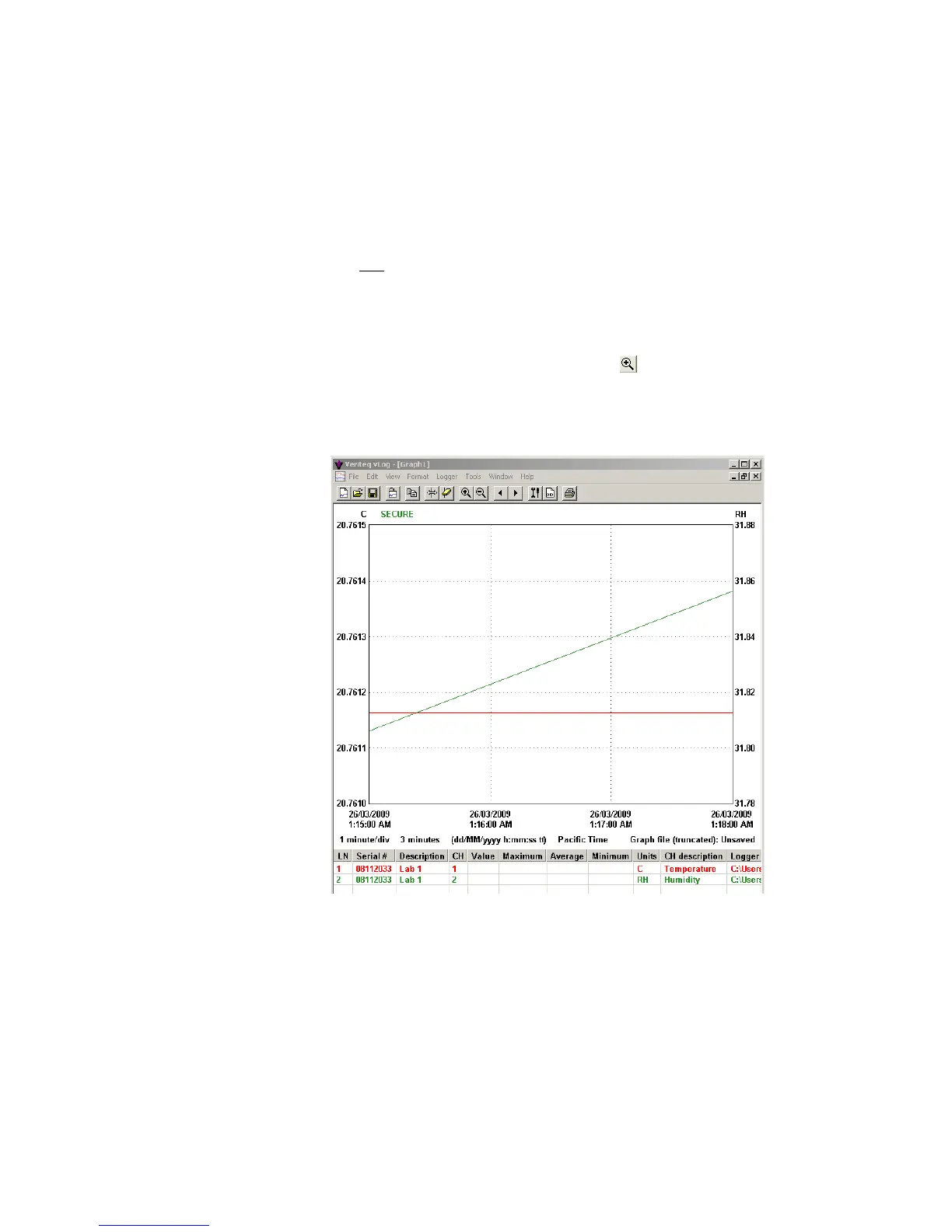
To zoom in on the graph using the zoom selection box:
1. Do one of the following:
• Select Format>Zoom-in.
• Press F9.
• Right-click the graph, and then select Zoom-in.
• Click the Zoom-in icon on the toolbar ( ).
A vertical line appears on the graph.
2. Use the mouse or arrow keys to move the vertical line to the beginning of
the section you want to zoom-in on.
3. Either:
a. Press and hold the left mouse button, and move the second cursor line
to the end of the section you want to zoom in on.
b. Release the mouse button and the zoomed-in area is displayed.
Or:
a. Press E
NTER to anchor the vertical line.
b. Use the arrow keys to stretch the zoom selection box.
c. Press E
NTER and the zoomed in area is displayed.



 To Next Page