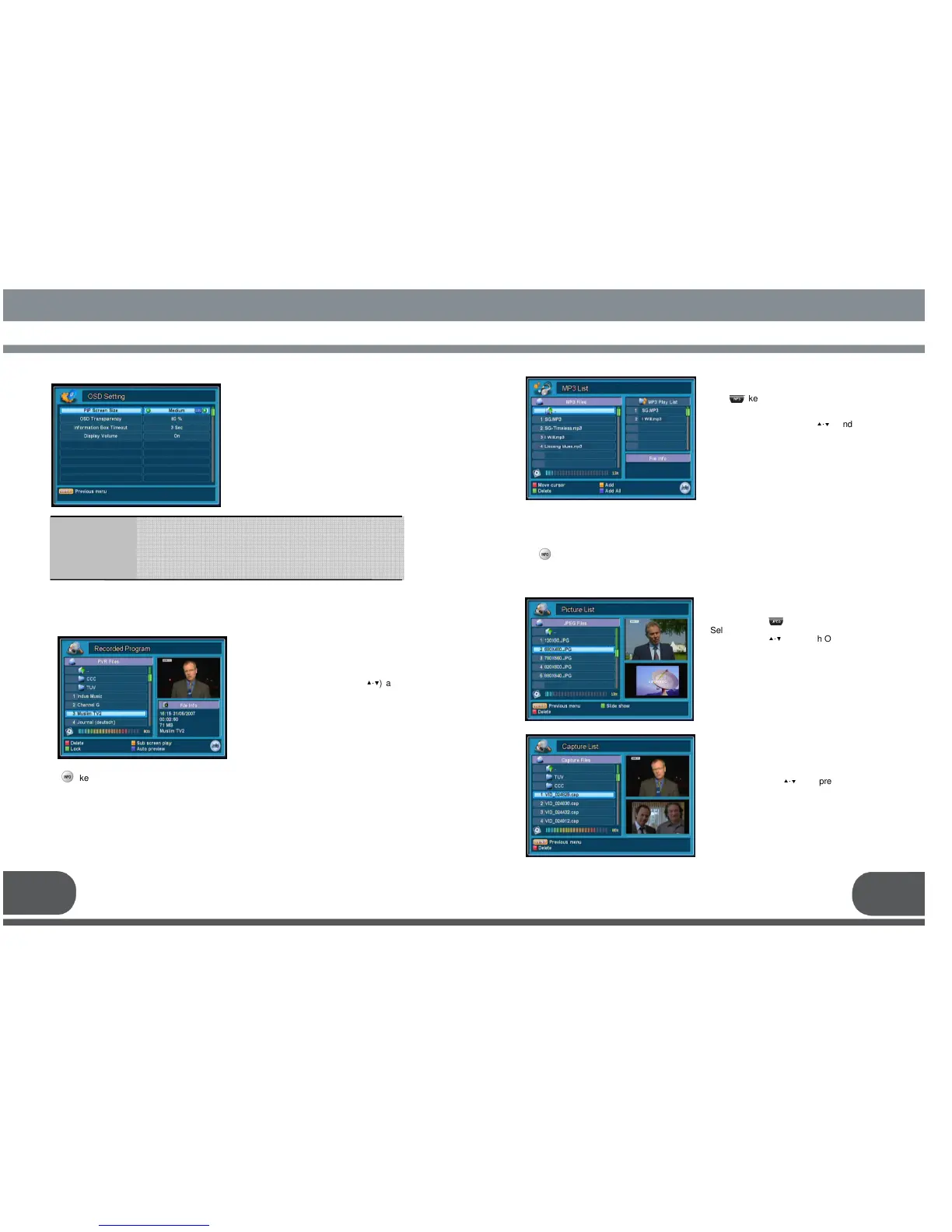
Select OSD Setting menu in Preferences
menu.
This menu helps you to control OSD
setting.
: Select PIP screen size (Extra Small, Small, Medium, or Large).
: Select transparency from 10% to 100%.
: Select Timeout for the Information Box from 3 sec to 30 sec, or
Always.
: You can select OFF or ON for the display of volume indicator.
PIP Screen Size
OSD Transparency
Information Box
Timeout
Display Volume
Select Recorded Program menu in
Record menu.
You can select the recorded data on the
list by using the up/down keys (
▲·▼
)
OK key. Then you will see the recorded
program on the main screen.
* Red: Delete each recorded program
* Green: Lock / Unlock recorded program
* Yellow: Play the recorded program in the
PIP screen with the main live channel.
* Blue: Open/ close the recorded program
on the small screen for a preview.
7.4. RECORD (External Storage may need to be connected)
* key will pop up a small
window for the below functions
- Sort: Sort the recorded data.
- Rename : Edit name of folder or file.
- Export: Export recorded program to FAT file system of your external storage.
Please refer to the 8.11 HOW TO USE USB(External storage) .
- Make folder : Make a new folder.
- Move to folder : You can move a file to a desired folder.
Select MP3 List menu in Record menu or
push key.
You can enjoy listening to music in this
function. Select MP3 files on the list by
using the up/down keys (
▲·▼
) and play
music by pressing OK key. Or you can
make a play list.
* Red: Move the cursor between the MP3
File list and the Play list.
< MP3 Files >
* Green : Delete a MP3 file on the list
* Yellow : Add the selected file to the Play
list.
* Blue : Add all the files to the Play list.
Select Capture List menu in Record
menu.
Select a captured file on the list by using
the up/down keys (
▲·▼
) and press OK key
for a Full screen image.
* Red: Delete each image on the list
.
Select Picture List menu in Record
menu or press key.
Select a image file on the list by using the
up/down keys (
▲·▼
) and push OK key for a
full screen image.
* Red: Delete each JPEG image on the
list
* Green: Show Slide JPEG image
25 26
* Green: Delete a MP3 file on the play list. * Yellow : Delete all MP3 files on the play list.
* Blue : Shuffle play list.
* key will pop up
Repeat On/Off : Enable/disable repeating the play.
Sort : Sort the MP3 files on the list.


 To Next Page