13
Chapter 1: Introducon
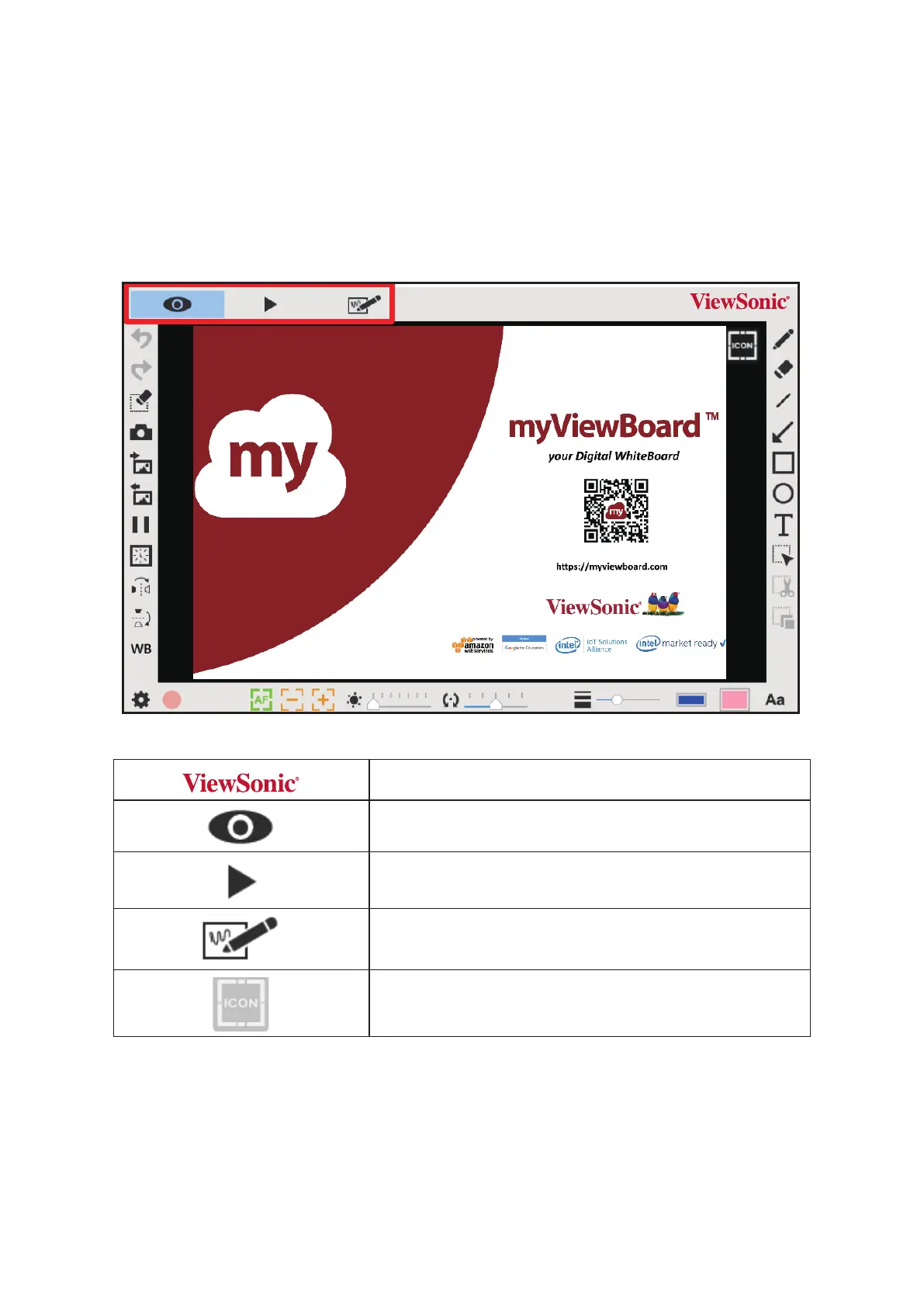
When the document camera is connected with the computer/laptop, it
automacally goes to the live mode, in which the view captured by the document
camera is shown. There are a variety of funcon icons listed on the right, the le
and the lower sides of the window. The following manual will be divided into
three parts: Live mode (Chapter 2), Playback mode (Chapter 3) and Drawing mode
(Chapter 4).
VB-VIS-002
ViewSonic VB-VIS-002 Document Cam
Quick Start Guide
Contents
2 3
1
Anti-Glare Sheet
Anti-Glare Sheet
Place the anti-glare sheet on the top of shiny object to eliminate light reflection.
Maximum Height 13”
Windows: h�ps://www.viewsonicglobal.com/q/sw/vdoccam-win
Mac: h�ps://www.viewsonicglobal.com/q/sw/vdoccam-mac
ChromeOS : h�ps://www.viewsonicglobal.com/q/sw/vdoccam-chrome
4-Way
Flip
Minimum Height 3.94”
ABC
1
ABC
2
ABC
3
ABC
4
Mac ChromeOSWindows
VB-VIS-002
ViewSonic VB-VIS-002 Document Cam
Quick Start Guide
Contents
1
Anti-Glare Sheet
Anti-Glare Sheet
Place the anti-glare sheet on the top of shiny object to eliminate light reflection.
VB-VIS-002
ViewSonic VB-VIS-002 Document Cam
Quick Start Guide
Contents
1
Anti-Glare Sheet
Anti-Glare Sheet
Place the anti-glare sheet on the top of shiny object to eliminate light reflection.
About
Shows the information of this application
Live mode
Shows the live image perceived by the document camera
Playback mode
Review images and videos captured by the document camera
Drawing mode
A white/black board for you to draw and add annotations at will
Show / Hide Toolbar


 To Next Page