26
Troubleshoong
When using the document camera :
Problem Cause Solution
Cannot be powered on normally.
The USB cable is not correctly
connected to the computer or the
computer may have crashed.
Re-connect the USB cable with the
document camera.
Restart the computer.
No image output after connecting.
The document camera is not correctly
connected to the computer.
Re-connect the USB cable with the
document camera.
Software is not installed on the
computer.
Install the bundled software on the
computer.
Application software is incompatible
with the document camera.
Use the bundled software to operate
the document camera.
The image is fuzzy.
Probably the distance of object is too
close to the lens.
Press AF button to auto focus.
The image does not move.
The computer or application software
may have crashed.
Restart the computer or application
software.
The arm is loose.
Use two coins to tighten the arm
screws if the arm is loose.
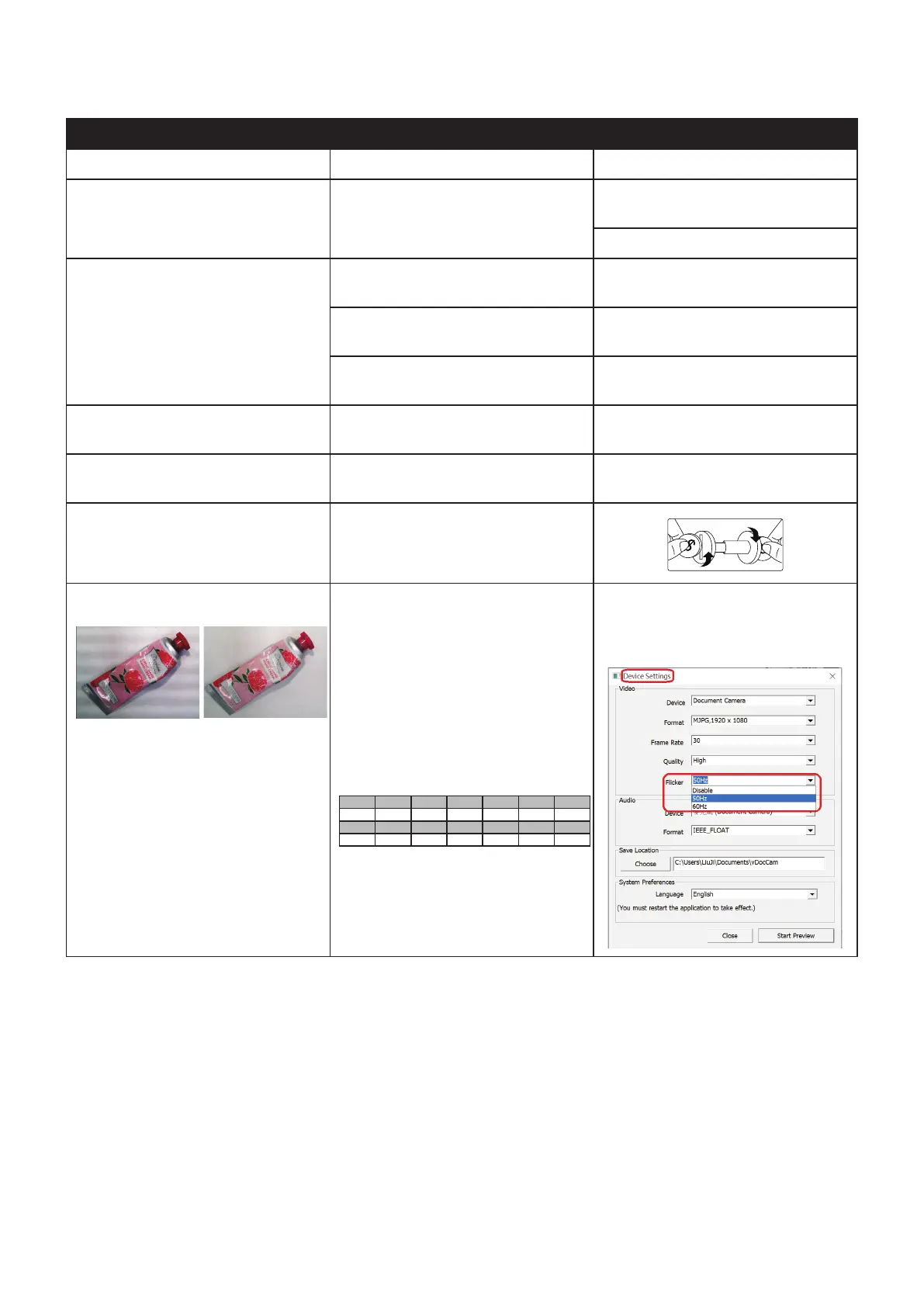
The image is flicker
Before Setting
(Horizontal noises)
After Setting
(Normal)
Camera flickering problems usually
occur when there is a difference
between the camera refresh rate
setting and the artificial lighting
refresh rate of the environment.
For power voltage and frequency
information, please reference
https://en.wikipedia.org/wiki/Mains_
electricity_by_country
Flicker settings reference
Area England Germany France Italy Spain Russia
Setting 50HZ 50HZ 50HZ 50HZ 50HZ 50HZ
Area Portugal America Taiwan China Japan Korea
Setting 50HZ 60HZ 60HZ 50HZ 50/60HZ 60HZ
Use the vDocCam software “Device
setup” item to change the camera’s
refresh rate.
Note: The contents in this manual are subject to change without prior
nocaon.


 To Next Page