7
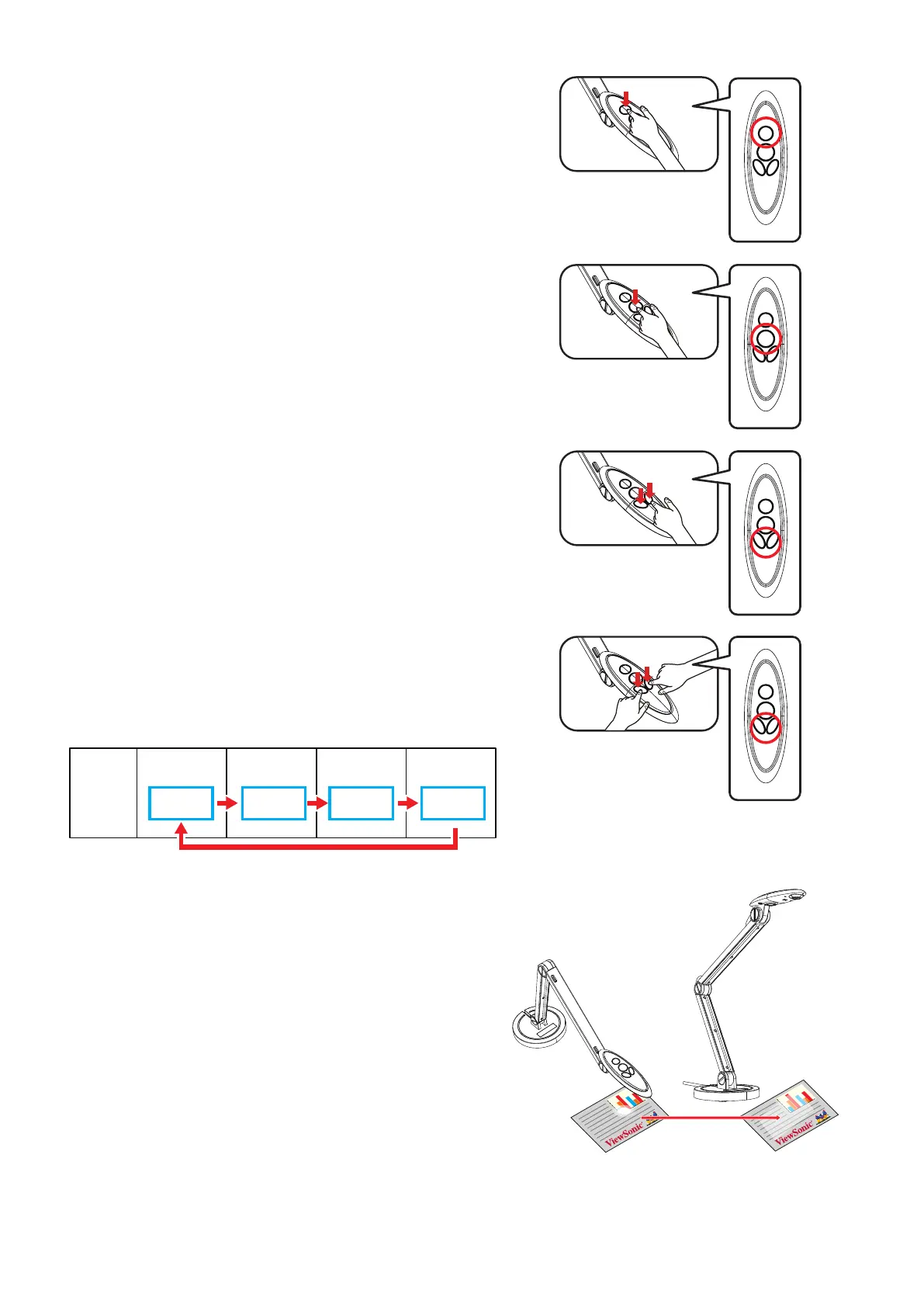
Illuminaon Lamp
If you are in a dark environment, please turn
the LED lamp on to improve the exposure.
Adjusng the Focus
Press the Focus buon to do an one-me
auto focus.
Adjusng the Brightness
Press the Brightness buon to increase or
decrease the brightness level.
Image Orientaon
Change the image orientaon by
simultaneously pressing both the
brightness(+) and the brightness(-) buons.
VB-VIS-002
ViewSonic VB-VIS-002 Document Cam
Quick Start Guide
Contents
2 3
1
Anti-Glare Sheet
Anti-Glare Sheet
Place the anti-glare sheet on the top of shiny object to eliminate light reflection.
Maximum Height 13”
Windows: h�ps://www.viewsonicglobal.com/q/sw/vdoccam-win
Mac: h�ps://www.viewsonicglobal.com/q/sw/vdoccam-mac
ChromeOS : h�ps://www.viewsonicglobal.com/q/sw/vdoccam-chrome
4-Way
Flip
ABC
1
ABC
2
ABC
3
ABC
4
Mac ChromeOSWindows
VB-VIS-002
ViewSonic VB-VIS-002 Document Cam
Quick Start Guide
Contents
1
Anti-Glare Sheet
Anti-Glare Sheet
Place the anti-glare sheet on the top of shiny object to eliminate light reflection.
VB-VIS-002
ViewSonic VB-VIS-002 Document Cam
Quick Start Guide
Contents
1
Anti-Glare Sheet
Anti-Glare Sheet
Place the anti-glare sheet on the top of shiny object to eliminate light reflection.
4-Way
Flip
An-glare
The an-glare sheet is a transparent plasc
that is overlaid on top of shiny objects or
glossy surfaces to reduce the glare.
To use, simply place the an-glare sheet on
top of the shiny object or glossy surface such
as a magazine to reduce light reecon.


 To Next Page