56
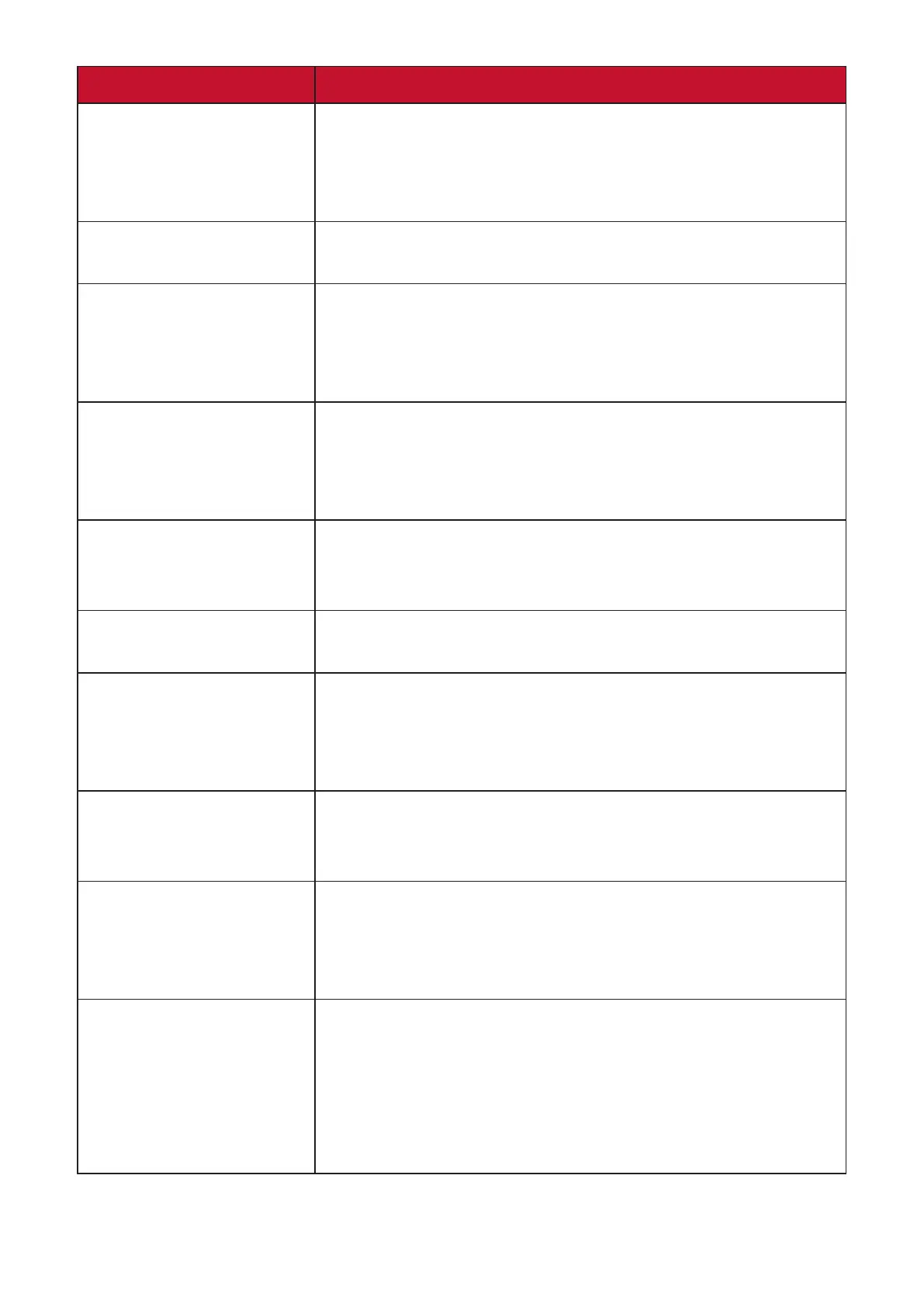
Problem or Issue Possible Soluons
The screen is not
centered correctly
• AdjusttheresoluontothecorrectAspectRao.
• Adjustthehorizontalandvercalcontrolsviathe
OSD Menu.
• Resetthemonitortofactorysengs.
The screen appears
yellow
• Makesurethe“BlueLightFilter”isO.
The OSD Menu does
not appear on the
screen
• Check whether the OSD Menu is locked.
• Turnothemonitor,unplugthepowercord,plugit
back in, and then turn on the monitor.
• Resetthemonitortofactorysengs.
The Quick Menu
doesn’t appear
• Restart the computer.
• Turnothemonitor,unplugthepowercord,plugit
back in, and then turn on the monitor.
• Resetthemonitortofactorysengs.
Some menus are not
selectable in the OSD
• Restart the computer.
• Adjust the ViewMode or the input source.
• Resetthemonitortofactorysengs.
Control panel keys do
not work
• Pressonlyonekeyatame.
• Restart the computer.
No audio output • If using ear-/headphones, make sure the mini
stereo jack is properly and securely connected.
• Make sure the volume is not muted, nor set to 0.
• ChecktheAudioInputseng.
The monitor will not
adjust
• Makesuretherearenoobstruconsnearoronthe
monitor, and that there is adequate spacing.
• Follow all steps under "Using the Monitor".
USB devices connected
to the monitor do not
work
• Make sure the USB cable is connected properly.
• TrychangingtoadierentUSBport(ifapplicable).
• SomeUSBdevicesrequireahigherelectriccurrent;
connect the device directly to the computer.
External device is
connected, but no
image appears on the
screen
• Make sure the Power is On
• Checktheconnecngcabletomakesureit
is properly and securely connected. Loose or
broken pins in the cable connector could cause an
improperconnecon.
• Adjustthebrightnessandcontrastsengs.



 To Next Page