10
1
2
3 4 5 6
7
8
9
12
11
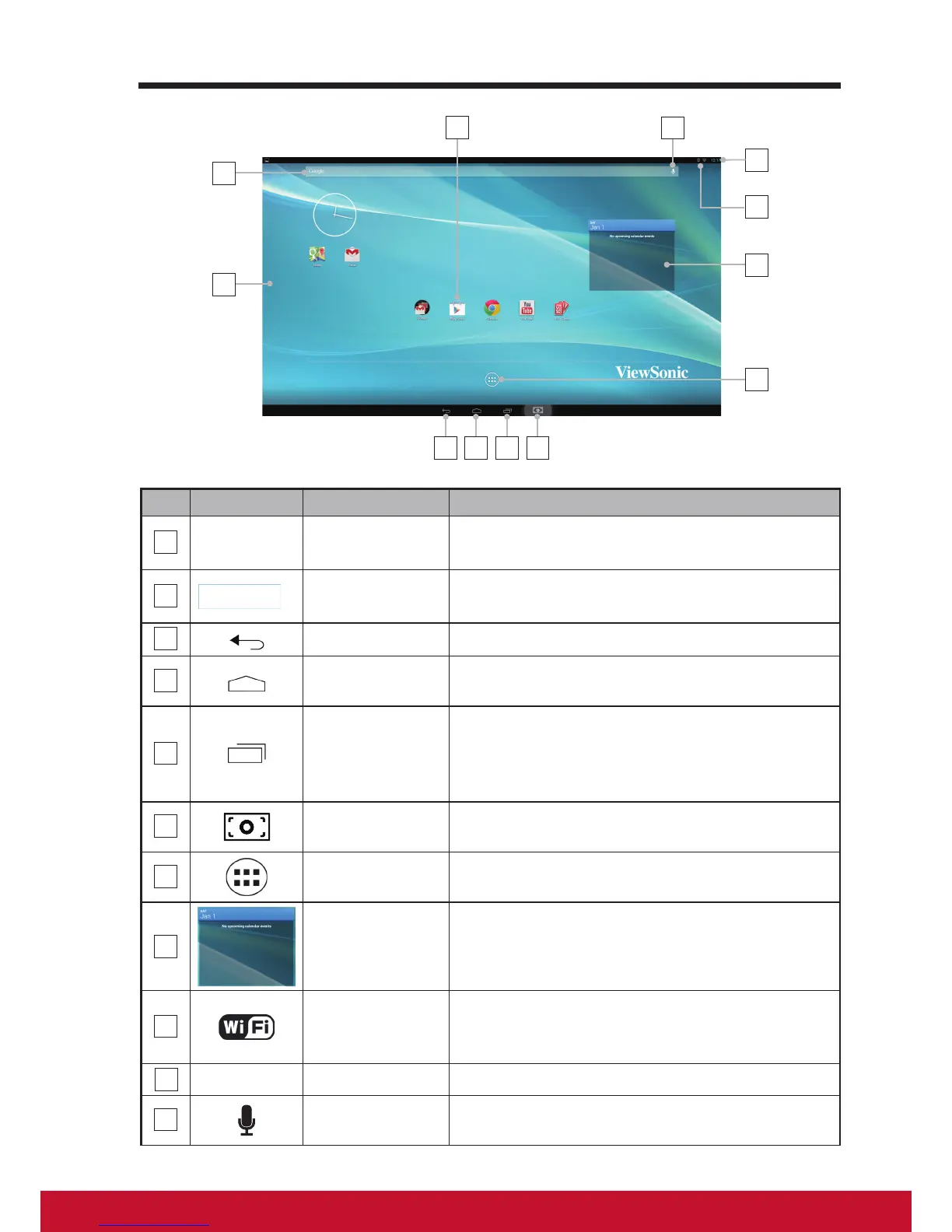
No. Items Descriptions
1
Google
Google
Search
Use the Google Search application to search
the web faster and easier from Google.
2
Navigation
Area
Flick and drag the screen horizontally until
the desired Home screen is displayed.
3
Back
Return to the previous screen or option.
4
Home
This button will indicate you to go back to
central Home screen at any time.
5
Recent
Applications
Touch this button to show you a list of
images about the applications you have
accessed recently. You can touch the listed
image to open the applications.
6
Screehshot
Tap this button to capture an image of your
screen.
7
Apps
Touch the Apps button to launch all of the
applications installed on your device.
8
Widgets
Widgets are small applications that reside
on the Home screen to provide quick access
to information.
9
Wi-
The Wi- icon will appear on the upper right
corner of the screen when you enable the
Wi- function.
10
12:17
Time
Display the current time.
11
Voice Input
Use voice input as an alternative to text
entry via keyboard.



 To Next Page