EasyManua.ls Logo

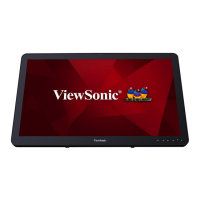
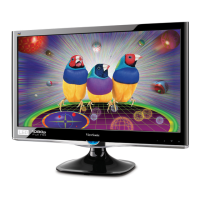
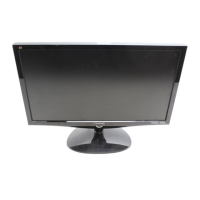
ViewSonic VSD231 - User Manual

ViewSonic VSD231
61 pages
Print Icon
To Next Page IconTo Next Page
Loading...
Model No. VS15715
VSD231
Smart Display
User Guide

Table of Contents

Other manuals for ViewSonic VSD231

Questions and Answers

  • B
    Brady JohnsonAug 16, 2025
    What to do if my ViewSonic VSD231 is unable to connect to the network?
    • D
      dhickmanAug 16, 2025
      If you're unable to connect your ViewSonic Monitor to the network, it could be due to being outside the network's service area. Check the service area with your service provider. Alternatively, a poor signal could be the issue. Try moving to an open space, or if you're inside, move closer to a window.
  • S
    solomonlindseyAug 19, 2025
    How to fix no power on ViewSonic VSD231 Monitor?
    • D
      David WilliamsAug 19, 2025
      If your ViewSonic monitor has no power, touch the LED power light for 1-2 seconds. If it doesn't light up blue, ensure the power adapter is plugged into a suitable socket and the DC connector is fully inserted into the correct socket on the rear of the VSD231 under the cover. Check the power socket with another device.
  • T
    Timothy VazquezAug 22, 2025
    Why is there no display on my ViewSonic VSD231?
    • R
      Riley BellAug 22, 2025
      Check the external HDMI or D-Sub device and connections of your ViewSonic Monitor.
  • T
    Tracy ButlerAug 25, 2025
    What to do if my ViewSonic Monitor touch screen doesn't respond to gestures?
    • D
      David ZunigaAug 26, 2025
      If the ViewSonic Monitor touch screen isn't responding, it might be due to power noise during device turn on. Try re-plugging the USB wire. Another cause might be a water drop or spot on the glass surface. Clean and remove any water, then re-plug the USB wire.
  • K
    Katie BakerAug 27, 2025
    What to do if the touch function on my ViewSonic Monitor VSD231 Display Mode does not work properly?
    • D
      Dylan WilsonAug 27, 2025
      If the touch function on your ViewSonic VSD231 Display Mode isn't working properly when the USB cable is connected, the PC screen resolution settings of Multiple Displays might be incorrectly set to “duplicate these displays.” Change the PC screen resolution settings from “duplicate these displays” to “show desktop only on 2.”
  • E
    erika18Aug 30, 2025
    What to do if my ViewSonic Monitor is locked up?
    • N
      nicolemartinAug 30, 2025
      If your ViewSonic Monitor locks up, restart it by touching the LED power light.
  • S
    Shelly Lane PhDSep 2, 2025
    Why is there no audio on my ViewSonic Monitor?
    • J
      John SmithSep 2, 2025
      If there is no audio on your ViewSonic Monitor, check the volume level setting.
  • C
    Cassandra ShepardSep 4, 2025
    What to do if my ViewSonic Monitor app doesn't function?
    • J
      Jessica MaddenSep 5, 2025
      If an app on your ViewSonic Monitor isn't functioning, check with the app author.
  • K
    Keith LewisSep 7, 2025
    How to fix no network on ViewSonic VSD231?
    • L
      Lawrence GouldSep 7, 2025
      If there is no network on your ViewSonic Monitor, check the WiFi settings and try Ethernet if available.
  • R
    Robert BaileySep 10, 2025
    Why can't my ViewSonic Monitor send or receive e-mail?
    • R
      robertsonmichaelSep 10, 2025
      If your ViewSonic Monitor can't send or receive e-mail, it could be due to an improperly configured Internet connection or e-mail settings. Check your network connection and confirm with your e-mail service provider that your e-mail settings are correct.

Summary

Compliance Information: FCC Standards

FCC Notice

Statement about FCC compliance, rules, and interference.

FCC SAR Information

Details on FCC radiation exposure limits and compliance.

Compliance Information: Canada and EU Regulations

Canada Statement

Compliance statement for Industry Canada regulations.

Declaration of RoHS2 Compliance

Important Safety Instructions

VSD231 Smart Display Features: Overview

Setting Up Your VSD231 Smart Display: Initial Setup

Connection Guide

Details on how to connect various devices and networks to the smart display.

Setting Up Your VSD231 Smart Display: Power Operations

Connecting the Power Cord

Instructions for connecting the power cord to the device and power outlet.

Powering On the Device

Steps to turn on the smart display and unlock the screen.

Setting Up Your VSD231 Smart Display: Power Off Procedure

Powering Off Your Device

Procedure for properly shutting down the smart display.

About Your VSD231 Smart Display: Touch Screen Interaction

Using Your VSD231 Smart Display: Storage and Reset

Safely Remove SD Card and Erase Device Data

Procedures for safely removing the SD card and performing a factory data reset.

Using Your VSD231 Smart Display: Device Connectivity

Connecting to HDMI;MHL and Input Selection

How to connect HDMI/MHL devices and select the input source.

Connecting to VGA Input and HDMI Output

Instructions for VGA connection and HDMI output usage.

Internet Connectivity: Wi-Fi Setup

Wi-Fi Connection Setup

Steps to connect to a Wi-Fi network, including selecting and entering passwords.

Protecting Your VSD231 Smart Display: Pattern Lock Setup

Screen Unlock Pattern Setup

Steps to set up and use a pattern to lock the touch screen.

Protecting Your VSD231 Smart Display: Pattern Lock Management

Create and Change Unlock Pattern

Detailed steps for creating and modifying screen unlock patterns.

Protecting Your VSD231 Smart Display: PIN Security Setup

Disable Security and PIN Setup

How to disable screen lock and set up a PIN for security.

Protecting Your VSD231 Smart Display: Password Security Setup

Password Setup and Management

Steps to set up and manage password security for the device.

Protecting Your VSD231 Smart Display: Face Unlock Setup

Face Unlock Setup

How to set up facial recognition to unlock the device.

Troubleshooting Guide: Screen and Messaging Issues

Touch Screen Problems

Solutions for issues where the touch screen is unresponsive or inaccurate.

Messaging Problems

Solutions for issues related to sending/receiving messages or emails.

Troubleshooting Guide: Other Common Issues

Other Common Problems

Solutions for issues like no power, no display, lock-ups, and network problems.

Customer Support Information

Limited Warranty Details

Warranty Coverage, Duration, and Exclusions

Information on what the warranty covers, its duration, and what is excluded.

How to Get Service

Steps to follow for obtaining warranty service and support.

Warranty Limitations and Disclaimers

ViewSonic VSD231 Specifications

General IconGeneral
Screen shapeFlat
LED backlightYes
Display diagonal23 \
Tilt angle range0 - 90 °
Touch technologyMulti-touch
Display brightness300 cd/m²
Native aspect ratio16:9
Detachable displayNo
AC adapter power48 W
Operating temperature (T-T)0 - 35 °C
Operating relative humidity (H-H)20 - 90 %
CertificationCE, CB, UL/CUL, FCC-B (including ICES003, FCC-C, IC RSS-210, China CCC, CEL Gost-R, FAC, WEEE, REACH, SVHC, ErP, Argentina CNC
Sustainability certificatesRoHS
Storage media-
Total storage capacity8 GB
Compatible memory cardsSD
USB 2.0 ports quantity2
USB 3.2 Gen 1 (3.1 Gen 1) Type-A ports quantity3
USB 3.2 Gen 1 (3.1 Gen 1) Type-C ports quantity0
Internal memory2 GB
Memory clock speed- MHz
Internal memory typeDDR3-SDRAM
Maximum internal memory- GB
Discrete graphics card modelNot available
RMS rated power2 W
Wi-Fi standards802.11b, 802.11g, Wi-Fi 4 (802.11n)
Bluetooth version4.0
Ethernet LAN data rates10, 100, 1000 Mbit/s
Total megapixels2 MP
Product colorBlack
Cable lock slot typeKensington
Product typeAll-in-One PC
Cables includedHDMI, VGA
Processor cores4
Processor modelTegra 3
Processor familyNVIDIA Tegra
Processor frequency1.6 GHz
Processor manufacturerNVIDIA
Operating system installedAndroid 4.3
Weight and Dimensions IconWeight and Dimensions
Package depth170 mm
Package width620 mm
Package height455 mm
Package weight8400 g
Depth (with stand)192.4 mm
Width (with stand)547.1 mm
Height (with stand)392.6 mm
Weight (with stand)7200 g
Depth (without stand)48.3 mm
Height (without stand)370.8 mm

Related product manuals