22
4.5 Devices Connection
4.5.1 Connecting to HDMI-compliant Devices via HDMI/MHL Input
HDMI (High-Denition Multimedia Interface) and MHL (Mobile High-Denition
Link) are compact audio/video interfaces for transferring uncompressed
digital audio/video data. You can obtain the best user experience for video
playback and gaming via these inputs. VSD231 is equipped with a HDMI
input for connection to an external HDMI or MHL compliant devices. You
can connect your PC, notebook, Blu-ray player or any other HDMI / MHL
compliant devices to VSD231 for high-denition video display.
How to begin
1
A “type A (HDMI) to type A (HDMI)” HDMI cable or “MHL to type A
(HDMI)” cable must be available.
2
Connect the Type A HDMI connector or MHL connector of the cable to
the desired HDMI / MHL compliant device.
3
Connect the Type A connector of the HDMI cable to the HDMI port
located on the back of your VSD231.
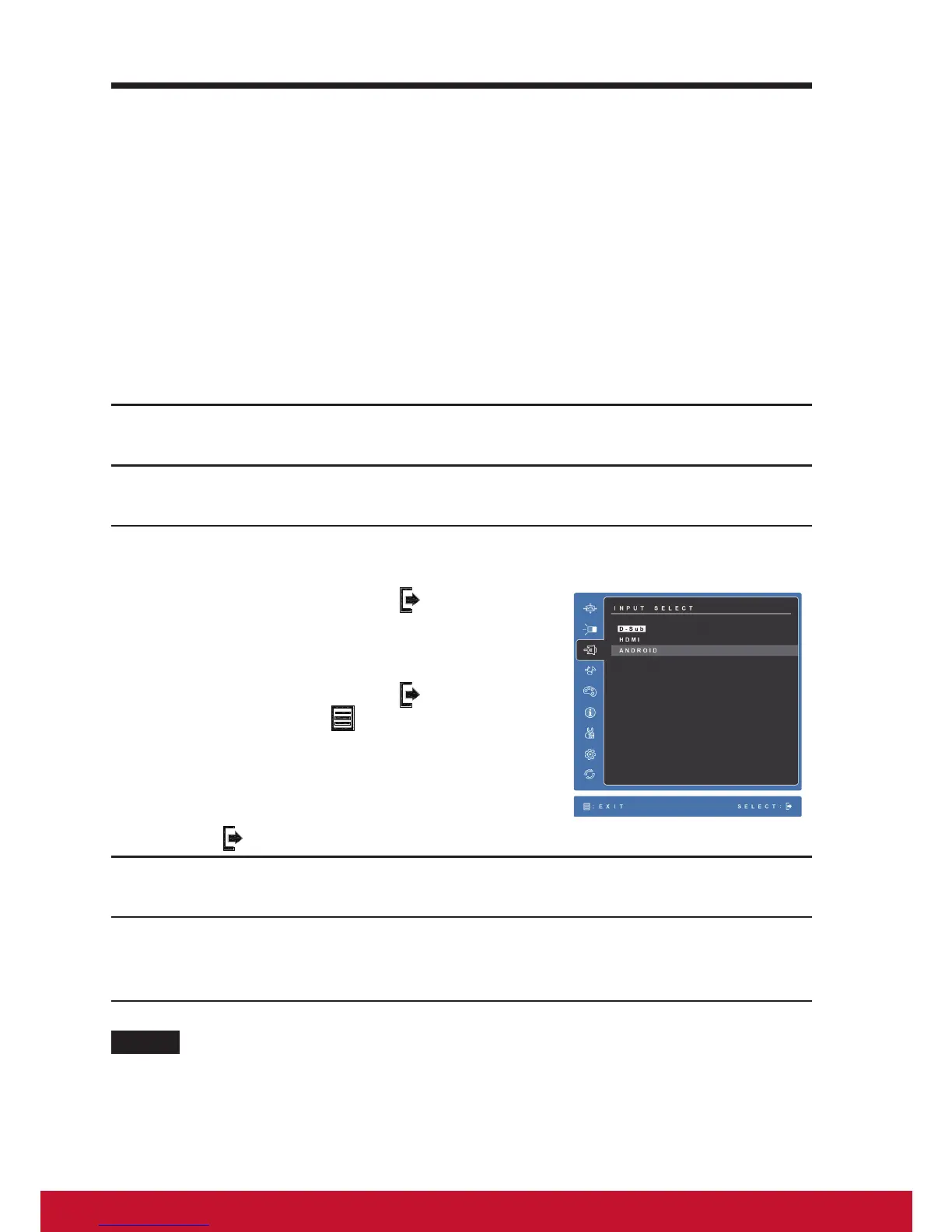
1) Press the SELECT key
to choose the
input source on the OSD window.
2) Use UP ▲ and DOWN ▼ keys to select
the source.
3) Press the SELECT key
again to Enter
or press MENU
to exit.
Note:
1) The INPUT SELECT OSD window will
close after 15 sec. without any action.
2) If there is no signal source, press SELECT
key
to choose another source.
4
For PC or notebook connection, always set the appropriate resolution.
VSD231 supports with max. resolution of 1920*1080.
5
To enable the Webcam, USB upstream and touch screen function,
connect the USB cable to USB B-type connector of VSD231 and
connect the other end to your PC or notebook.
NOTE
• The touch screen function will work with computers running Windows 7 or later versions
without the need for additional drivers.
• When in display mode, the VSD231 Smart Display will temporarily display “No Signal”
and then switch back to Android OS when PC enters sleep mode.


 To Next Page