6 Customizing Your VSD231 Smart Display
You can customize your device using the options available in the Settings
application.
6.1 Display Settings
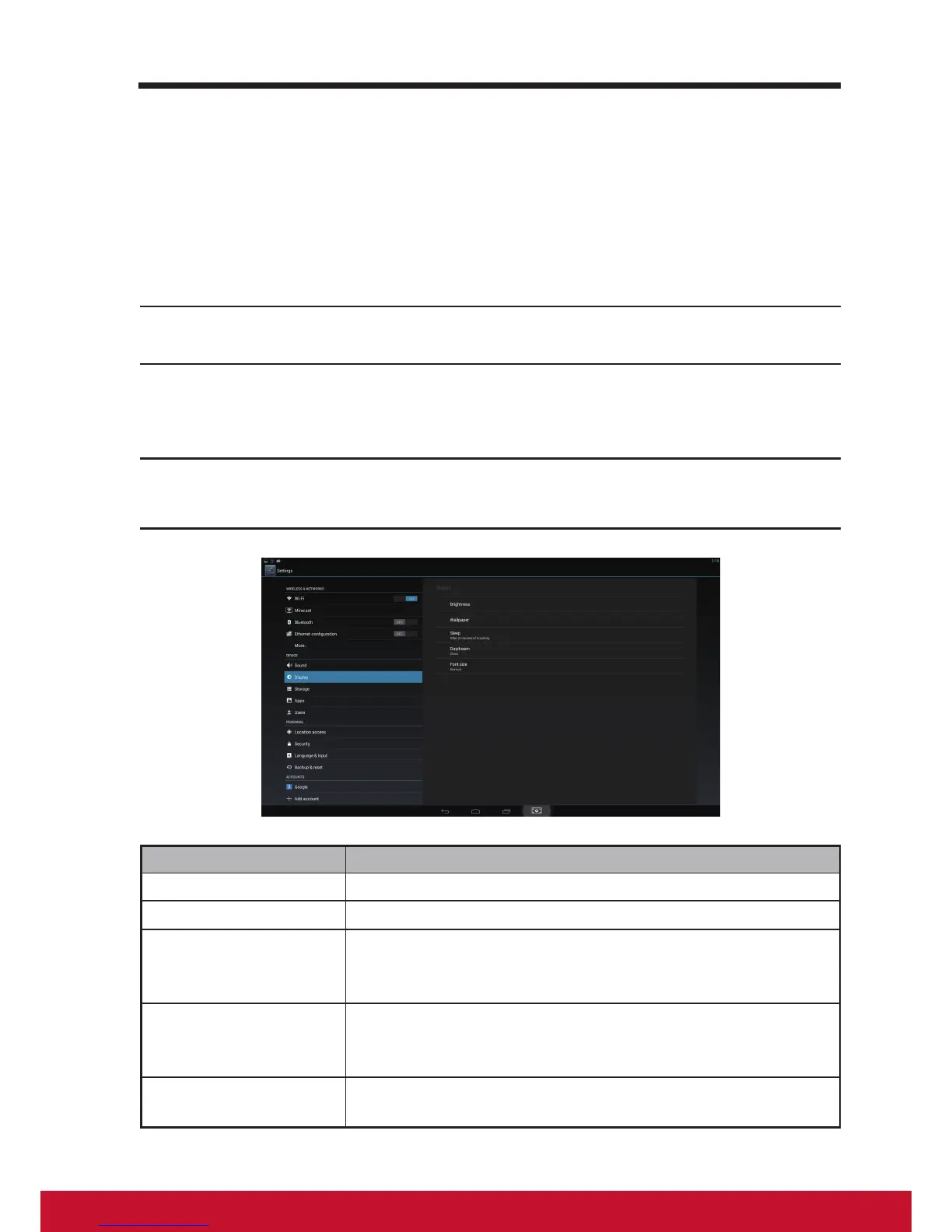
Change the display settings:
1
Touch the Home button │ Apps button │ Settings │ Display.
2
You can congure the Brightness, Wallpaper, Sleep, Font size, and
Daydream here. For Wallpaper, you can also touch and area on the
Home screen to open the Wallpaper conguration screen.
3
Enable a setting, touch the setting option to select the check box.
Disable a setting, touch the setting option to clear the check box.
Items Descriptions
Brightness Adjust the light level in the display.
Wallpaper
Refer to
3.6.4 Change the Wallpaper.
Sleep Here you can congure the idling time for entering power
saving mode. (e.g. 15 sec., 30 sec., 1, 2, 5, 10, 30 min.
or Never timeout, by default, it is set to 10 minutes.)
Daydream It activates automatically when the device setup to
Daydream to ON (instead of turning the screen off).
(e.g. Clock, Colors, Photo Frame, Photo Table)
Font size Set the Font size to your screen. (Small, Normal, Large
or Huge, by default, it is set to Normal)


 To Next Page