Way 1: (Pictures 3) Click Search within the same LAN network cameras, user can search and add cameras within the
same LAN. If the cameras and phones are not in the same LAN, then cameras won’t be searched.
Way 2: (Pictures 3) Input the UID on the “UID” of the APP. The default user name and password are :admin. After login,
the APP will ask you to modify the password. Note:the “Device ID”is on the bottom of the ip cameras.
Way 3: In (Pictures 4), Click “ Scan” to scan the QR code on the label of IP camera. It will nd and add the ID
automatically,Then click to nish.
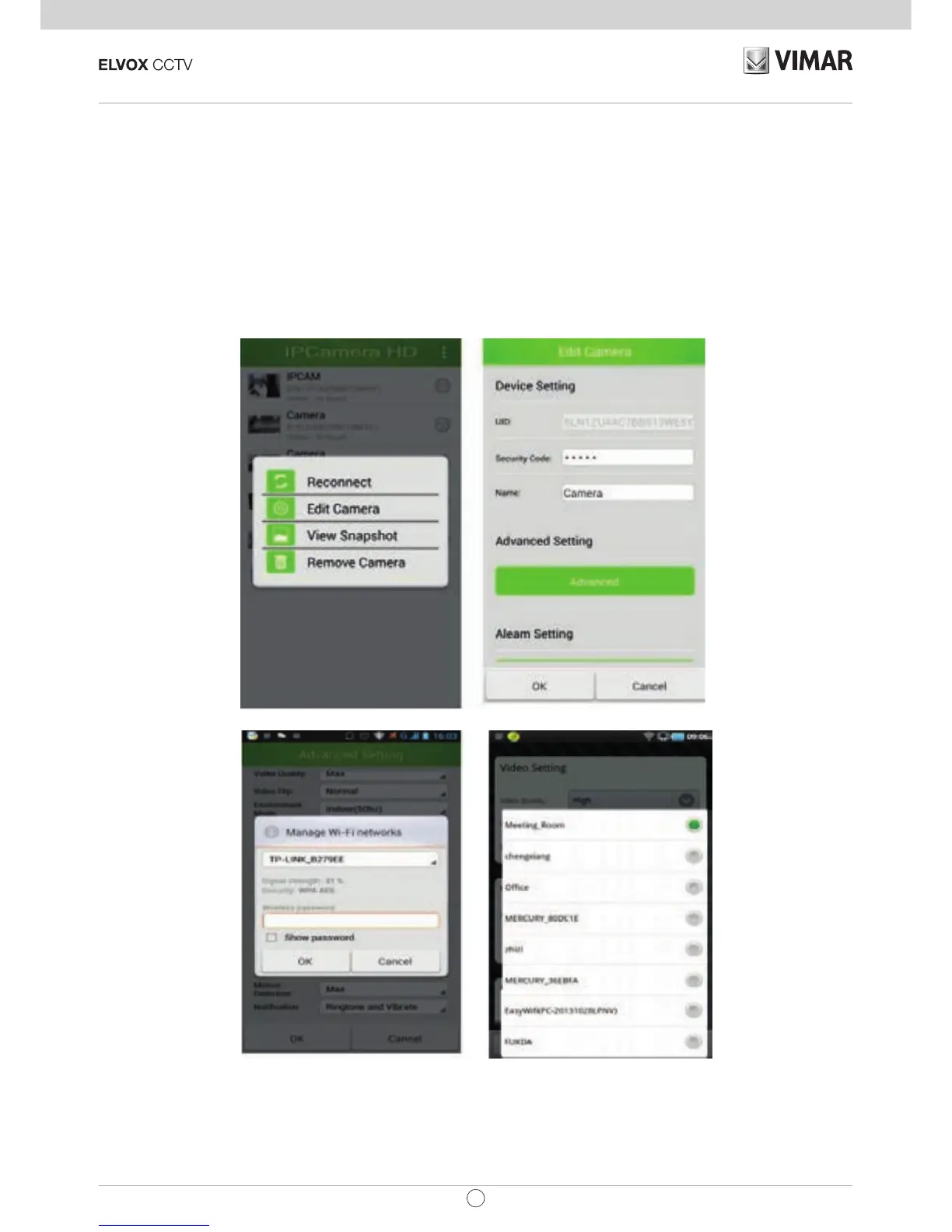
3.1 WiFi settings
Click the drop-down box routing device, select to the router, enter the
wireless password, click OK, and restart the camera to be connected to the camera, then unplugged network cable,
you can view the ip camera via the WiFi.
Remark: In “ Edit Camera”, you can do “ Security code setting”, ” Video setting” , ” Event setting” etc.


 To Next Page