EasyManua.ls Logo

Viotek RFI25CBA - User Manual

Viotek RFI25CBA
23 pages
Print Icon
To Next Page IconTo Next Page
Loading...
RFI25CBA
In order to continue serving our customers and providing the best products, our product information
including our user manuals may receive updates from time to time. Please check our website for the
latest user manuals and product materials.
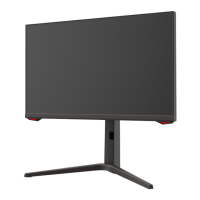
GAMING MONITOR
USER MANUAL

Questions and Answers

  • R
    Rebecca FieldsAug 17, 2025
    What to do if Viotek Monitor screen is blank?
    • C
      Charles RhodesAug 17, 2025
      If your Viotek monitor screen is blank, first, press the power button to ensure the monitor is on. Next, check that the brightness and contrast settings are properly adjusted. Also, verify if the indicator light is flashing, which indicates a missing signal from your video source. If you're using a laptop, confirm it’s powered on and set to mirror or extension mode.
  • J
    James JohnsonAug 20, 2025
    Why is my Viotek Monitor screen flashing?
    • E
      Ebony MitchellAug 20, 2025
      Your Viotek monitor screen might be flashing due to an insufficient power supply. Try using an alternative power source. Also, keep devices like speakers, fluorescent lights, and fans away from the screen to prevent magnetic disturbances.
  • D
    Daisy KaneAug 22, 2025
    What to do if Viotek RFI25CBA Monitor light is on but no image?
    • A
      Alexandra FisherAug 22, 2025
      If the light indicator is on or flashing, but there is no image on the Viotek monitor screen, ensure the monitor power is on and that the graphics card is properly installed. Also, verify that the power cable is securely connected to both the monitor and the power source.
  • R
    ryan19Aug 26, 2025
    How to fix Viotek Monitor color bleed?
    • T
      tfordAug 26, 2025
      If your Viotek monitor screen displays color bleeding or unusual visual effects, a loose connection could be the cause. If the screen is all red or blue, or colors disappear, ensure the cable is properly inserted. You may also try connecting to another video source to see if the issue persists.
  • C
    Corey WilsonAug 28, 2025
    How to fix out of focus image on Viotek Monitor?
    • X
      xcooperAug 28, 2025
      To fix an out-of-focus image on your Viotek monitor, ensure the video cable is properly inserted at both ends.
  • S
    Scott ShawAug 31, 2025
    Why is my Viotek Monitor screen scrolling?
    • A
      Ann WardAug 31, 2025
      If your Viotek monitor screen appears to be scrolling, rolling, or moving unusually, check that your source frequency is within the range of 55-76Hz. Also, try reconnecting and ensuring your video cable is securely attached.
  • C
    Charles LuceroSep 2, 2025
    Why Viotek RFI25CBA doesn't show image from USB-C?
    • R
      Ryan WillisSep 2, 2025
      If your Viotek monitor isn't displaying images from a smartphone/tablet connected via USB-C, ensure that the connected device supports DP ALT MODE. Also, confirm that the USB Type-C cable supports DP ALT MODE and can transmit video/data signals. If it doesn't, replace the USB-C cable.
  • E
    Elizabeth MoonSep 5, 2025
    What to do if Viotek RFI25CBA indicator light does not work?
    • K
      Kari KellerSep 5, 2025
      If the indicator light on your Viotek monitor is not working, first check if the power is on. Then, make sure the power cable is properly connected to both the monitor and the power source.
  • K
    Kimberly FullerSep 8, 2025
    How to brighten image on Viotek Monitor?
    • S
      Sarah HarmonSep 8, 2025
      If the image on your Viotek monitor is dim, adjust the brightness and contrast ratio settings.
  • M
    Mary CherrySep 12, 2025
    How to center image on Viotek Monitor?
    • L
      Linda WestSep 12, 2025
      If the image position on your Viotek monitor is not centered or the size is incorrect, adjust the Clock or Auto settings.

Summary

Safety Precautions

Box Contents

Product Overview

Rocker Button

Describes the functions and shortcuts of the monitor's rocker button.

Monitor Ports

Details the various input and output ports available on the monitor.

Stand Installation

Wall Mounting

Basic Operation

Indicator Light

OSD

OSD Menu Functions

Details the various functions and options available within the OSD menu.

Port Selection

ECO Modes and Gameplus Switching

Troubleshooting

General Problems

Addresses common issues like blank screens, fuzzy images, and color problems.

PIP Input Information

Provides input compatibility details for Picture in Picture (PIP) mode.

PBP Resolution Information

Offers resolution recommendations for Picture by Picture (PBP) mode.

Cleaning

Information

Specifications

Lists detailed technical specifications of the monitor.

Resolution Compatibility for DP

Details system requirements and resolution compatibility for DisplayPort.

Three-Year Limited Hardware Warranty

Viotek RFI25CBA Specifications

General IconGeneral
BrandViotek
ModelRFI25CBA
CategoryMonitor
LanguageEnglish

Related product manuals