Maintenance Visioneer
®
Rabbit™ PC30dwn
User Guide
69
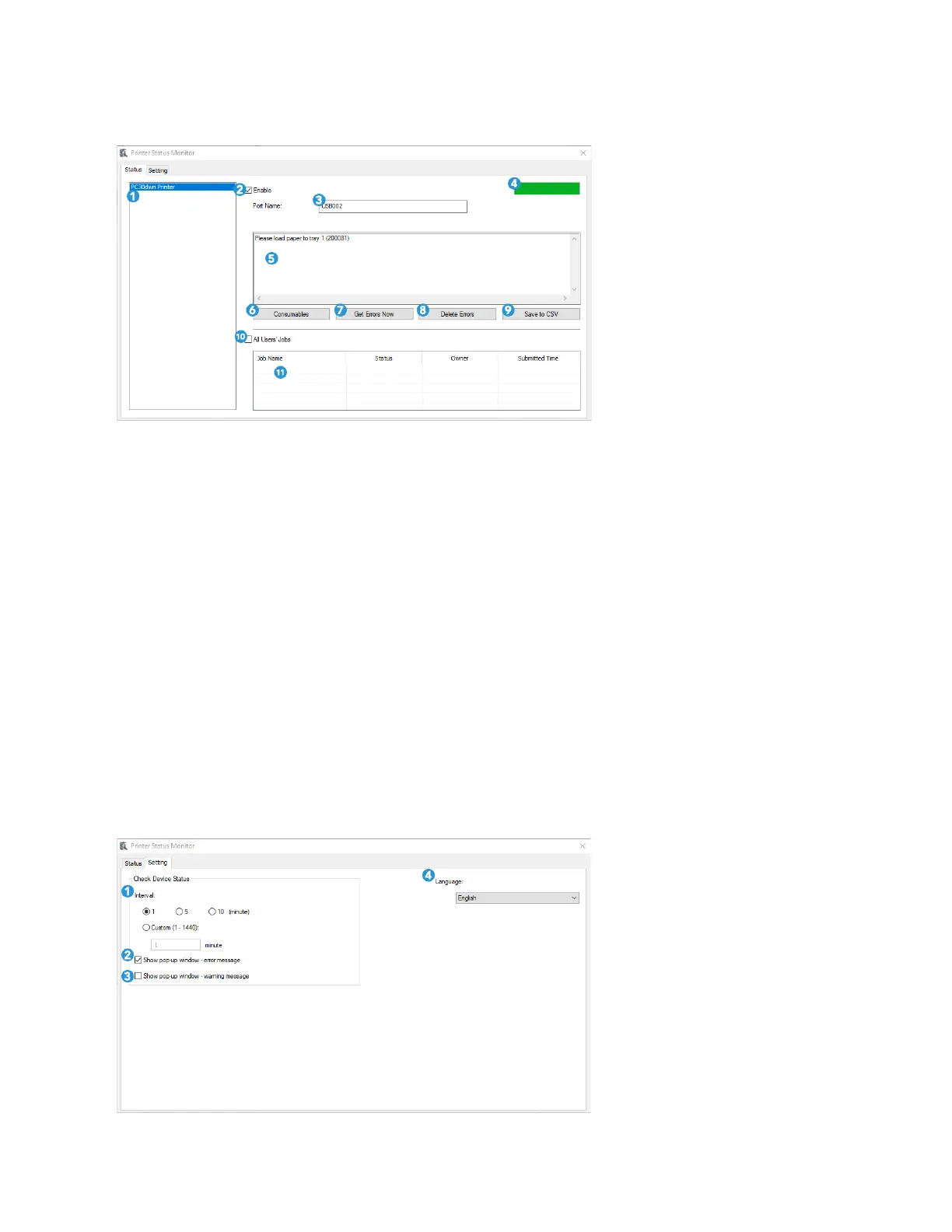
Status Window
1. Printers — displays connected printers.
2. Enable=— check the box to enable accessing the status of a specified printer.
3. Port Name — port name for the specified printer.
4. Progress Bar — displays the connectivity status.
5. Information Box — displays the current status of the printer and/or any current errors.
6. Consumables — click to display the information of the paper tray and the consumables parts such
as Drum Unit, Toner Cartridge.
7. Get Errors — get a log of current errors related to selected printer listed in the Information Box.
8. Delete Errors — deletes the listed errors in the Information Box.
9. Save to CSV — save error messages to a CSV file.
10. All Users’ Jobs — check the box to display All users’ jobs.
11. Job Box — displays all the jobs in queue.
Settings Window
1. Interval — define the interval to refresh the printer error status.


 To Next Page