13
DISPLAY SETUP - macOS
macOS Users
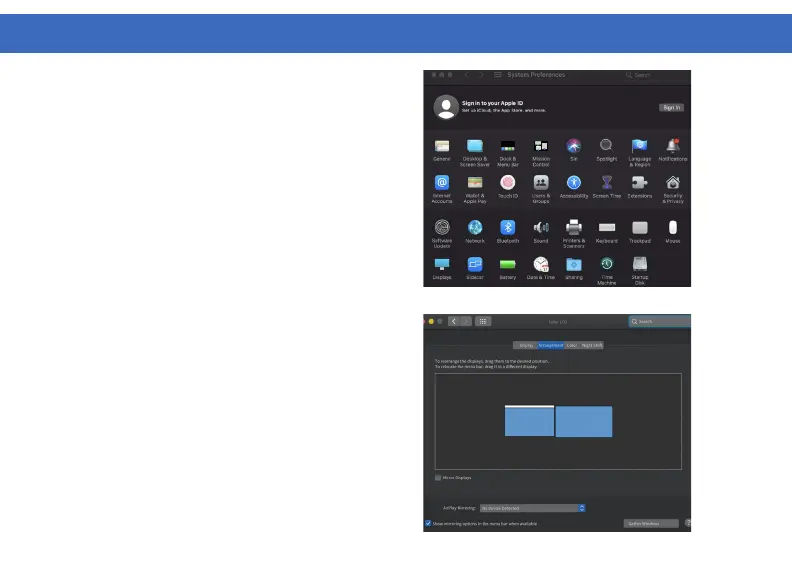
When a new display is connected to your Mac,
it will default to being extended to the right of
the main display. To configure the settings for
each of your displays, select “Displays” from
the “System Preferences” menu. This will open
the “Display Preferences” window on each of
your displays allowing you to configure each.
1. Select “System Preferences” and choose
“Displays”.
2. Click on “Arrangement” to change the position
of displays currently connected.
3. To use mirror mode, you must mark the “Mirror
Displays” box below the central icon.
4. To change primary display, click on the small
bar on top of the main monitor and drag in onto
the monitor you want to be the primary.



 To Next Page