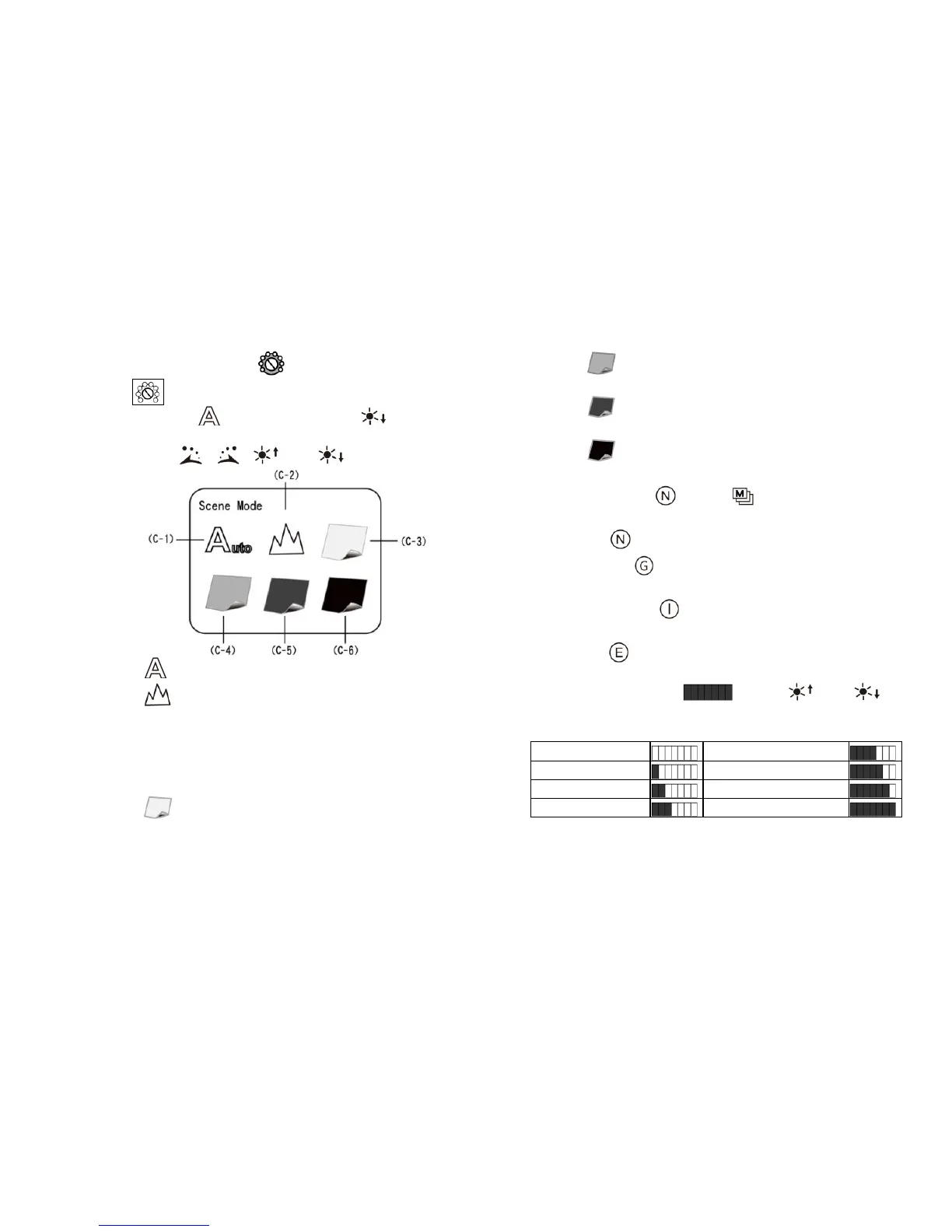
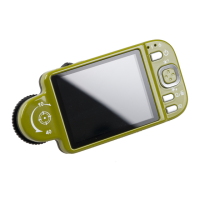
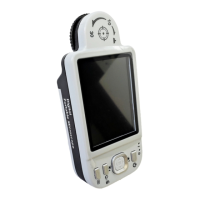
(C) Sceme Mode : Press the button of for a long
time to switch among the six scene modes and use the
button of , , and to select.
(C-1) : Automatic mode, which is used as presetting.
(C-2) : Camera mode. LED will turn off
automatically in this mode. Choose one of the lamp
modes again, and the system will set Camera mode
as the automatic one.
The following four modes can be selected according to
brightness of observed article to achieve optimal result.
(C-3) : White mode, for example, the observed
articles made of shining materials.
(C-4) : Grey mode, for example, the observed
articles with light colors.
(C-5) : Dark Grey mode, for example, the observed
articles with dark colors.
(C-6) : Black mode, for example, the observed
articles with dark black.
(D) Special Effects : press button to choose the
following special effects models in observing model:
Normal : general model without any special effect.
Grey Scale : shows by grey scale to simplify and
easily identify images.
Reversed-phase : shows by complementary colors to
strengthen faint-colored or over-lighted image.
Relief : Outstanding show the edge and filter out
non-marked image.
(E) Brightness of Lights : press and to
adjust brightness of lights in the observing model. The
brightness is divided into the following 8 levels:


 To Next Page