24
CHANGE GAUGE FACE
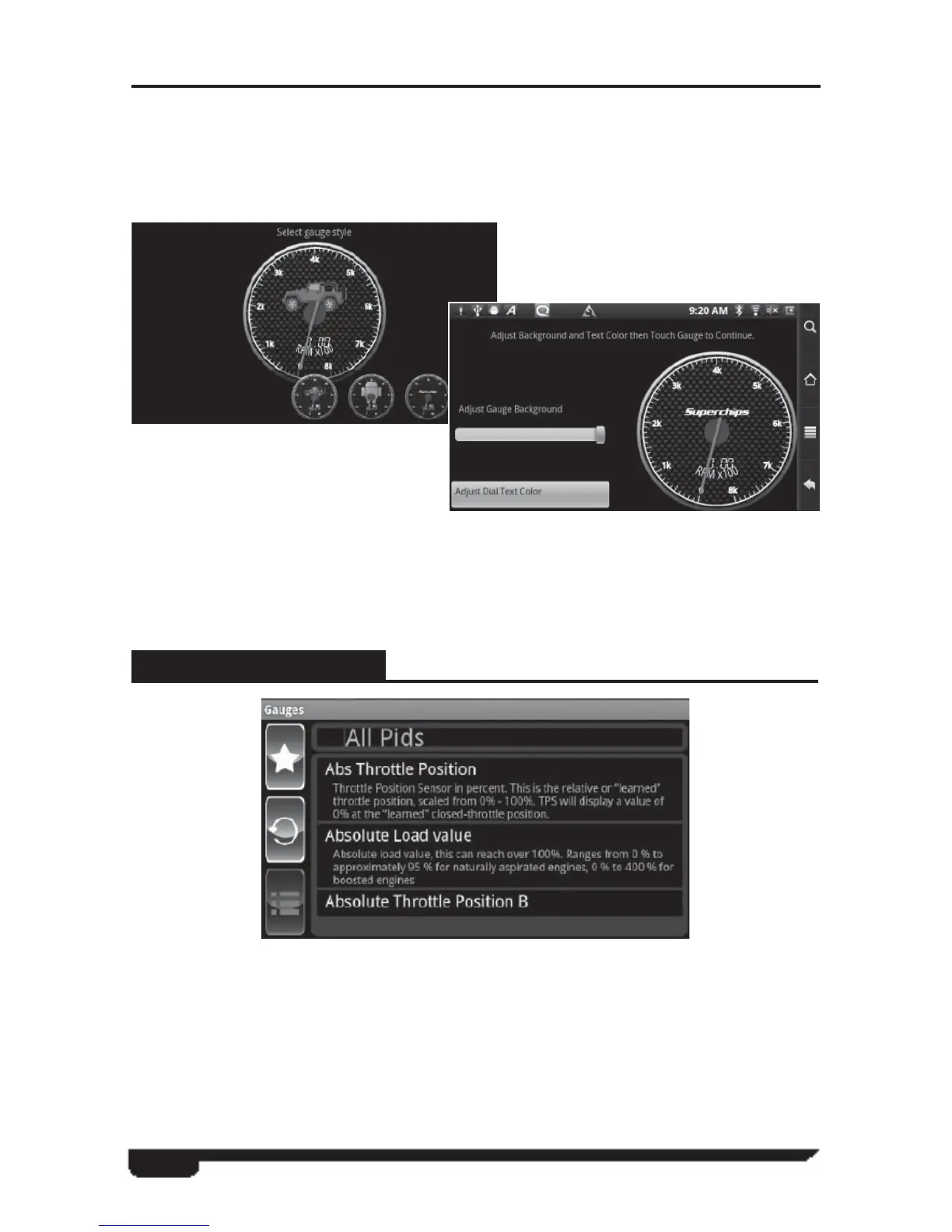
This feature provides you with a large group of additional gauge images. You can
touch and hold the smaller images at the bottom of the screen to scroll through all of
the image selections. When you fi nd a gauge image you would like to add, you will
touch the image to apply it to the gauge. You can then press and hold the large gauge
to enter the following menu:
Select Current: Saves the current image to the gauge being changed.
Customize Gauge: Offers background and text color change options. Once done
editing touch the large gauge to return to the previous screen.
Cancel Gauge Changes
PID INFORMATION
Change Measure (PID)
Provides the user with a list of all PID’s applicable to the specifi c vehicle being
monitored. There are three options available for PID viewing:
Favorite PID’s
Allows the user to add PID’s to a favorites section so the user can reference and
customize each gauge with that list of favorites. This minimizes scroll time for PID
selection. By touching and holding a PID from the list the user is prompted to add to
Favorites. The user can also go into the Favorites and remove PID’s the same way.



 To Next Page