34
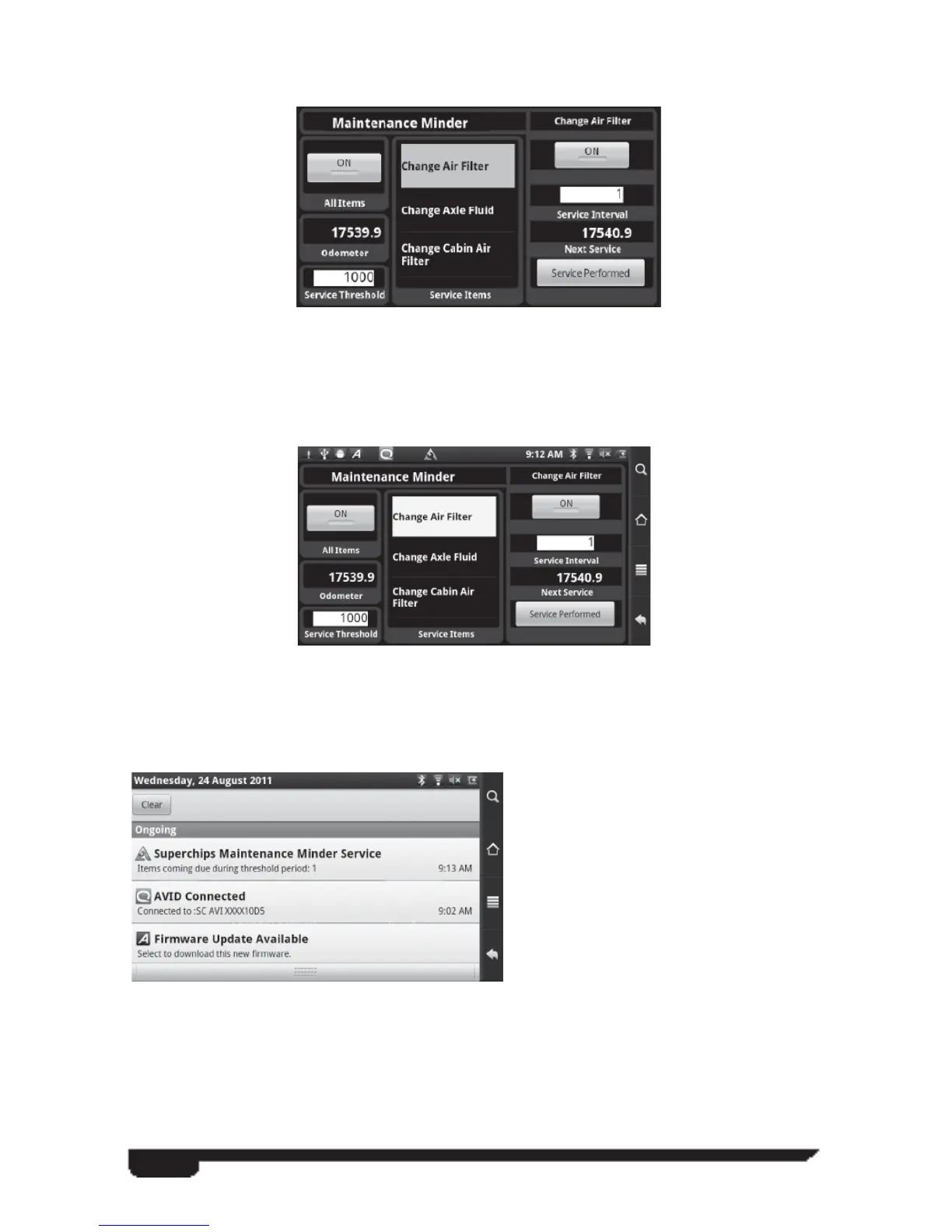
After hitting the Done button the main Maintenance Minder screen detail the items
you have selected:
Nothing else changed because the Service Threshold was past the service item already.
If there are any Service Items that the odometer value is greater than the Next Service
value without having to add in the Threshold, the item is considered past due and not
coming due. This causes an Urgent Item condition as shown in this screen:
Notice the notifi cation icon now shows an Urgent Item condition. The Urgent Item
condition takes precedence over the warning condition.
If you drag down the notifi cation from the notifi cation bar, you will see text similar to
the following:
If there are no items due, the icon will
be green and the text will say “No
Items Due.” If there are only warning
items the icon will be yellow and the
text will say Items coming due during
threshold period: x, where x is the
number of items that are coming due.
If there are only urgent items, the icon
will be red and the text will say Items
due now: x, where x is the number of
items that are past due.
If there are both warning and urgent items, the icon will be red and both text will be
shown along with the count of each type of item coming due.
If you tap on the notifi cation area while it is open, you will be taken to the Maintenance
Minder application no matter what application you were in before.
Note: Increasing the threshold will cause items to show a warning sooner.



 To Next Page