34
TIPS - QUESTIONS - ANSWERSMAINTENANCE - CARE - REPAIR
4.4 ALTERNATIVE BOOT
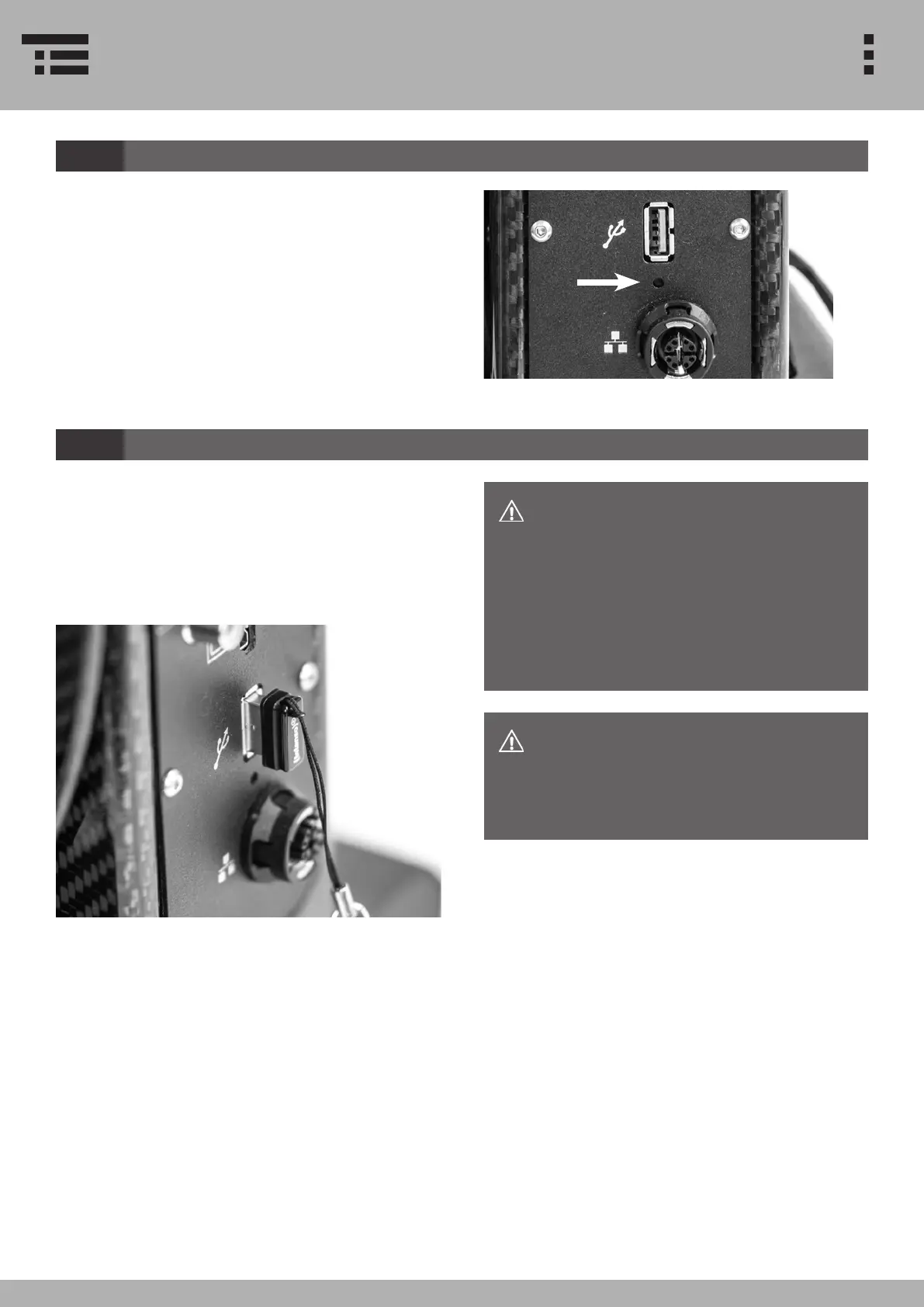
If your system doesn‘t respond or boot, perform an
alternative boot.
Alternative boot can also be started by pressing and
holding the main switch.
l 3.2.2 CONNECTIONS BASE UNIT, page 19
4.5 SOFTWARE UPDATE
If you wish to update your VUMAN E3 / E3+ system,
please contact your vizaar representant to get further
help.
After receiving the update, upack it to your USB device
and connect it to the USB slot in your base unit.
l 3.2.2 CONNECTIONS BASE UNIT
7. USB 3.0 INTERFACE, page 19
After connecting the device, your system
will take at most 30 sec. to detect the up-
date on the USB device. The update infor-
mation will appear on the display. Click
YES to start the update. By clicking NO,
the process will be canceled. To restart
the update remove and re-connect the
USB device again.
Avoid physical impacts on the USB-stick
when it is connected to the device. Other-
wise you might damage the USB driver or
the slot and thus the system.


 To Next Page