03 Planning your trip
Settings
03
``
47
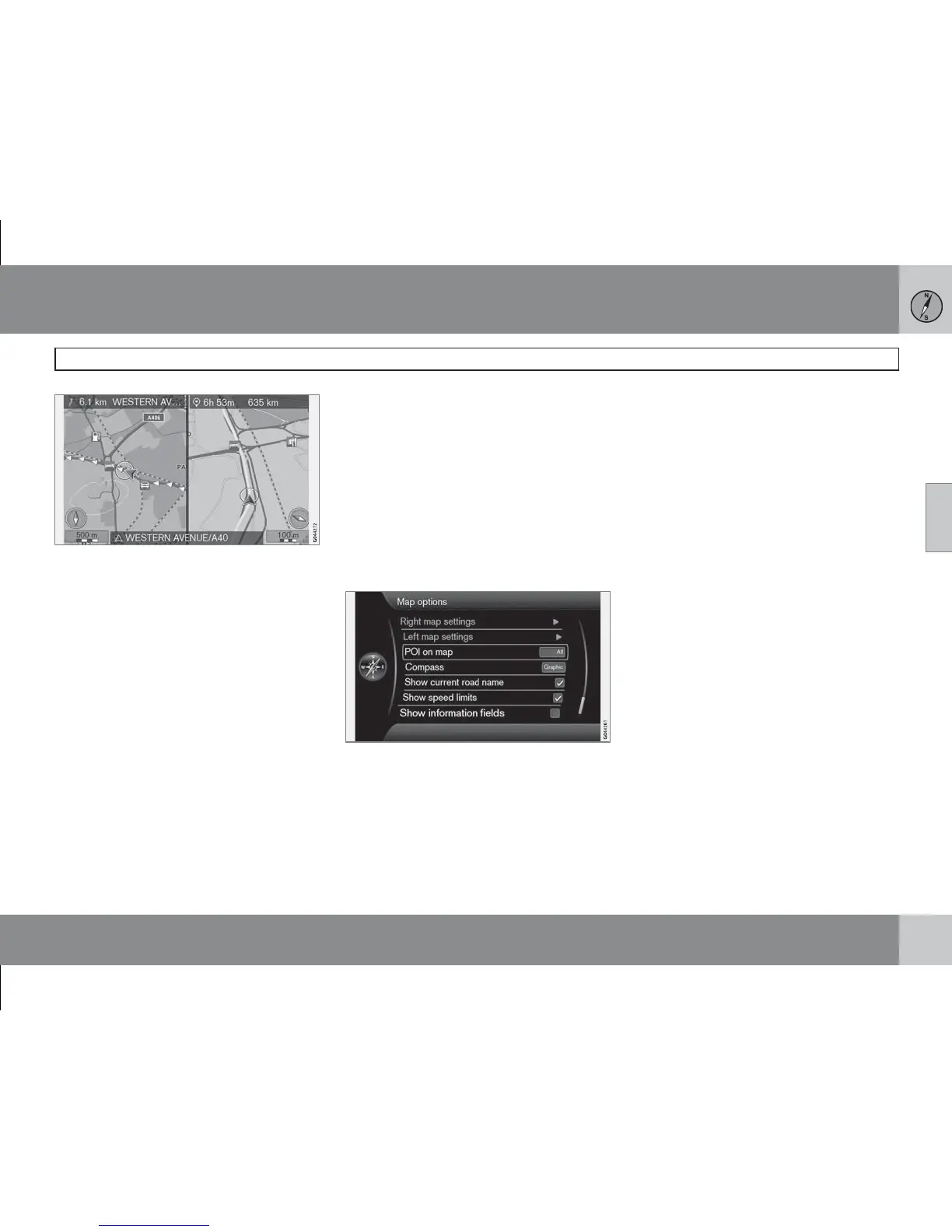
The screen can display the map of the entire
image area or the same map view in 2 different
scales on each left and right half.
Select by ticking in the box by Show dual map
mode
(Show dual map mode) + OK and
EXIT.
Left map settings
(Left map settings)
•
Map orientation - Select Heading or
North.
•
Map view - Select 2D or 3D.
Right map settings
(Right map settings)
Same as for left map - see previous section.
Adjust the map scale in dual map mode
To view both maps with different map scales,
they can be adjusted individually as follows:
1. Start from map view mode. Turn the
TUNE knob to the left and right - one
screen half is surrounded by a colour
frame.
2.
Press OK - marked screen half is now
active.
3.
Turn the TUNE knob to adjust the scale.
4.
Press OK again - done, the screen half is
deactivated.
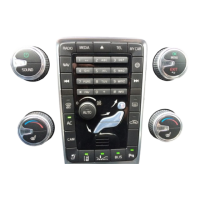
POI on map
(POI on map)
Tick the desired option for how many POIs are
to appear on the map:
•
All (All) - all POIs appear.
•
None - no POIs appear.
•
Selected - A menu with all POIs appears:
Tick the POIs that you want to appear on
the map.
Possible POIs are listed on page 62.
Compass
(Compass)
Select the type of compass you want to appear
on the map image:
•
Graphic (Graphic)
•
Text
•
None.
See more information about the compass on
page 27.
Show current road name
(Show current road name)
Ticked option shows the name at the bottom
of the the screen of the street/road the car is
on.
Show speed limits
(Show speed limits)
Tick the option to see a traffic sign with current
maximum permitted speeds, in the upper right-
hand corner of the screen.
Show information fields
(Show information fields)
Tick the option to see information in the text
field at the top and bottom of the screen.



 To Next Page