||
AUDIO AND MEDIA
62
2. Continue with the next letter. The result of
the search is shown in the phone book (3).
3. To change the input mode to numbers or
special characters, or to go to the phone
book, turn TUNE to one of the options (see
explanation in the table below) in the list for
changing the input mode (2), press
OK/MENU.
123/ABC
Change between letters and
numbers with OK/MENU.
MORE
Change to special characters
with OK/MENU.
=>
Leads to the phone book (3).
Turn TUNE to select a contact,
press OK/MENU to see the
saved numbers and other infor-
mation.
First
name/
Last
name
Changes the sort order in the
phone book.
A short press on EXIT deletes an input character.
A long press on EXIT will clear all entered char-
acters.
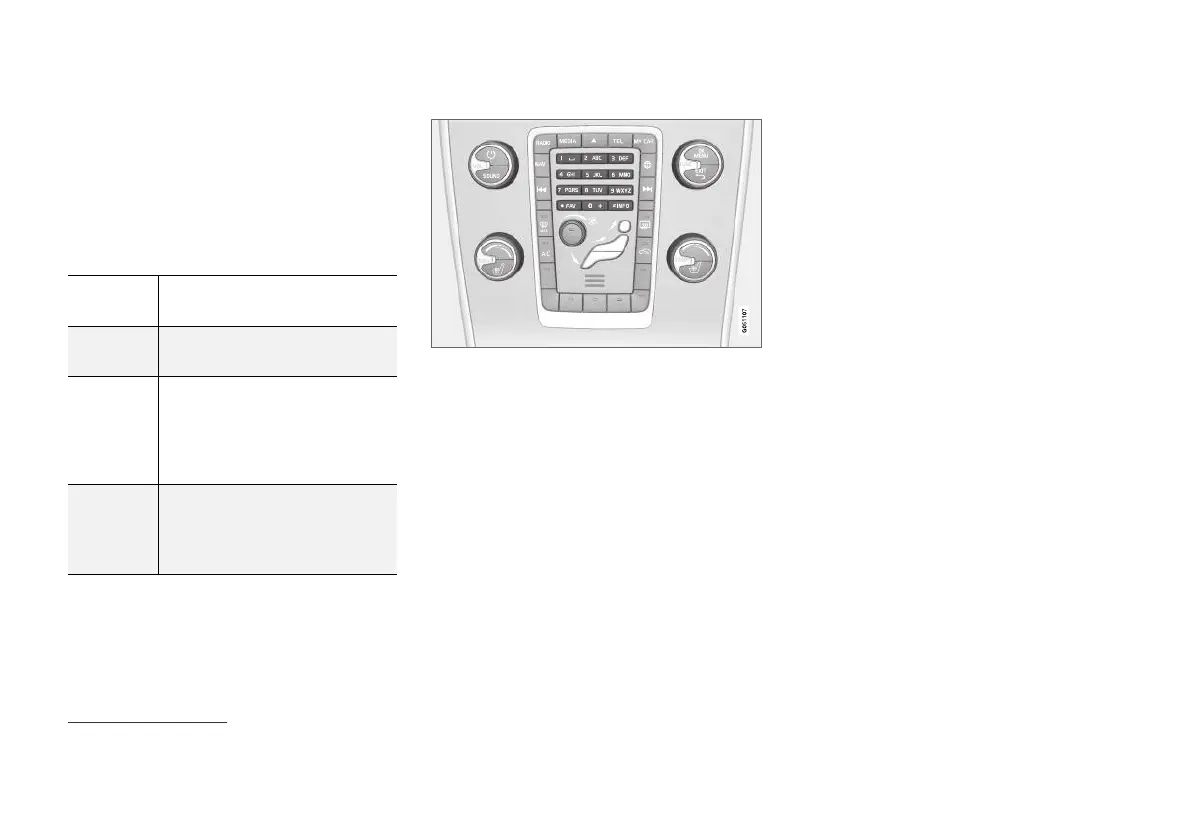
Enter with the numerical keyboard
Numerical keyboard.
Another way of entering characters is to use the
centre console's buttons 0-9, * and #.
When e.g. 9 is pressed, a bar appears with all
characters
25
under the buttons, e.g.
W, x, y, z and
9. Quick presses on the button move cursor
through these characters.
•
Stop with the cursor on the desired character
in order to select it - the character is shown
on the enter line.
•
Delete/change using EXIT.
To enter a number, hold in the corresponding
number key.
Related information
•
Audio and media - operating the system
(p. 28)
•
Bluetooth
®
handsfree phone (p. 57)
25
The character for each button may vary depending on market/country/language.



 To Next Page