03 Planning your trip
Settings
03
57
Import/Edit My POI
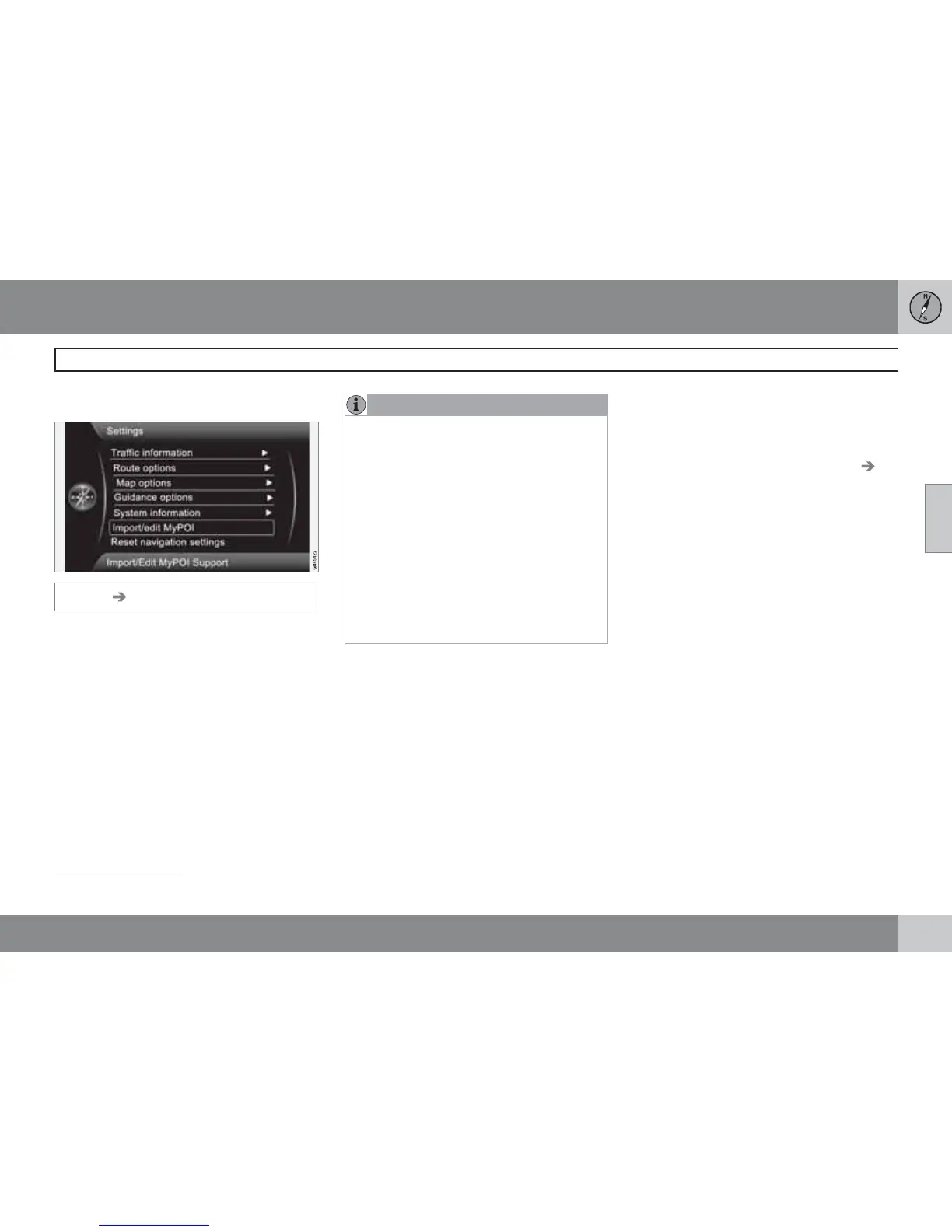
Settings Import/edit MyPOI
Many companies offer POI files on their Inter-
net pages. Using this function the user can
supplement Volvo's map database with facili-
ties from other suppliers.
NOTE
•
Adding POI files to the map database
requires a certain amount of computer
knowledge!
•
File format for POI files and how the files
are downloaded from the Internet are
determined by the respective manufac-
turer/distributor. Consequently there is
no standardised process for download-
ing the POI files from the Internet - and
for this reason this owner's manual
does not show an exact step-by-step
description.
•
If you have any questions - contact a
Volvo dealer.
In order to show the principle for how to down-
load a POI file from the Internet, a simple exam-
ple follows here with the fictitious company
"Department Store" and its stores:
1. Go to the company's page on the Internet
and search for the location with its POI file.
2. Select a POI file with the "gpx" format and
download it to the computer - if the format
is not available then the POI file must be
converted to the gpx format
5
after down-
loading.
3. Load the POI file "Department Store.gpx"
onto a USB memory stick.
4. Then insert the USB memory stick into the
car's USB port (under the tunnel console's
armrest/hatch) and locate Settings
Import/edit MyPOI in the menu system.
5.
Select
Import + OK and follow the
onscreen instructions.
When the import is complete, some settings
can be made for the new My POI group
"Department Store":
•
the name can be changed
•
the map image My POI icon can be
replaced (if an icon is included in the impor-
ted POI file it automatically becomes the
default)
•
one of 3 sounds can be selected (to get a
warning when the car approaches the My
POI icon - see page 56)
•
choose whether or not the My POI icon is
to be shown on the map.
When all selections have been made, select
Store + OK to finish, or a new POI group can
be imported/edited.
All facilities added are grouped under the
heading "My POI".
5
There are freeware conversion programs available for download from the Internet.



 To Next Page