EasyManua.ls Logo

VTech Kidizoom Smartwatch DX - User Manual

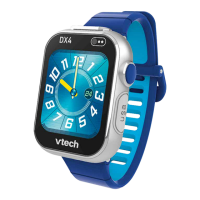
VTech Kidizoom Smartwatch DX
29 pages
Print Icon
To Next Page IconTo Next Page
Loading...
© 2015 VTech
Printed in China
91-003090-000
US
Users Manual
BC

Questions and Answers

  • K
    Kenneth MartinezAug 15, 2025
    What to do if VTech Watch has stopped working?
    • N
      Nicole StewartAug 16, 2025
      If your VTech Watch has stopped working: 1. Turn the MASTER POWER SWITCH OFF for 30 seconds. 2. Turn the MASTER POWER SWITCH ON again, and then press the HOME BUTTON to activate the watch. It should now work properly. 3. If it still doesn't work, try recharging the battery and try again.
  • D
    Derek RobertsAug 18, 2025
    What to do if I cannot connect my computer to the VTech Kidizoom Smartwatch DX Watch?
    • J
      James NealAug 18, 2025
      If you cannot connect your computer to the VTech Watch: * Check the USB cable connections between the watch and the computer, and review the connection procedures in this manual. * Turn the MASTER POWER SWITCH OFF for 30 seconds. * Turn the MASTER POWER SWITCH ON and connect to the computer again.
  • G
    Gregory WilsonAug 21, 2025
    What to do if VTech Kidizoom Smartwatch DX cannot connect to computer?
    • C
      cchungAug 21, 2025
      If your VTech Watch isn't connecting to the computer, first, check the USB cable connections between the watch and the computer. Then, turn the watch off by holding the master power switch off for 30 seconds. Turn the master power switch on again and reconnect to the computer.
  • A
    ashleehartAug 25, 2025
    What to do if my VTech Watch has stopped working?
    • J
      Joel RileyAug 26, 2025
      If your VTech Watch has stopped working, try the following steps: 1. Turn the master power switch off for 30 seconds. 2. Turn the master power switch on again, and then press the HOME BUTTON to turn it on. 3. If it still doesn't work, try recharging the battery and try again.
  • M
    Michelle ReidAug 27, 2025
    How to fix abnormal screen display on VTech Watch?
    • M
      Melinda KentAug 27, 2025
      If the screen display on your VTech Watch is abnormal, turn the master power switch off for 30 seconds. Then, turn the master power switch on again and press the HOME BUTTON to turn it on. This should restore the screen display to normal.
  • M
    Mark BairdAug 30, 2025
    How to fix VTech Watch when the screen display is abnormal?
    • G
      Gary GuzmanAug 30, 2025
      If the screen display on your VTech Watch is abnormal: 1. Turn the MASTER POWER SWITCH OFF for 30 seconds. 2. Turn the MASTER POWER SWITCH ON again, and then press the HOME BUTTON to activate the watch. The screen display should be normal again.
  • M
    Mr. Jacob WoodsSep 3, 2025
    Why is the image not clear on my VTech Watch?
    • P
      Patricia GrantSep 3, 2025
      If the image on your VTech Watch is not clear: 1. Make sure the lighting conditions of the shooting environment are good. 2. Check to see if the camera lens is clean. If you find some dirt on it, please see the steps to clean the lens in Care and Maintenance.
  • S
    Scott JacobsSep 5, 2025
    What to do if I can’t view the added video or photo files on my VTech Watch?
    • E
      ethomasSep 6, 2025
      If you can’t view the added video or photo files on your VTech Watch, check if the downloaded files are in the correct directory in the Kidizoom® Smartwatch DX. When connected to a computer, photos should be put in the DOWNLOAD/PHOTO folder, and videos should be put in the DOWNLOAD/VIDEO folder. Kidizoom® Smartwatch DX only supports the below formats: Photos in Standard Baseline JPEG and Videos in AVI (Motion JPEG) created by Kidizoom® Smartwatch DX.
  • D
    Debbie MartinezSep 9, 2025
    Why are the images taken with my VTech Kidizoom Smartwatch DX Watch not clear?
    • M
      Miguel YoungSep 9, 2025
      If the images taken with your VTech Watch are not clear, ensure the lighting conditions of the shooting environment are good. Also, check if the camera lens is clean. If there's dust or dirt, clean the lens.
  • S
    Shannon CarrSep 12, 2025
    What to do if I can’t view downloaded video or photo files on my VTech Kidizoom Smartwatch DX Watch?
    • R
      rioskyleSep 12, 2025
      If you can’t view the downloaded video or photo files on your VTech Watch, check if the files are in the correct directory. Photos should be in the DOWNLOAD/PHOTO folder, and videos should be in the DOWNLOAD/VIDEO folder. Also, ensure that your VTech Watch supports the file formats: Standard Baseline JPEG for photos and AVI (Motion JPEG) for videos created by the watch.

Summary

Introduction

Product Features and Layout

Identifies and labels the main physical components and buttons of the Kidizoom Smartwatch DX.

Package Contents

Product Specifications

Getting Started Guide

Battery Recharging

Battery Life Information

Battery Maintenance and Safety

Watch Operation Basics

Automatic Screen Off

Explains how the screen automatically turns off to save battery life and its settings.

Battery Status Monitoring

Describes how to check the remaining battery capacity on the main menu screen.

Connecting to a Computer

System Requirements for Connection

Watch Activities Overview

Clock Display Features

Explains how to view and interact with different clock faces on the watch.

Activity: Camera

Activity: Video Recording

Activity: Voice Recorder

Activity: Playback

Activity: Games

Activity: Discoveries Games

Activity: Action Challenge

Activity: Pedometer

Activity: Alarm Settings

Activity: Time Master

Activity: Stopwatch

Activity: Timer and Calculator

Activity: Calendar

How to navigate and view dates using the calendar feature.

Activity: Downloads

Explains how to download content via VTech's Learning Lodge®.

Settings Menu

Advanced Settings

Access to advanced settings like Memory, Image Display, Video Resolution, Auto Screen Off, and Indoor Light Frequency.

General Settings Adjustments

Volume and Brightness Control

How to adjust the audio volume and LCD screen brightness levels.

Date, Time, and Wallpaper Customization

Instructions for setting date/time and choosing home menu wallpapers.

Clock Face and Wake Up Features

How to enable/disable 3D clock faces and the Smart Wake Up feature.

Advanced Settings Details

Memory and Image Settings

Covers managing memory and adjusting image display aspect ratios.

Video and Screen Off Settings

Details video resolution options and the Auto Screen Off timer functionality.

Parental Control and Factory Reset

Care, Maintenance, and Warnings

Troubleshooting Common Issues

Technical Support and FAQs

Frequently Asked Questions (Part 2)

Picture and Video Quality

Addresses common concerns about grainy, fuzzy pictures and videos.

File Deletion and Recovery

Explains how to delete pictures and the possibility of recovery after formatting.

Frequently Asked Questions (Part 3)

Picture Transfer Process

Details how to transfer pictures to a computer and save them.

Battery Disposal Caution

Disclaimer and Liability

Important Regulatory Notes

Product Warranty Information

VTech Kidizoom Smartwatch DX Specifications

General IconGeneral
Batteries requiredYes
Battery technologyLithium
Number of batteries supported1
Package depth127 mm
Package width87 mm
Package height279 mm
Package weight410 g
Recommended age (max)13 yr(s)
Recommended age (min)5 yr(s)
Rear camera resolution (numeric)0.3 MP
Product typeChildren's multifunctional gadget
Product colorBlue
Display diagonal1.44 \
Display resolution640 x 480 pixels

Related product manuals