EasyManua.ls Logo

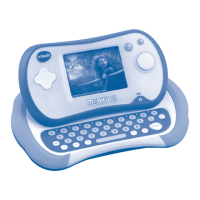
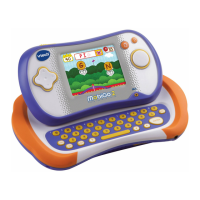
VTech MobiGo 2 Touch Learning System - User Manual

VTech MobiGo 2 Touch Learning System
23 pages
Print Icon
To Next Page IconTo Next Page
Loading...
User’s ManualUser’s ManualUser’s ManualUser’s Manual
135800 MobiGo2 M 20120510.indd 1 2012-5-30 10:17:10

Questions and Answers

  • B
    benjamin51Aug 14, 2025
    What to do if there is no LCD display after pressing ON button on VTech MobiGo 2 Touch Learning System Toy?
    • D
      dbradleyAug 14, 2025
      If there is no LCD display after pressing the ON button, it could be due to several reasons: * The battery power might be low, so try replacing the batteries. * The batteries might not be completely installed, so ensure batteries are installed in both battery compartments. * There might be no AC adapter power. In that case, securely connect the AC adapter or car adapter to both the VTech toy and the power outlet.
  • B
    Barbara TurnerAug 17, 2025
    How to fix no sound on VTech Toy but the LCD display works?
    • D
      darren45Aug 17, 2025
      If the LCD display is working but there's no sound, try the following: * First, adjust the volume control. * If headphones are connected, unplug them from the headphone jack.
  • B
    Brittany TaylorAug 20, 2025
    What to do if nothing happens when VTech MobiGo®2 Toy is connected to the computer?
    • G
      garciakennethAug 20, 2025
      If nothing happens when the VTech MobiGo®2 is connected to the computer: * Ensure that the USB cable is securely connected to both the MobiGo® 2 and the computer. * If the USB is connected to the computer through a USB hub, directly connect the MobiGo® 2 to the computer.
  • A
    adam67Aug 25, 2025
    Why does the LCD display turn ON and OFF immediately on my VTech MobiGo 2 Touch Learning System Toy?
    • B
      Bianca WatkinsAug 25, 2025
      If the LCD display turns ON and OFF immediately, there are a couple of potential causes: * The battery power may be low, so replace the batteries. * The cartridge may not be inserted firmly enough, so ensure the cartridge is firmly inserted.
  • A
    Amy FosterAug 27, 2025
    What to do if there is no picture (or incorrect picture) on LCD, and pressing the OFF button has no effect on VTech MobiGo 2 Touch Learning System?
    • L
      Leslie PerezAug 27, 2025
      If there's no picture (or an incorrect picture) on the LCD, and pressing the OFF button has no effect: * The program may need to be reset. Disconnect all power supplies (batteries and adapter), then reconnect all power supplies. * Unplug the cartridge and check it for dirt. Clean the cartridge and then reinsert it.
  • M
    Mrs. Rebecca JacksonAug 30, 2025
    Why is the cartridge icon grey on my VTech Toy when a cartridge is inserted?
    • J
      Jacob CarpenterAug 30, 2025
      If there's a cartridge inserted, but the cartridge icon is grey, it may be due to a poor game cartridge connection. Unplug the cartridge and check if there’s any dirt on it. Clean it, reinsert the cartridge, and then press the ON button.
  • C
    Chad CollierSep 3, 2025
    How to fix a VTech MobiGo 2 Touch Learning System touch screen that is not responding properly?
    • D
      Daniel RiveraSep 3, 2025
      If the touch screen is not responding properly, the screen calibration may be off. Recalibrate the touch screen. See page 10 of the manual for details.
  • E
    Erika MaddoxSep 6, 2025
    Why contents cannot be saved on VTech Toy?
    • K
      Kayla HallSep 6, 2025
      If contents cannot be saved, it might be because the battery power is low. Replace the batteries.
  • Z
    zabbottSep 10, 2025
    Why tag cannot be edited on VTech MobiGo 2 Touch Learning System Toy?
    • H
      harringtonkevinSep 10, 2025
      If a tag cannot be edited, it may be because the battery power is low. Replace the batteries.

Summary

MobiGo 2 Product Features

Ports, Power, and Accessories

Explains the function of ports, battery compartments, AC adapter jack, and accessories like the stylus holder and wrist strap fastener.

Getting Started with MobiGo 2

Battery Installation Guide

Step-by-step instructions for correctly installing batteries into the MobiGo 2 device.

AC Adaptor Connection

Instructions on how to connect and use the AC adaptor for powering the MobiGo 2.

Inserting Game Cartridges

Instructions on how to properly insert and remove MobiGo 2 game cartridges.

Using Your MobiGo 2

Motion Sensor Controls

How to use the built-in motion sensor for interactive gameplay and controls.

Parent Settings and Options

Covers parent settings, screen calibration, progress log reset, and data protection features.

Connecting MobiGo 2 to Computer

Installing Learning Lodge Navigator

Step-by-step guide to install the necessary software for managing content.

Computer Requirements for MobiGo 2

PC System Specifications

Required hardware and software specifications for PC users to connect the MobiGo 2.

Macintosh System Specifications

Required hardware and software specifications for Macintosh users to connect the MobiGo 2.

MobiGo 2 Care and Maintenance

Troubleshooting Common Issues

A guide to identify and resolve common problems with the MobiGo 2 display and sound.

Troubleshooting Solutions

Provides solutions for issues like no display, frozen screen, or connection problems.

Technical Support Contact

Information on how to contact VTech's Consumer Services for assistance.

VTech MobiGo 2 Touch Learning System Specifications

General IconGeneral
TypeTouch Learning System
Age Range3-8 years
ScreenColor Touchscreen
ConnectivityUSB
Power4 AA batteries
Item Weight1.5 pounds
Batteries IncludedYes
Educational FocusMath, Reading, and Problem Solving
Compatible CartridgesMobiGo cartridges
Games AvailableVarious educational and fun games
Learning LevelsMultiple levels of difficulty
CategoryEducational Toy
FeaturesInteractive learning games

Related product manuals