EasyManua.ls Logo

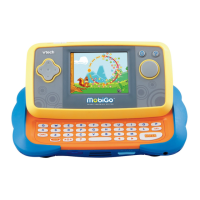
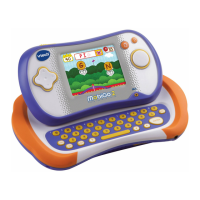
VTech MobiGo - User Manual

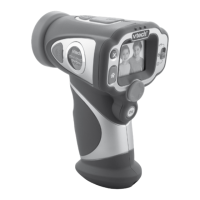
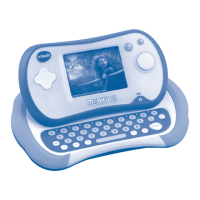
VTech MobiGo
19 pages
Print Icon
To Next Page IconTo Next Page
Loading...
User’s ManualUser’s Manual
®

Questions and Answers

  • E
    edwardswilliamJul 29, 2025
    What to do if nothing happens when VTech MobiGo is connected to the computer?
    • C
      Cory BowersJul 30, 2025
      If your VTech Toy is connected to the computer and nothing happens, ensure the USB cable is securely connected to both the MobiGo[®] and the computer. Also, if the USB is connected through a USB hub, try directly connecting the MobiGo[®] to the computer.
  • W
    wespinozaAug 3, 2025
    How to fix VTech Toy when LCD display works but there's no sound?
    • R
      Ryan PerryAug 3, 2025
      If your VTech Toy's LCD display works but there's no sound, first, adjust the volume control. If that doesn't work, unplug any headphones from the headphone jack.
  • H
    Hannah FreemanAug 7, 2025
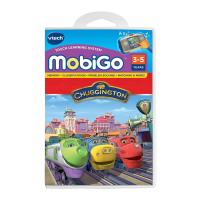
    What to do if my VTech MobiGo Toy says 'Please insert a cartridge'?
    • M
      Michael OrtizAug 7, 2025
      If your VTech Toy shows the message “Please insert a cartridge” even when a cartridge is inserted, unplug the cartridge and check it for dirt. Clean the cartridge, reinsert it, and then press the ON button.
  • Z
    zhangfrederickAug 11, 2025
    Why is there no LCD display on my VTech Toy after pressing ON button?
    • J
      Jeffery FowlerAug 12, 2025
      If there is no LCD display after pressing the ON button on your VTech Toy, replace the batteries. Also, make sure batteries are installed in both battery compartments.
  • M
    Michael HowellAug 16, 2025
    What to do if LCD display turns ON and OFF immediately on VTech MobiGo Toy?
    • K
      Kristin YoungAug 16, 2025
      If the LCD display on your VTech Toy turns ON and OFF immediately, the battery power may be low, so try replacing the batteries. Also, ensure the cartridge is firmly inserted.
  • S
    Stacy SchroederAug 20, 2025
    What to do if there is no picture on VTech Toy's LCD?
    • K
      knightdeniseAug 20, 2025
      If there's no picture (or an incorrect picture) on the LCD of your VTech Toy, and the OFF button doesn't work, disconnect all power supplies (batteries and adaptor), then reconnect them to reset the program. Unplug the cartridge and check if there’s any dirt on it. Clean it, then reinsert the cartridge. Press the ON Button.
  • P
    pfreemanAug 25, 2025
    How to fix VTech Toy when there is no AC adaptor power?
    • R
      rogerespinozaAug 25, 2025
      To address the 'No AC adaptor power' issue with your VTech Toy, securely connect the AC adaptor or car adaptor to both the MobiGo[®] and the power outlet.

Summary

MobiGo Product Features

Battery Installation and Care

Battery Installation Guide

Step-by-step guide for correctly installing AA batteries into the unit.

Battery Usage Notice

Important safety and usage guidelines for batteries, including rechargeable types.

AC Adaptor Usage

AC Adaptor Connection

Information on using a standard 7.5V or 9V AC/DC adaptor with the MobiGo®.

Getting Started with MobiGo

Cartridge Insertion and Handling

Guide to inserting game cartridges and important handling precautions.

Touch Screen Operation

Explains basic touch screen gestures like Tap, Drag, Spin, and Flick.

Connecting to the Computer

Steps to connect the MobiGo® to a computer for software installation and downloads.

System Requirements

Lists PC and Macintosh hardware and software specifications for connection.

Care and Maintenance

Cleaning and Storage Guidelines

Guidelines for cleaning, storing, and maintaining the MobiGo® unit.

Troubleshooting Common Issues

Problem Resolution Guide

Common problems and their solutions for LCD display, sound, and cartridge issues.

Technical Support Information

VTech MobiGo Specifications

General IconGeneral
CategoryToy
ManufacturerVTech
ModelMobiGo
Recommended Age Range3-8 years
DisplayColor LCD
Screen Size3.5 inches
Touch ScreenYes
QWERTY KeyboardYes
ConnectivityUSB
Preloaded GamesYes
Cartridge SlotYes
USB PortYes
Headphone JackYes
Volume ControlYes
Power4 AA batteries

Related product manuals