12
Connecting to the ComputerConnecting to the Computer
Connect MobiGo
®
2 to the internet to download
new content and follow your child’s learning
progress online.
NOTE: When not using the USB cable, please ensure that the USB port cover
is properly closed.
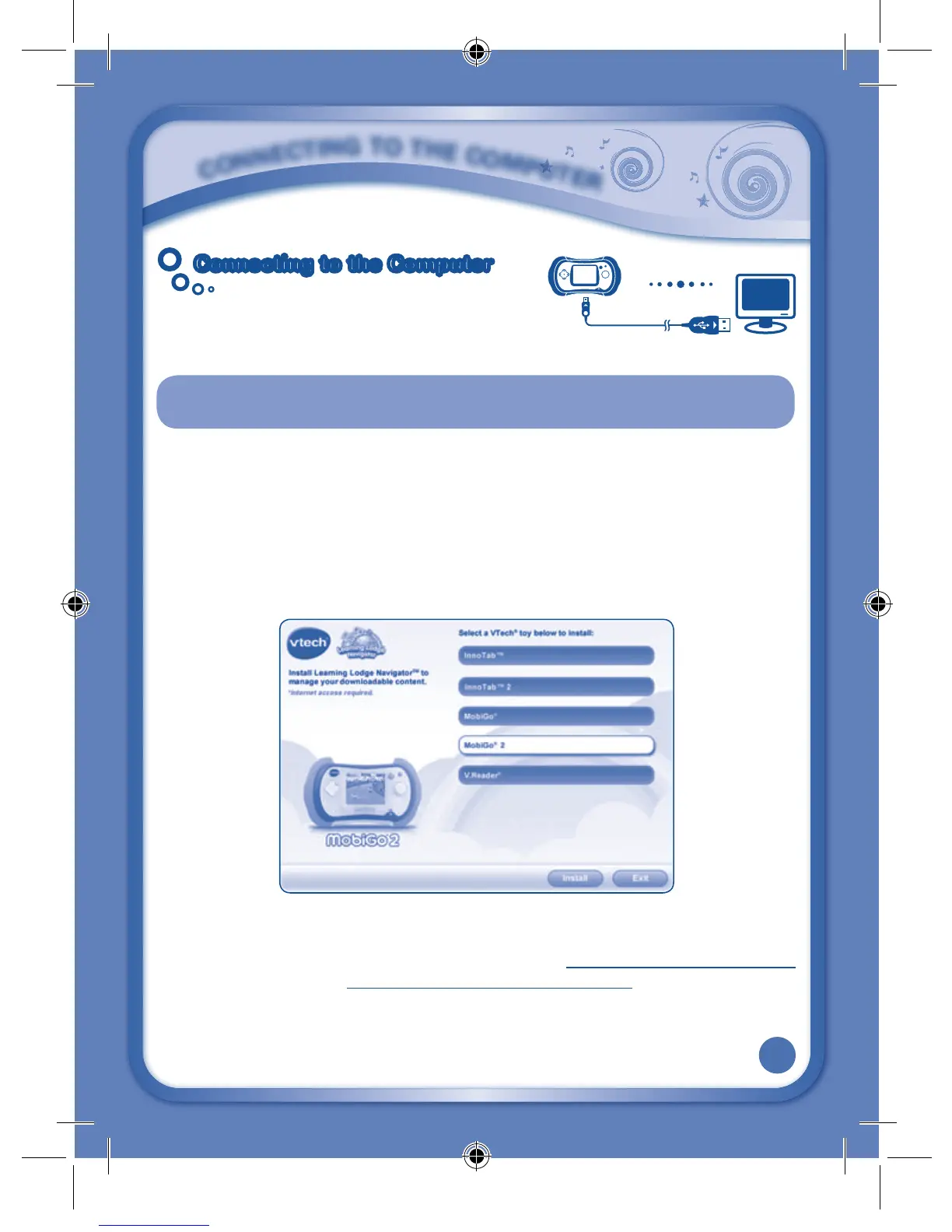
InstallLearningLodgeNavigator
TM
tomanageyourdownloadablecontent.
• InserttheLearningLodgeNavigator
TM
InstallationCDintoyourcomputer’sCD-ROM
drive.
• Waitfortheinstallationscreentocomeup.Iftheinstallationscreendoesnotcome
upautomatically,doubleclickon“MyComputer”andthendoubleclickonyour
CD-ROMdriveicon.
• SelectMobiGo
®
2ontheinstallationscreen.
• Click“Install”tobegininstallation.
• Followtheon-screenpromptstoinstallLearningLodgeNavigator
TM
.
NOTE: TheinstallationprogramfortheMobiGo
®
2version ofLearningLodge
Navigator
TM
canbealsodownloadedfromwww.vtechkids.com/download
fortheUSorwww.vtechcanada.com/toysdownloadforCanada.
• Once the setup process is complete, connect the MobiGo
®
2 to the computer
using the USB cable provided.
C
O
N
N
E
C
T
I
N
G
T
O
T
H
E
C
O
M
P
U
T
E
R
135800 MobiGo2 M 20120510.indd 12 2012-5-30 10:17:14




 To Next Page