7
Screen Cleaning Procedure
If your MobiGo
®
2 screen gets dirty, wipe it gently with a soft cloth.
1.Dampentheclothwithalittlewaterandwipeoffthescreen.
2. Wipe the screen again with a dry cloth to dry it.
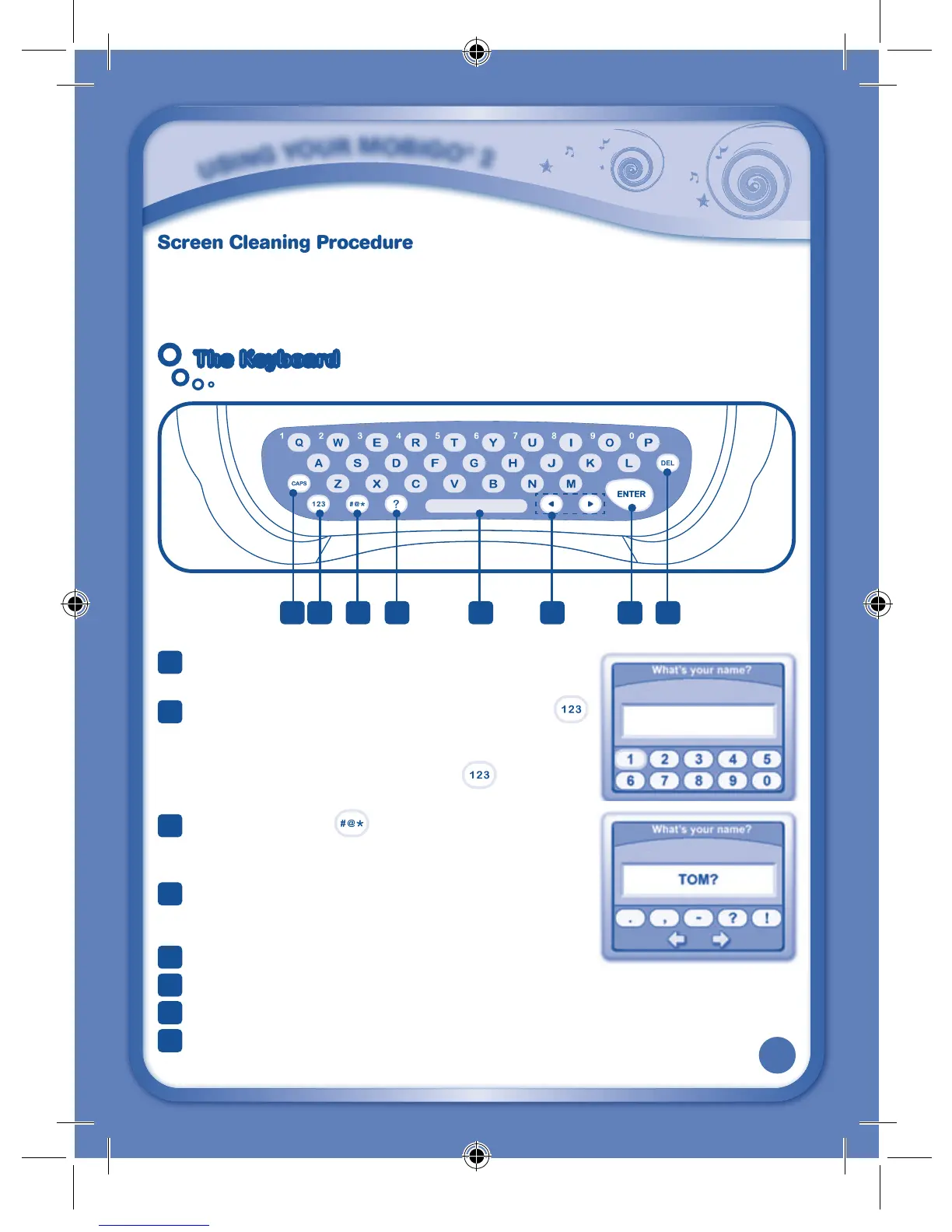
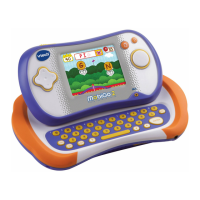
The KeyboardThe Keyboard
1
Caps Lock Key - Press this key to change between
uppercase and lowercase letters.
2
Number Lock Key - To type in a number, first press
to activate number lock. Then, use the keys in the top
row of the keyboard, or tap the numbers in the onscreen
number pad, to enter a number. Press
again to turn
off number lock.
3
Symbol Key - Press to open the onscreen symbol
list. Touch the arrows to scroll through the symbols.
Then touch a symbol to select it.
4
Help Key - Press this key if you need help in a game.
OrpresstheHelpButton(locatedtotherightofthe
touch screen).
5
Space Bar - Press this key to add a blank space.
6
Left & Right Keys - Press these keys to move the cursor left or right.
7
Enter Key - Press this key to confirm a selection.
8
Delete Key - Press this key to erase a character, or to backspace.
1 3 4 5 6
7 8
2
U
S
I
N
G
Y
O
U
R
M
O
B
I
G
O
®
2
135800 MobiGo2 M 20120510.indd 7 2012-5-30 10:17:13





 To Next Page